
how to fix no sound on windows pc starts with one unglamorous truth, Windows audio problems are usually about the wrong output, muted volume, or a driver that quietly broke after an update.
If you want a quick win, your goal is to figure out where the audio stops, the app, Windows mixer, playback device, driver, or the physical hardware. Once you know that, most fixes take minutes, not hours.
One more thing before you start, “no sound” can mean different symptoms, no audio from speakers, Bluetooth headphones connected but silent, microphone works but speakers do not, or sound works in one app only. This guide helps you separate those cases quickly.
Start with the 60-second checks (you’ll be surprised)
Before you touch drivers or reinstall anything, do the basics that fix a large chunk of “sudden silence” cases.
- Check physical controls: laptop mute key, headset inline volume wheel, monitor speakers volume, external DAC/amp knob.
- Confirm Windows volume: click the speaker icon, make sure it’s not muted and volume is above 10.
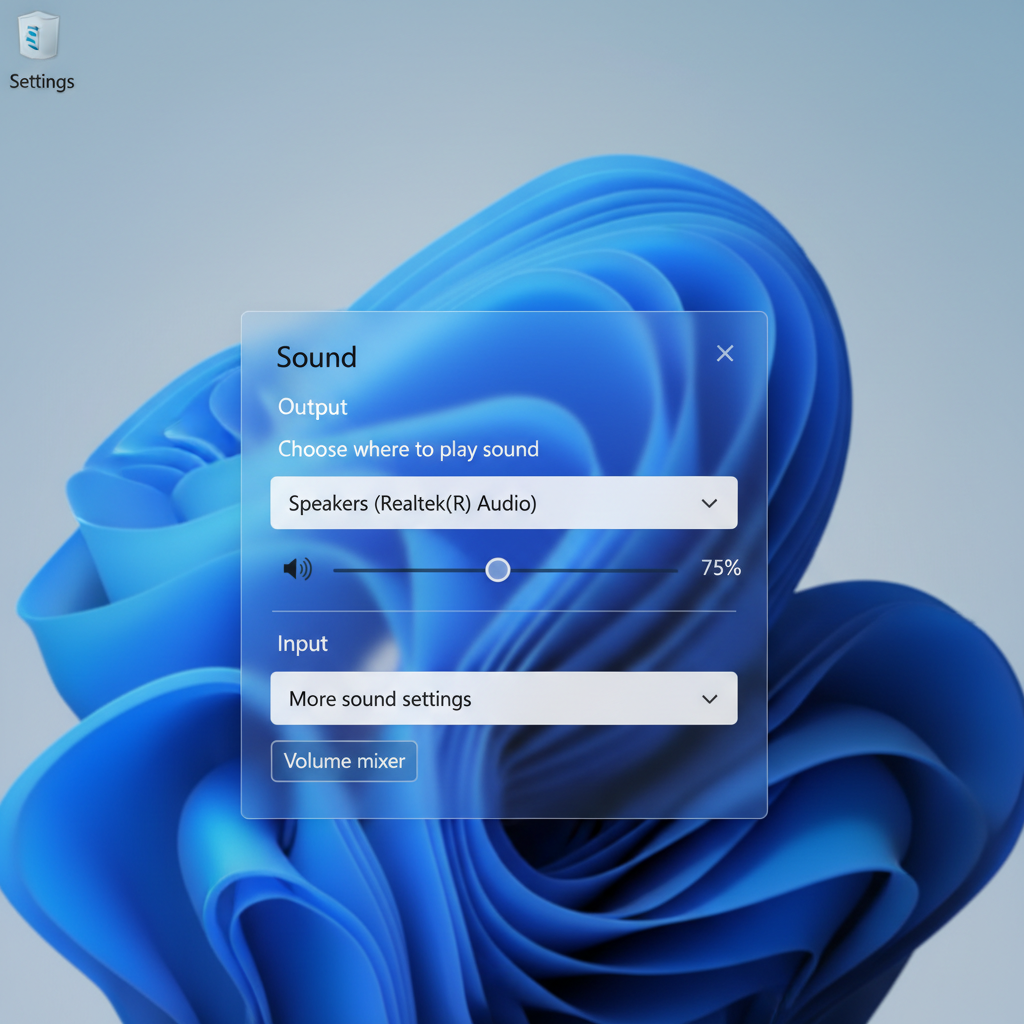
- Check per-app volume: Settings > System > Sound > Volume mixer, ensure your app is not set to 0.
- Try a different audio source: play a YouTube video and also a local file, some sites/apps can be muted independently.
- Reboot once: it sounds basic, but it resets stuck audio services and exclusive mode locks.
Key point: if Bluetooth “connects” but stays silent, it’s often the wrong output device or the headset connected in a call profile, not a broken speaker.
Make sure Windows is sending sound to the right device
Wrong output routing is the most common real-world cause, especially if you’ve used AirPods, HDMI monitors, USB headsets, docks, or virtual meeting tools.
Pick the correct output device
- Go to Settings > System > Sound.
- Under Output, choose the device you actually want (Speakers, Headphones, HDMI, USB Audio).
- Click Test to force a system sound.
Disconnect “greedy” devices
Unplug docks, HDMI cables, USB headsets, and disable Bluetooth for a moment. If sound returns, you’ve found a routing conflict, then reconnect devices one by one and set your preferred default device.
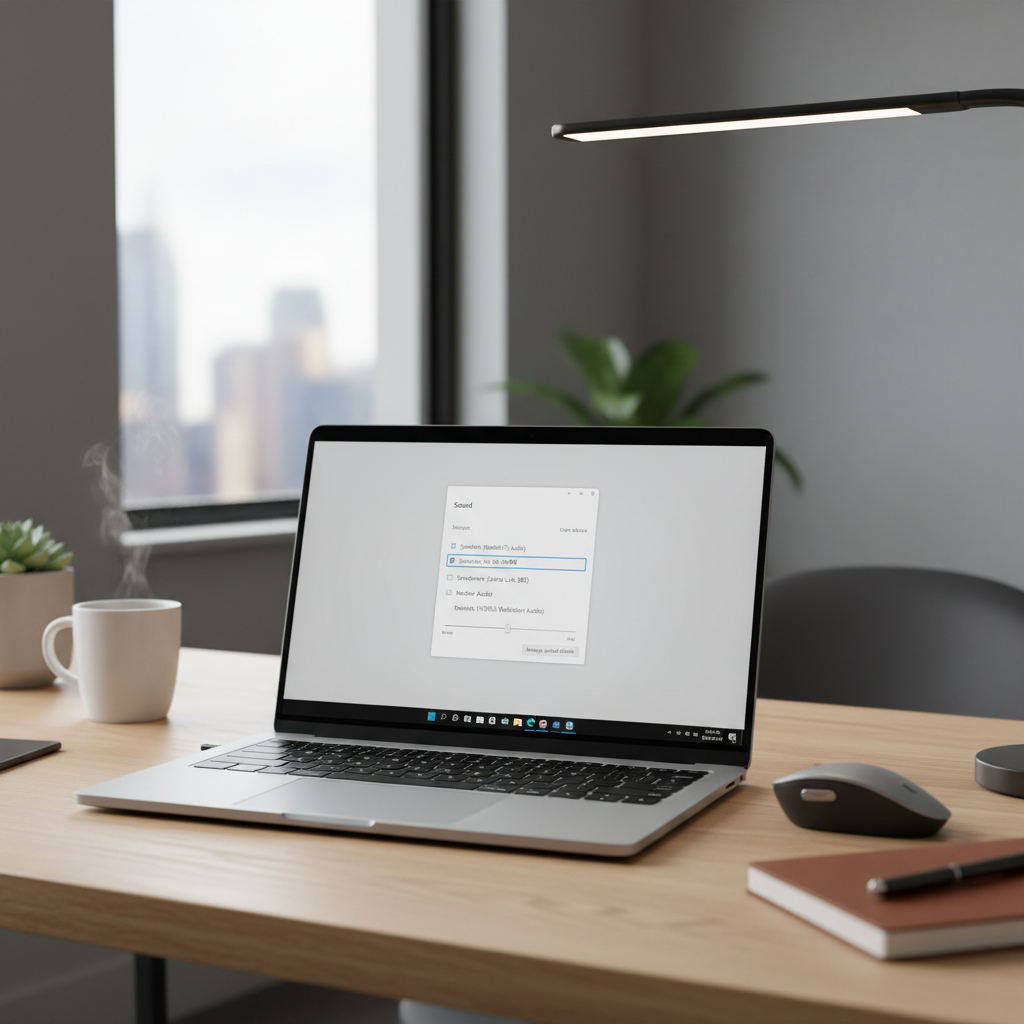
Set the default device (and default communications device)
Some apps use the “communications” device, not your normal default.
- Open Control Panel > Sound > Playback.
- Right-click your speakers/headphones > Set as Default Device.
- Right-click again > Set as Default Communication Device (useful for headsets).
Run Windows audio troubleshooters and reset audio services
When you need a safe “do no harm” step, the built-in tools can spot misconfigurations and restart components.
According to Microsoft Support, Windows includes an audio troubleshooter that can automatically find and fix common sound problems. In Windows 11 you can reach it via Settings > System > Troubleshoot > Other troubleshooters and run Playing Audio.
Restart the audio services (quick and reversible)
- Press Win + R, type services.msc, press Enter.
- Restart Windows Audio and Windows Audio Endpoint Builder.
If you’re trying to figure out how to fix no sound on windows pc after a long sleep/hibernate cycle, this step often helps because audio endpoints can fail to reinitialize.
Driver and update fixes (when sound broke after changes)
If audio worked yesterday and stopped after Windows Update, a new driver, or a vendor utility update, focus here. Drivers are boring until they’re not.
Check Device Manager for obvious issues
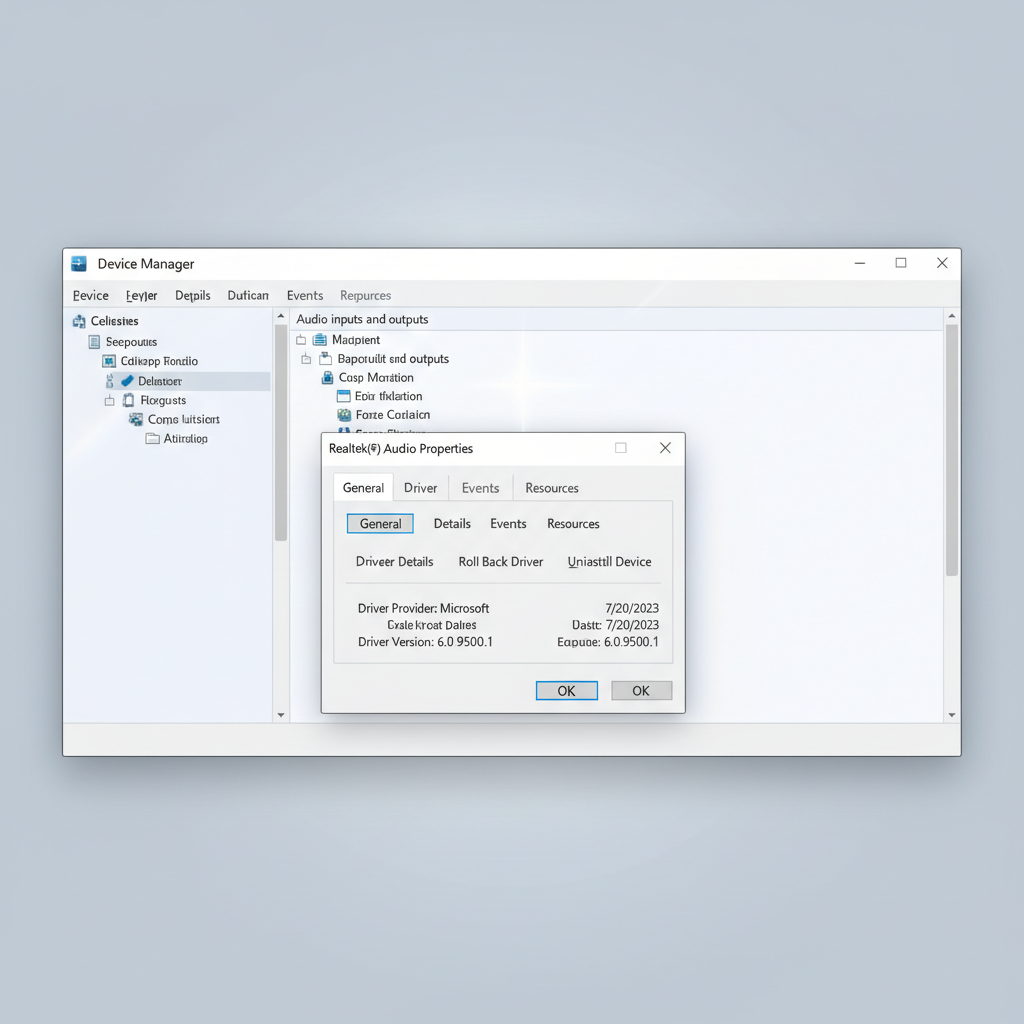
- Right-click Start > Device Manager.
- Expand Sound, video and game controllers and Audio inputs and outputs.
- Look for warning icons, then try Update driver.
Roll back the audio driver (if the issue is new)
- Device Manager > your audio device > Properties > Driver.
- Select Roll Back Driver if available.
Reinstall the audio driver cleanly
This sounds aggressive, but it’s a standard fix when drivers get corrupted.
- Device Manager > audio device > Uninstall device.
- Check Attempt to remove the driver only if you already have a known-good installer from the PC maker.
- Reboot, then install the vendor driver (Realtek/Intel/AMD audio package) from your PC manufacturer support page.
Practical note: for laptops and prebuilt PCs, manufacturer drivers tend to behave better than generic ones because they bundle enhancements and correct device IDs.
Fix “sound works in one app but not another” (mixer, permissions, exclusive mode)
This is the scenario that makes people doubt their sanity. The system plays notification sounds, but Chrome is silent, or Spotify works but Zoom does not.
Check app output routing
Some apps let you choose an output device internally (Zoom, Teams, DAWs). Make sure it matches Windows Sound output.
Reset Volume Mixer for the specific app
- Settings > System > Sound > Volume mixer.
- Confirm the app is not muted and is assigned to the correct output device.
Disable Exclusive Mode (common for DACs and “pro” audio devices)
- Control Panel > Sound > Playback > your device > Properties.
- Go to Advanced.
- Uncheck Allow applications to take exclusive control.
Exclusive mode can be useful for certain audio workflows, but in many everyday setups it causes “one app steals the device” behavior.
Use this quick diagnosis table (symptom → likely cause → first fix)
If you’re still deciding how to fix no sound on windows pc, this table helps you stop guessing and pick the next step based on what you see.
| Symptom | Likely cause | First fix to try |
|---|---|---|
| No sound anywhere, volume looks normal | Wrong output device or driver/service issue | Select correct Output, run Playing Audio troubleshooter, restart Windows Audio service |
| Sound via headphones, not via speakers | Default device set to headset, speaker device disabled, hardware issue | Set speakers as default, check Playback devices, test with another speaker |
| Bluetooth connected but silent | Wrong profile/output, muted headset, distance/interference | Choose Bluetooth device as Output, reconnect, remove and pair again |
| HDMI monitor shows as output, but monitor has no speakers | Windows routing to HDMI | Switch Output back to Speakers/Headphones |
| Only one app has no audio | Per-app mixer mute, in-app output set wrong, exclusive mode | Check Volume mixer, check app audio settings, disable Exclusive Mode |
| Sound stopped after Windows Update | Driver update conflict | Roll back driver or install manufacturer driver package |
Common mistakes that waste time (and what to do instead)
- Installing random driver “updaters”: they can introduce the wrong driver. Prefer Windows Update or your PC maker’s support page.
- Chasing enhancements first: spatial audio, equalizers, OEM effects can break things, but fix routing and drivers before toggling effects.
- Ignoring the monitor/dock chain: USB-C docks and HDMI audio often hijack output. Temporarily simplify the setup to isolate the culprit.
- Confusing input with output: microphone settings won’t restore speaker audio. Keep the troubleshooting lane clear.
Key takeaway: if you change three things at once, you can’t tell what fixed it. Make one change, test, then move on.
When to get professional help (or suspect hardware)
At a certain point, repeating software steps just burns energy. Consider escalation if any of these are true.
- Device Manager shows repeated errors and reinstalls don’t stick.
- Your speakers/headphone jack has crackling, cuts out with movement, or only works at a certain angle, that can indicate a physical connection issue.
- Audio fails even in BIOS diagnostics or a bootable environment, which suggests hardware may be involved.
- This is a work-managed PC with security policies, you might need IT to install approved drivers.
If you suspect electrical damage, overheating, or you see swelling/burning smells around devices, stop using the equipment and consult a qualified technician.
Practical step-by-step “do this next” checklist
- Minute 1: confirm not muted, check Volume mixer, reboot.
- Minute 2–5: Settings > Sound, pick correct Output, press Test.
- Minute 5–10: run Playing Audio troubleshooter, restart Windows Audio services.
- Minute 10–20: roll back or reinstall the audio driver from the PC manufacturer.
- After 20 minutes: isolate hardware by trying a different headset/speaker or different port, then consider pro help.
Conclusion
Most no-audio situations come down to routing, per-app volume, or a driver that needs a reset, and that’s good news because the fix rarely requires a full reinstall. If you’re still working through how to fix no sound on windows pc, focus on identifying the first point where audio disappears, then apply one targeted change at a time.
Action idea, pick one test you trust, the Windows “Test” button in Sound settings, then don’t move on until that test works. Once system audio returns, app-level issues become much easier to solve.
FAQ
- Why does my Windows 11 PC show volume moving but I hear nothing?
That usually means audio is playing but routed to the wrong output device, like HDMI or a USB headset that isn’t actually on your ears. Re-check Settings > Sound > Output and run the Test button. - How do I fix no sound on Windows PC after a Windows Update?
Try rolling back the audio driver in Device Manager, then install the latest vendor driver from your PC manufacturer. Updates can swap in a driver that’s compatible on paper but unstable on your exact hardware. - My Bluetooth headphones connect but have no audio, what should I do?
Confirm the headphones are selected as the Output device, then disconnect and reconnect. If it persists, remove the device from Bluetooth settings and pair again, this often clears profile confusion. - Why does sound work in Chrome but not in Zoom (or the other way around)?
Zoom and similar apps can override output selection inside the app. Check both the in-app speaker setting and the Windows Volume mixer assignment for that app. - Is reinstalling Realtek audio drivers safe?
In many cases it’s safe if you use the official driver from your PC maker, and you reboot after uninstalling. Avoid third-party driver tools since they may install mismatched packages. - Should I disable audio enhancements to restore sound?
It can help in some setups, but it’s not the first move. Do output selection and basic driver/service checks first, then experiment with enhancements if sound is distorted or inconsistent. - How do I know if this is a hardware problem?
If multiple speakers/headsets fail, different ports don’t help, and issues show up outside Windows troubleshooting, hardware becomes more likely. When in doubt, a technician can test the audio codec and ports quickly.
If you’re trying to fix audio fast for a meeting or a deadline, it can be easier to walk through your exact setup step-by-step, especially with docks, USB interfaces, or multiple monitors involved. If you want, share what device you’re outputting to (speakers, HDMI, Bluetooth, USB headset) and what changed right before the issue, and you can narrow the fix without random trial-and-error.