
phone data usage monitor is one of those tools you only remember after a surprise bill, a sudden slowdown, or a “why did my hotspot stop working” moment.
If you’re on a limited plan, share data with family, or rely on mobile data for work, tracking usage stops being a nice-to-have and becomes basic hygiene. The good news is you usually don’t need extra apps or complicated settings to get reliable numbers.
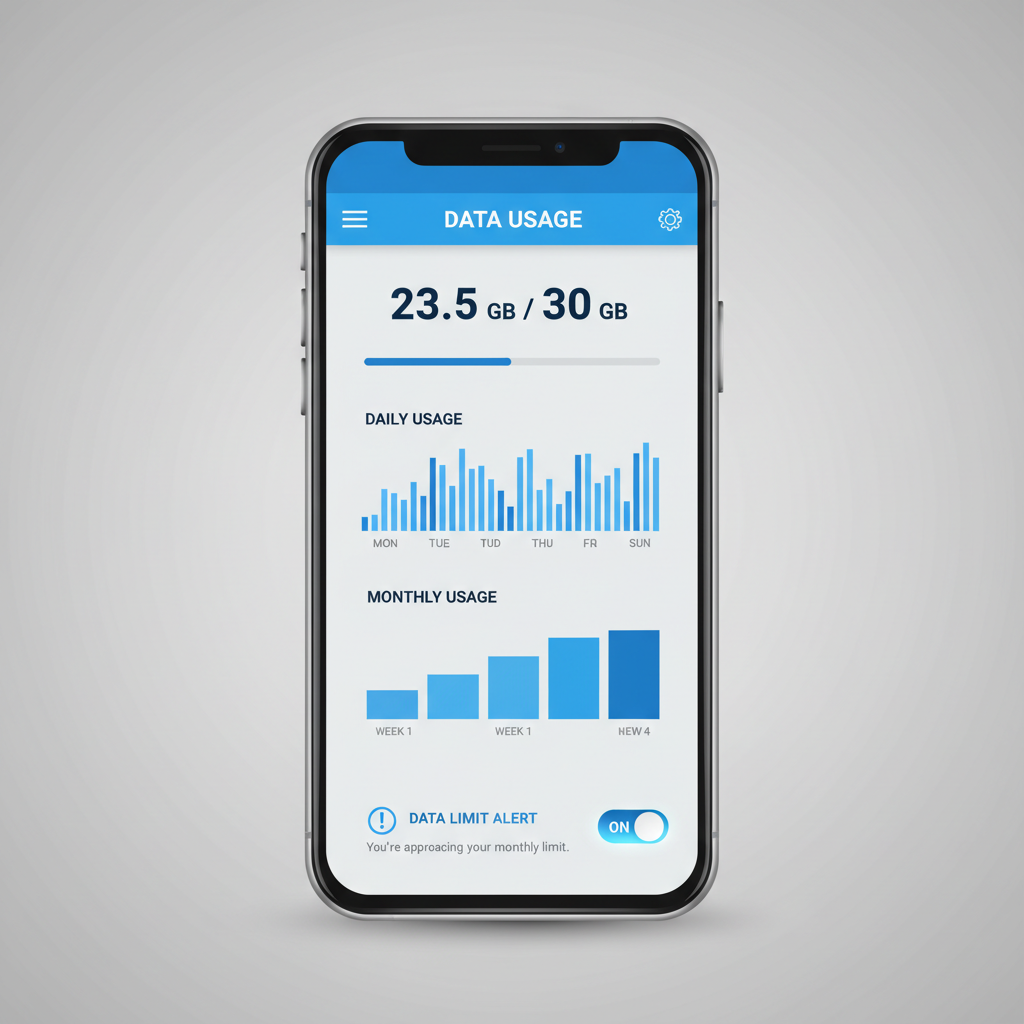
This guide breaks down what “data usage” really includes, how to monitor it on iPhone and Android, how to set alerts, and how to spot the classic culprits that quietly burn gigs in the background. I’ll also flag where carrier numbers can differ from your phone so you know which one to trust in which situation.
What “data usage” actually means (and why numbers don’t always match)
When people say “I used 12GB,” they might be mixing a few different things: cellular data, Wi‑Fi data, hotspot usage, and sometimes even “system services.” A phone’s built-in tracker usually focuses on cellular/mobile data, but each OS and carrier can count a little differently.
- Phone vs. carrier totals: Carriers often measure at the network level, while phones estimate per app. Small gaps are common, big gaps usually mean a reset date mismatch or usage counted outside the device (like SIM in another device).
- Billing cycle timing: Your phone might reset on the 1st, but your plan resets on the 17th. That single mismatch creates constant confusion.
- Hotspot and tethering: Some plans treat hotspot separately, and some phones show it under general cellular usage unless you look for a hotspot section.
According to the Federal Communications Commission (FCC), monitoring usage and understanding plan terms helps consumers avoid unexpected charges and manage connectivity. Practically speaking, you want your phone and carrier reporting aligned to the same cycle, then you use alerts to stay ahead of the limit.
Quick setup: built-in phone data usage monitor (iPhone and Android)
If you do nothing else, do this: find your device’s usage screen, reset the tracking period to match your billing cycle, and check your top 3 apps. That alone catches most problems.
iPhone (iOS): where to check and what to look for
On iPhone, you’ll typically go to Settings → Cellular (or “Mobile Service”). Scroll to see which apps used the most cellular data and how much.
- Current Period: iOS tracks a “current period,” but it does not auto-reset monthly in most cases. You need to tap Reset Statistics on your billing cycle day.
- Per-app toggles: If a game or social app is chewing data, you can disable cellular access for that app while keeping it on Wi‑Fi.
- Wi‑Fi Assist: If enabled, iPhone may use cellular when Wi‑Fi is weak. That’s great for reliability, not great for capped plans.
Android: the menu varies, but the essentials are consistent
On Android, it’s usually Settings → Network & internet → Internet/SIMs → App data usage or Data usage. Samsung often places it under Connections.
- Billing cycle: Many Android phones let you set the cycle start date and a warning/limit.
- Background vs. foreground: Some Android versions show whether the data was used while you actively used the app or while it ran in the background.
- Data Saver: A built-in mode that restricts background data and can be enabled per app.
Carrier tools: when the carrier dashboard matters more than your phone
Your phone is best for “what app did it,” but your carrier is best for “what counts toward the plan.” If you’re close to the cap, carrier totals matter because that’s what overages and throttling typically key off.
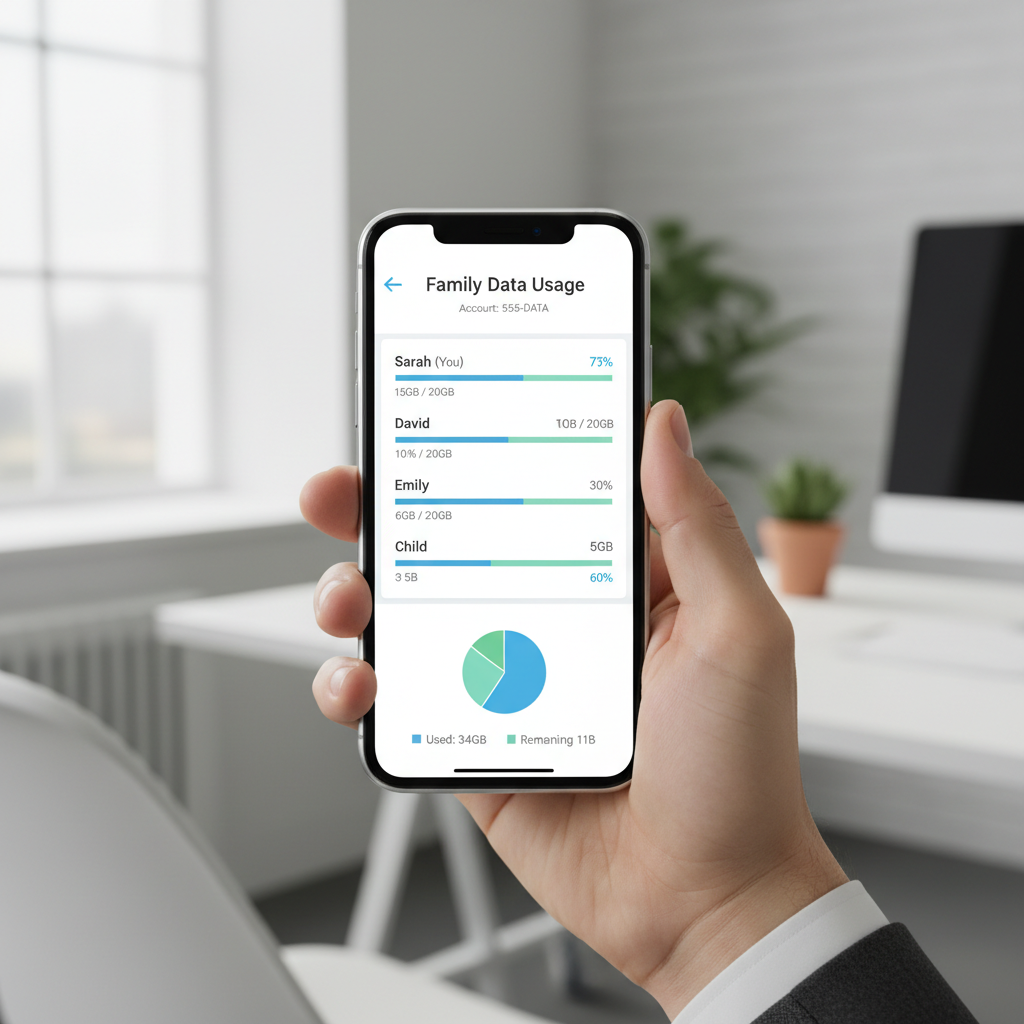
Most US carriers provide a usage view in their app and on the web portal. You’ll often see:
- Plan total used and remaining
- Per-line breakdown for family plans
- Hotspot usage (sometimes separate)
- Add-on purchases and plan speed notes (deprioritization, throttling thresholds)
If your goal is avoiding extra charges, use your carrier’s usage as the “official” meter, then use your phone data usage monitor to find the source apps and behaviors.
Self-check: are you actually at risk of running out of data?
A lot of people assume they need unlimited, when they really need better controls. Quick gut-check list:
- You often stream HD/4K video on cellular (TikTok, YouTube, Netflix) outside Wi‑Fi.
- You work from your phone hotspot, especially for video calls.
- Your plan is shared, and one line regularly spikes.
- You travel and rely on maps, rideshare, and uploads.
- You get “data warning” notifications or slowdowns late in the cycle.
If you checked 2+ items, set a warning threshold and audit your top apps today, not on day 28 of the billing cycle.
Set alerts and limits that actually work (without breaking your day)
The best alerts are early enough to change behavior, but not so early you ignore them. A practical setup for many capped plans is a warning at 70–80% and a stronger alert at 90–95%.
| Situation | Recommended warning | Recommended action |
|---|---|---|
| 5–10GB monthly plan | 70% | Turn on Data Saver / Low Data Mode, pause HD streaming |
| Shared family plan | 60–70% | Check per-line usage, set per-line app restrictions |
| Heavy hotspot user | 50–60% hotspot bucket | Move big downloads to Wi‑Fi, cap cloud sync, avoid video meetings on hotspot |
| Unlimited with deprioritization threshold | 80–90% of threshold | Use Wi‑Fi more often in crowded areas, schedule updates on Wi‑Fi |
On Android, you can often set a hard limit that turns cellular data off automatically. That’s useful if overages are expensive, but it can also break navigation or payments at the worst time, so set it with care.
On iPhone, you’ll rely more on carrier alerts and personal reminders, plus toggles like Low Data Mode and per‑app cellular switches.
Reduce usage fast: the “big 6” data drains and how to fix them
When someone asks why they burned 8GB “without doing anything,” it’s usually one of these. You don’t need perfection, you need a few high-impact changes.
- Video defaults to high quality: Set streaming apps to “Data Saver” or lower quality on cellular, especially short-form video apps that autoplay.
- Cloud photo backup on cellular: Configure Google Photos/iCloud/OneDrive to upload only on Wi‑Fi, or limit uploads to low quality on cellular if the app supports it.
- App updates and downloads: Restrict OS/app updates to Wi‑Fi. Big game updates can be multiple gigs.
- Hotspot “invisible” usage: Laptops love syncing and updating. Turn off auto updates on the laptop, and avoid cloud drive sync while tethered.
- Background refresh: Disable background data for heavy apps you rarely need “live,” like shopping, social, or short-form video.
- Wi‑Fi Assist / adaptive connectivity: Helpful for smooth browsing, but it quietly uses cellular when Wi‑Fi gets flaky.
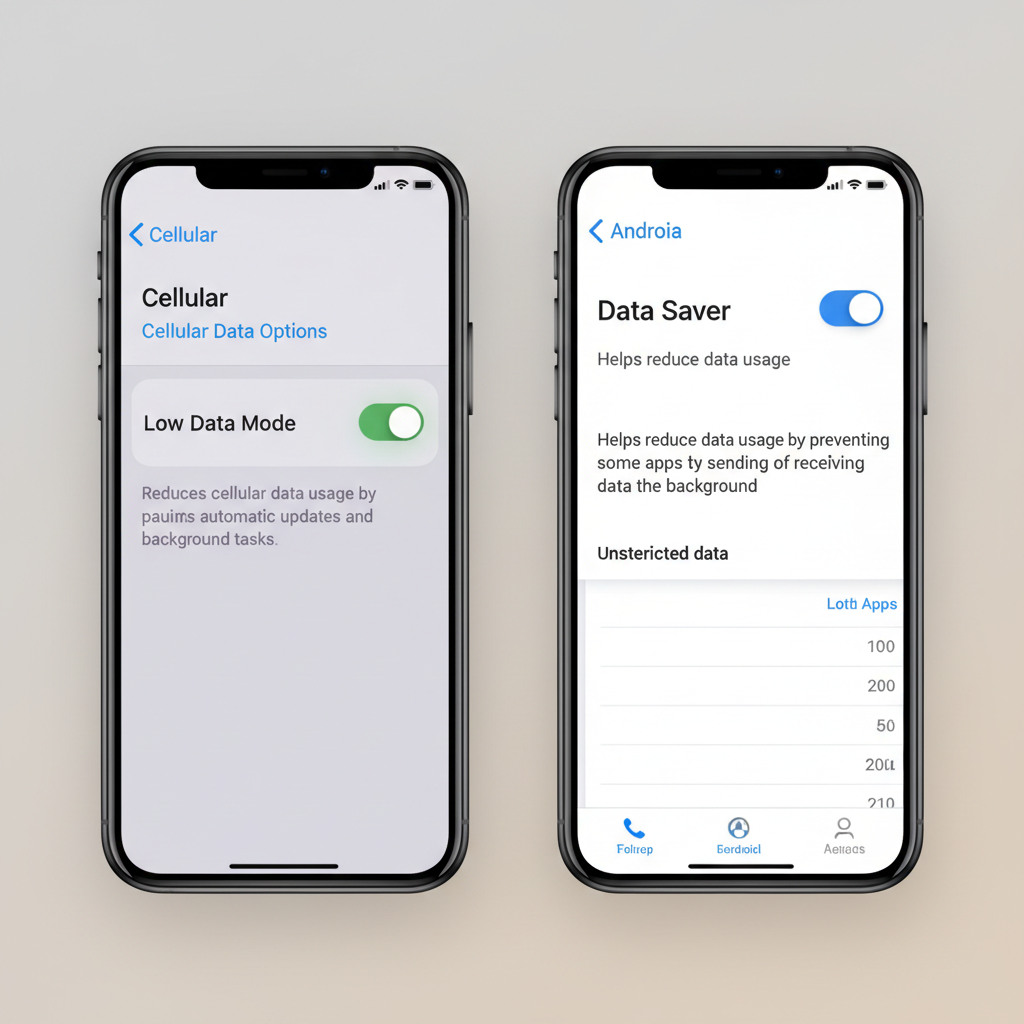
Key point: pick two fixes you’ll stick with. Most people don’t fail because the settings are hard, they fail because they change everything, hate the experience, then revert.
Common mistakes that make monitoring misleading
A phone data usage monitor is only helpful when the measurement period and the goal match. A few mistakes show up constantly.
- Never resetting iPhone cellular statistics: You end up looking at months of usage and guessing.
- Watching the wrong metric: People worry about Wi‑Fi usage when the plan cap is cellular, or vice versa.
- Confusing “unlimited” with “no limits”: Many unlimited plans still have hotspot caps or deprioritization thresholds, so monitoring still matters.
- Over-trusting a single day spike: A big spike might be one software update, not a recurring leak. Check the weekly view before you panic.
When you should get extra help (or escalate)
If usage looks truly impossible, don’t just keep toggling settings and hoping. In these cases, it’s worth getting support involved.
- Carrier usage jumps but phone usage doesn’t: Ask the carrier to verify which line/SIM consumed data and whether any usage occurred while your phone was off.
- A single app shows extreme background usage: Reinstall the app, review permissions, and consider reporting it to the developer. If you suspect malware, use reputable mobile security guidance and consider professional IT help.
- Shared plan conflict: If family lines argue about “who used it,” switch to per-line alerts and review device-by-device totals calmly.
According to the Federal Trade Commission (FTC), if you suspect unauthorized activity tied to an account, you should contact the provider and take steps to secure access. If billing disputes or identity issues are involved, consider guidance from a qualified professional.
Conclusion: a simple routine you can keep
Once your billing cycle matches and alerts are on, monitoring stops feeling like work. Check usage once a week, look at the top apps, and keep one “data saver” setting ready for the last week of the cycle.
If you want a quick next step, open your settings now, confirm the cycle date, and set a warning threshold you’ll actually notice. Your future self, usually on a road trip or during a busy week, will appreciate it.
FAQ
What’s the easiest phone data usage monitor for most people?
The built-in tracker on iPhone or Android plus your carrier’s app is usually enough. The phone tells you which apps used data, the carrier tells you what counts against the plan.
Why does my carrier show more data than my phone?
Different measurement methods and timing cause small differences, and billing cycle mismatches cause big ones. If the gap is large, confirm the reset date and check whether the SIM was used in another device.
How do I stop my phone from using data in the background?
Use Data Saver (Android) or disable cellular access per app (iPhone), then review background refresh settings. Focus on heavy categories like video, social, cloud backup, and large downloads.
Does hotspot use count differently than regular mobile data?
Often yes, depending on your plan. Many carriers track hotspot as a separate bucket even when the plan is “unlimited,” so it’s worth checking the carrier dashboard.
Is it safe to set a hard data limit that turns off cellular data?
It can be helpful for avoiding oveRAGes, but it might cut off navigation, rideshare, or two-factor codes at a bad time. Many people prefer warnings first, then a limit only if bills are a real risk.
Which apps typically use the most data?
Streaming video and short-form video apps usually top the list, followed by cloud photo backup and big updates. That said, your “top app” depends on habits, so check your device list before changing settings.
How often should I check my data usage?
Weekly works for most capped plans, and daily checks make sense only if you’re within the last week of the cycle or you’ve recently changed routines like traveling or using hotspot for work.
If you’re trying to keep data under control across multiple devices or lines, or you’d rather not hunt through settings every month, a simple checklist and recurring reminders can be a more realistic “system” than another app.