
pc disk cleanup guide is usually what you need when your Windows PC feels slower than it should, storage is mysteriously full, or updates keep failing due to low disk space. The good news is that Windows already includes several cleanup tools, you just have to use the right one for the mess you actually have.
This article walks through a practical, safe cleanup flow for Windows 10 and Windows 11, plus the “what not to delete” stuff that causes regret later. You’ll also get a quick decision checklist, a table that compares options, and a few “if this is your situation, do this” playbooks.
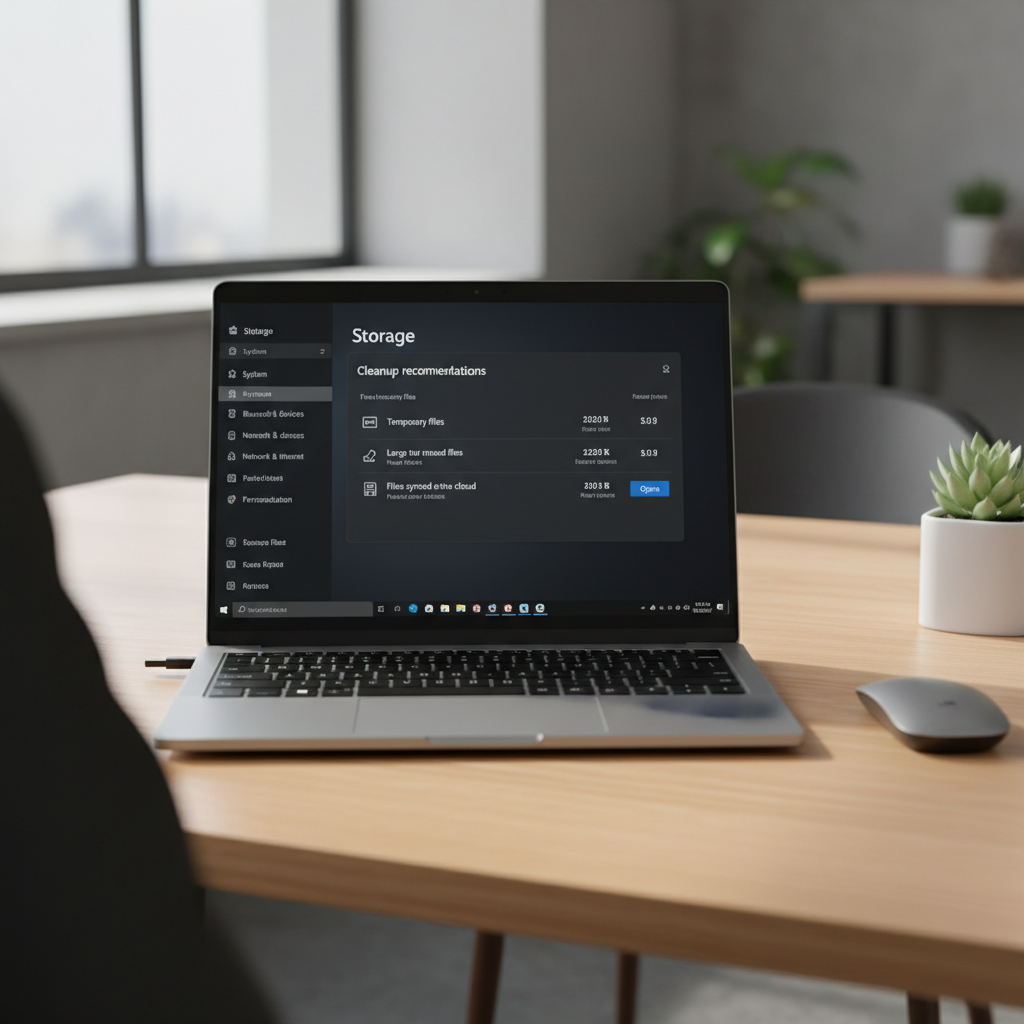
One quick boundary up front, “disk cleanup” should focus on temporary files, caches, old update leftovers, and unused apps, not random system folders. If you’re unsure, stick to Windows’ built-in recommendations, they exist for a reason.
What disk cleanup actually does (and why it helps)
Disk cleanup is less about “making the PC faster by magic,” more about removing clutter that wastes storage and sometimes blocks normal Windows behavior. Low free space can make updates fail, reduce room for the page file, and slow down file indexing and app installs.
According to Microsoft, keeping sufficient free space supports Windows updates and overall system reliability, which is why Windows will warn you when storage gets tight. In practice, many PCs feel better after cleanup because you remove background bloat like temp files and outdated update packages.
- Frees storage for updates, apps, and downloads
- Reduces errors tied to “low disk space” conditions
- Improves day-to-day responsiveness in many common cases, especially on small SSDs
Quick self-check: what kind of cleanup do you need?
Before deleting anything, identify the pattern. This keeps you from cleaning the wrong thing and wondering why nothing changed.
- Your C: drive is nearly full (under ~10–15% free): prioritize Storage cleanup + uninstalling large apps + moving personal files.
- Updates failing with low-space messages: clean Windows Update files, then retry updates.
- PC feels slow but storage looks okay: cleanup may help a bit, but also check startup apps and background processes.
- You see huge “Temporary files” in Settings: use Windows’ built-in temporary file cleanup first.
- One folder is massive (Downloads, Videos, game library): focus on that folder, not system files.
Key point: if you’re doing a pc disk cleanup guide search because your computer is “slow,” don’t rely on cleanup alone, pair it with a quick startup-app review later in this guide.
Best Windows cleanup methods (comparison table)
Windows has overlapping tools. Here’s the practical difference, so you can choose without guesswork.
| Tool | Best for | Where to find it | Risk level |
|---|---|---|---|
| StoRAGe (Temporary files) | Safe removal of common junk | Settings > System > Storage | Low |
| Storage Sense | Automatic ongoing cleanup | Settings > System > Storage > Storage Sense | Low |
| Disk Cleanup (cleanmgr) | Legacy but still useful categories | Search “Disk Cleanup” | Low–Medium |
| Uninstall apps | Biggest long-term space wins | Settings > Apps | Low |
| Manual file cleanup | Downloads, duplicate files, media | File Explorer | Medium |
If you want the “most bang for effort,” start with Storage cleanup, then uninstall large apps. The rest is optional depending on your situation.
Step-by-step: Clean up disk space using Windows Settings (recommended)
This is the most straightforward approach for Windows 10/11 and the safest place to begin a pc disk cleanup guide flow.
1) Check what’s taking space
- Open Settings > System > Storage.
- Review categories like Apps, Temporary files, Pictures, Documents, and Other.
- Click the largest category first, don’t “hunt” blindly.
2) Remove Temporary files
- In Storage, select Temporary files.
- Read each category label, then select what you want removed.
- Click Remove files.
Small judgment call: “Downloads” sometimes appears here. If you use Downloads like a filing cabinet, don’t check it until you’ve reviewed what’s inside.
3) Turn on Storage Sense (optional, but helpful)
- Go to Storage Sense and switch it on.
- Set a schedule (for many people, weekly works fine).
- Decide how aggressively it empties Recycle Bin and old Downloads.
Step-by-step: Use Disk Cleanup (cleanmgr) for deeper cleanup
Disk Cleanup is older, but it still finds categories that some users overlook, especially around system cleanup. Used carefully, it’s a solid second pass.
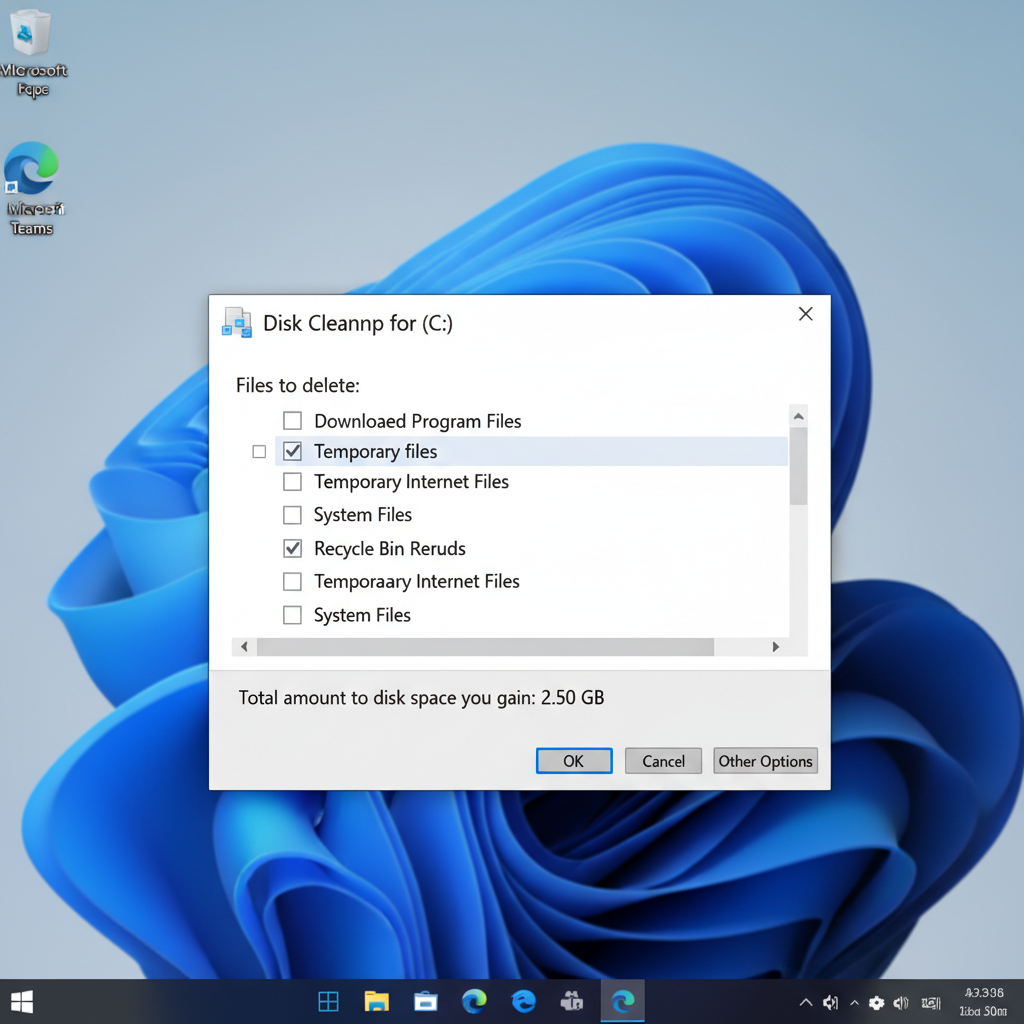
- Type Disk Cleanup in the Start menu search and open it.
- Select your C: drive (usually).
- Check common items like Temporary Internet Files, Delivery Optimization Files, Thumbnails, Recycle Bin.
Use “Clean up system files” when space is really tight
Click Clean up system files, then reselect C:. This may show Windows Update Cleanup and other system-level leftovers.
- Windows Update Cleanup: often useful after updates, can free meaningful space.
- Device driver packages: avoid unless you understand rollback needs.
If you’re unsure about an entry, leave it unchecked. You can always come back later after verifying the result.
High-impact wins: uninstall apps and move personal files
Temporary files are nice, but uninstalling big apps and moving large personal files usually creates the most breathing room, especially on 256GB SSD laptops.
Uninstall apps you don’t use
- Open Settings > Apps > Installed apps (Windows 11) or Apps & features (Windows 10).
- Sort by Size.
- Remove what you truly don’t need, watch out for tools tied to printers, VPNs, or work security.
Move files off C: safely
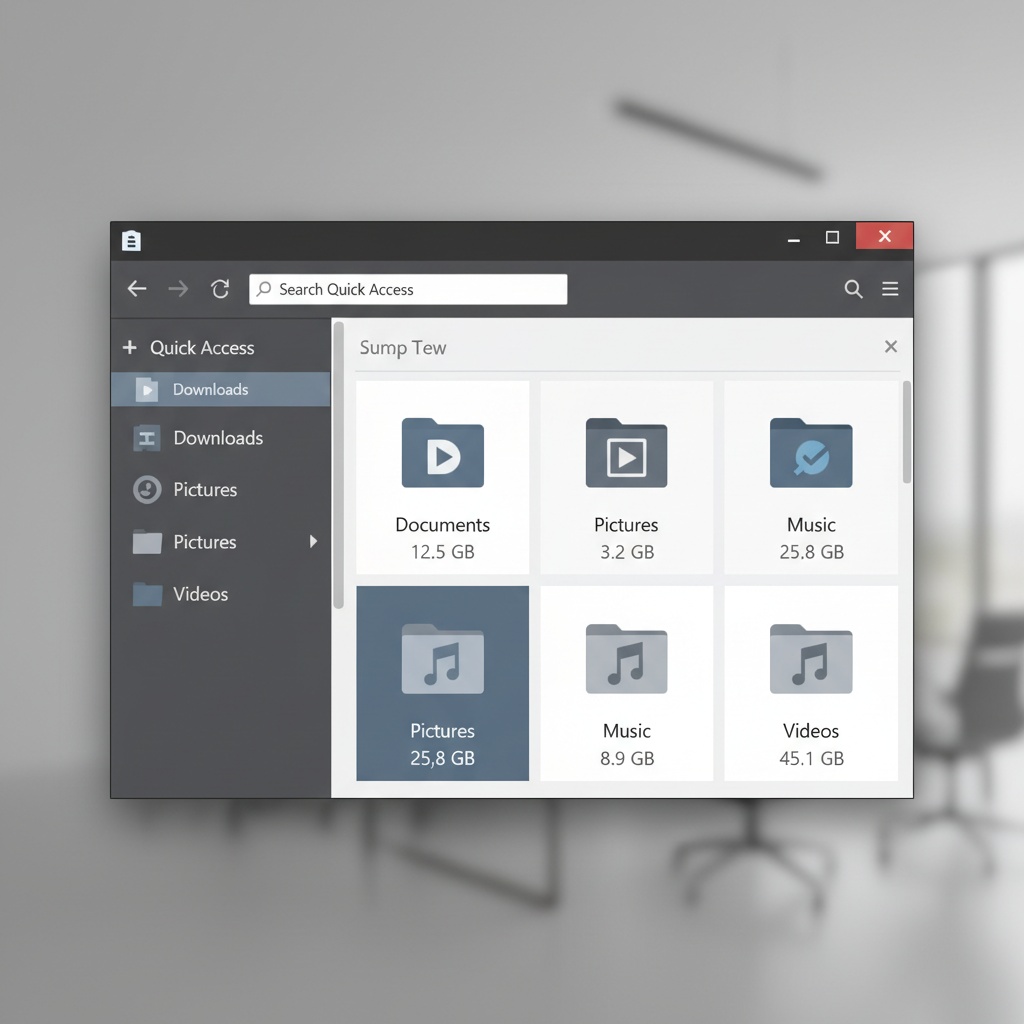
- Move large videos/photos to an external drive or cloud storage you trust.
- Consider changing default save locations for Documents/Pictures in Storage settings.
- If you use OneDrive, review what’s set to “Always keep on this device.”
Real-world tip: if you keep reinstalling the same huge apps later, uninstalling them might not be your best move. In that case, moving media and cleaning update leftovers tends to be less disruptive.
Common mistakes to avoid (what not to delete casually)
This is where many “cleanup” attempts go sideways. When people free space fast and break things, it’s often because they deleted system folders manually.
- Don’t delete folders like Windows, Program Files, ProgramData manually.
- Don’t wipe random files in C: just because they look large or unfamiliar.
- Be careful with “Downloads” cleanup if it’s where installers, tax PDFs, or work files live.
- Skip registry cleaners if your main goal is disk space, they rarely help and can add risk.
If you’re tempted to delete something because “Google said it’s safe,” pause and confirm it’s not tied to an application you still use, or a Windows feature you rely on. That extra minute usually saves a lot of annoyance.
When cleanup isn’t enough: signs you should go further (carefully)
Sometimes you run a pc disk cleanup guide step-by-step and still end up with almost no free space. That typically means your storage problem isn’t “junk,” it’s “too much stuff” or a hidden hog.
- You free space, then it fills back up within days.
- “Other” or “System & reserved” stays huge with no clear explanation.
- You suspect malware or unwanted software creating large files.
At that point, it may be worth using a reputable disk-usage analyzer to locate large folders, or running Windows Security scans. If your PC is managed by work or school, or you’re dealing with encrypted drives and unusual partitions, getting help from IT or a qualified technician is usually safer than experimenting.
Practical cleanup routine (a simple schedule that sticks)
One cleanup rarely stays “done.” A lightweight routine keeps you from hitting the same wall again next month.
- Monthly: run Storage Temporary files cleanup, empty Recycle Bin after reviewing contents.
- Quarterly: uninstall apps you stopped using, review large files in Downloads and Videos.
- Always: keep a little free space buffer, many PCs behave better with room to breathe.
If you only do one thing, turn on Storage Sense with conservative settings and review it after the first run to make sure it matches how you actually use your PC.
Conclusion: a safe way to reclaim space without breaking Windows
A solid pc disk cleanup guide comes down to a simple order of operations, use Windows Storage cleanup first, remove big apps you don’t need, then use Disk Cleanup for deeper system leftovers if space is still tight. Avoid manual deletion of system folders, and don’t expect cleanup to fix every performance issue by itself.
If you’re short on time, do this today, run Temporary files cleanup, uninstall one large app you don’t use, and set up Storage Sense. That’s usually enough to stop the “disk almost full” warnings and make updates less painful.
FAQ
- How often should I do disk cleanup on Windows?
For most people, monthly is plenty, especially if Storage Sense runs automatically. If you download lots of large files or install big games, you may want to review storage every couple of weeks. - Is Disk Cleanup safe on Windows 11?
Generally yes when you stick to common categories like temporary files, thumbnails, and Recycle Bin. Use extra care with system files options, and skip anything you don’t understand. - Will disk cleanup make my PC faster?
It can help in situations where storage is extremely low or there’s a lot of temporary clutter, but it’s not a guaranteed speed fix. If you’re still slow after cleanup, check startup apps and background processes. - What’s the difference between Storage Sense and Disk Cleanup?
Storage Sense is the modern, automated approach built into Settings, while Disk Cleanup is an older utility that still exposes some useful cleanup categories. Many users do fine with Storage Sense alone. - Should I delete “Windows Update Cleanup” files?
Often yes when you need space, since it removes older update components. The tradeoff is you may lose some rollback capability, so if you’re troubleshooting a recent update issue, consider waiting. - Why is my C: drive full even after deleting files?
Common reasons include large apps, game libraries, OneDrive offline files, or hidden system usage like restore points. If the “System & reserved” or “Other” category remains large, a disk-usage tool can help locate the real source. - Do I need a third-party cleaner app?
Usually not. Windows’ built-in tools cover most cleanup needs with lower risk. If you choose third-party software, read exactly what it deletes and avoid anything that promises dramatic speed boosts.
If you’re trying to keep a family PC or a work laptop stable without spending your weekend troubleshooting, a simple workflow helps, run Storage cleanup, confirm what you’re deleting, and automate the boring parts with Storage Sense so you’re not searching for a pc disk cleanup guide again in a month.