
how to change default browser windows 11 is straightforward once you know where Microsoft hides the per-file and per-link settings, and why it sometimes feels like your choice “doesn’t stick.”
If you recently installed Chrome, Firefox, or Brave and Windows still opens links in Edge, you’re not alone. Windows 11 handles defaults differently than older versions, and a couple of small details decide whether your browser change actually works across apps.
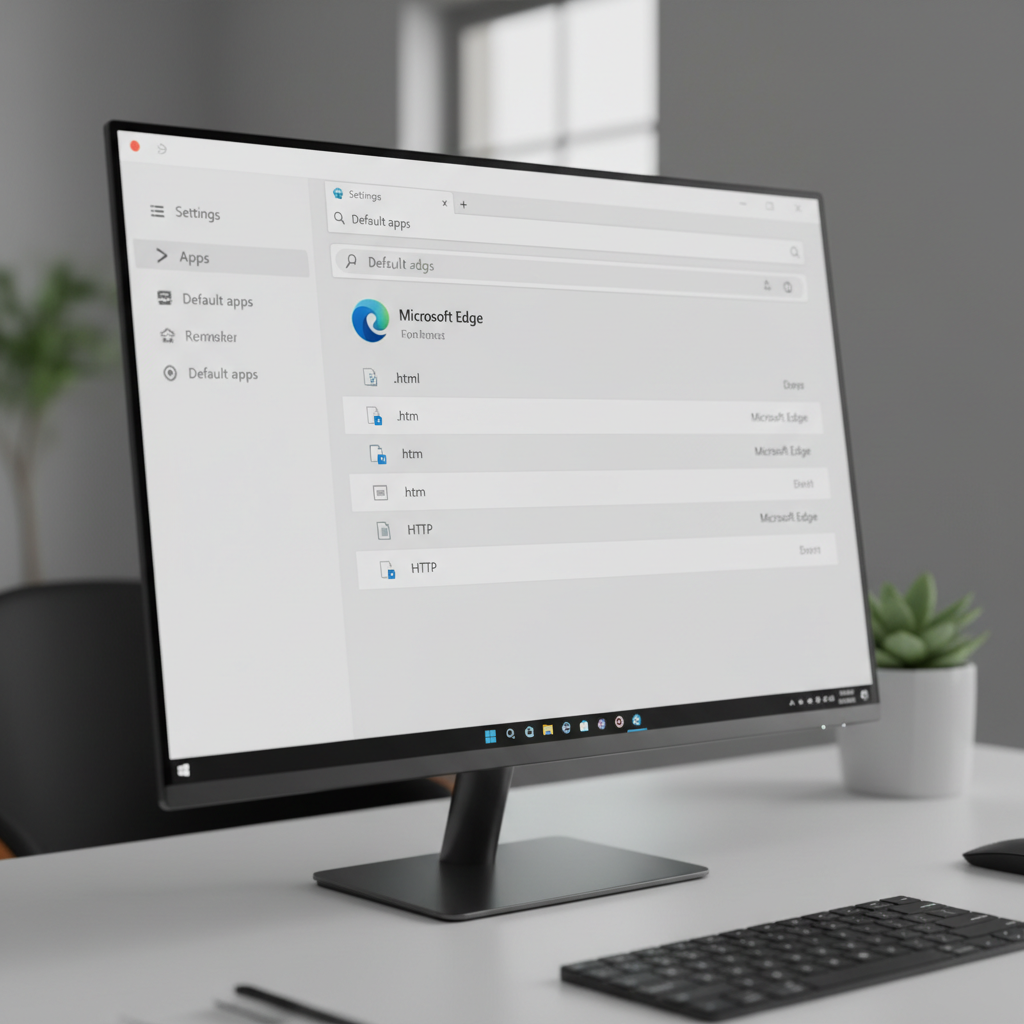
In this guide, you’ll get the quick method, the “it keeps opening in Edge” fixes, and a practical checklist to confirm everything from HTTP links to PDFs now opens in your preferred browser. I’ll also point out a few places where Windows behavior depends on the app you click from, because that’s where most people get stuck.
What “default browser” means on Windows 11 (and why it feels different)
On Windows 11, “default browser” isn’t always a single on/off switch. It’s a bundle of default app associations, meaning Windows can decide which app opens:
- Web links (HTTP and HTTPS)
- HTML files (HTM/HTML)
- PDF files (often handled by the browser, but not always)
- Other link types (like FTP in some environments)
That’s why you might set Chrome as your default and still see certain links open in Edge, especially if you’re clicking from a Microsoft app or a widget that uses a special link handler.
According to Microsoft Support, Windows lets you choose defaults by file type and link type in Settings, which is the “official” path when you want the change to persist across the system.
The fastest way to change your default browser in Settings
If you just want the clean, normal method that works in most cases, do this:
- Open Settings
- Go to Apps → Default apps
- In the search box, type your browser name (for example, Chrome or Firefox)
- Select the browser, then choose Set default (if you see it)
On some Windows 11 builds, you’ll see a Set default button that applies the most common web-related associations at once. If you don’t see that button, you’ll set the key link types manually, which is still normal.
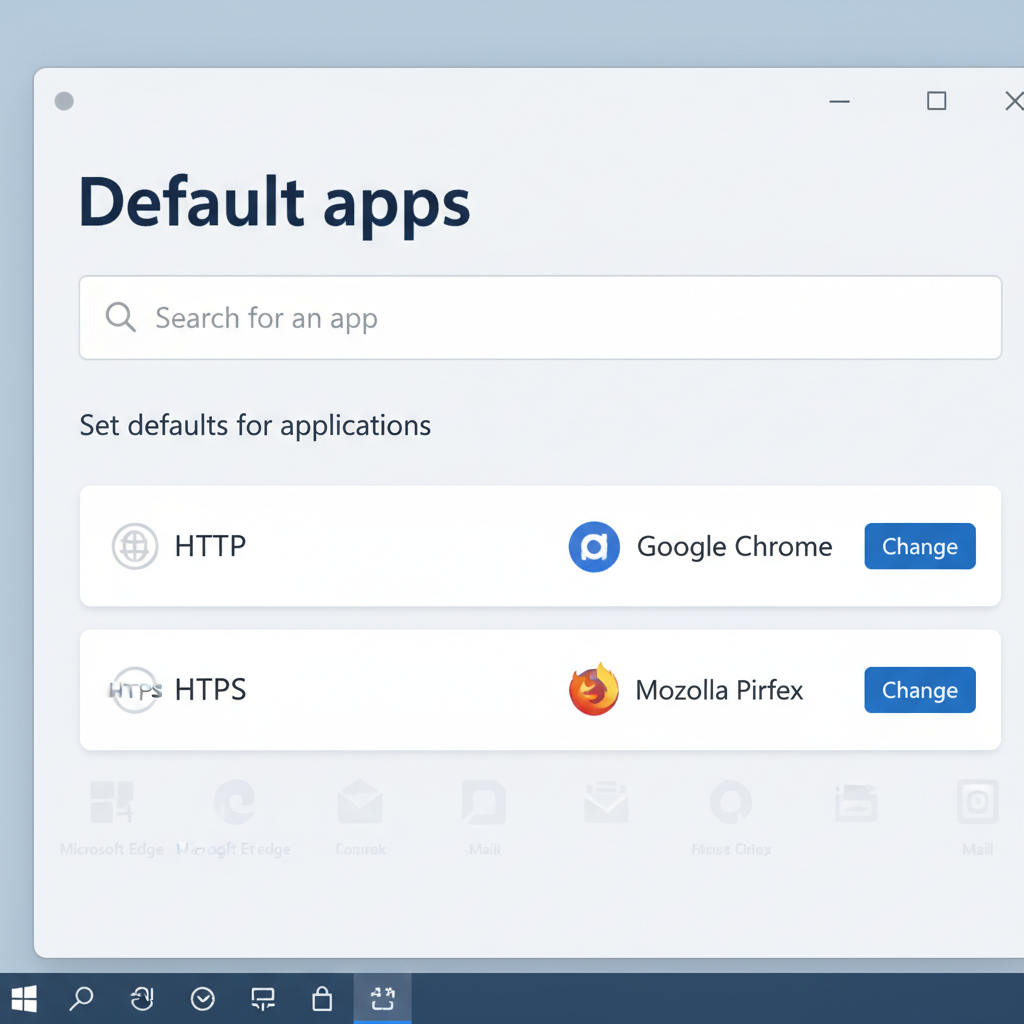
Quick reality check: if your browser isn’t listed, install it first, then reopen Settings. Windows typically won’t show an app as a default option until it’s properly installed.
Manually set HTTP/HTTPS and other file types (the “it actually sticks” method)
If Windows doesn’t apply everything with one button, you can explicitly bind the important link/file types to your browser. This is also the best way to confirm the change worked.
Step-by-step
- Settings → Apps → Default apps
- Select your preferred browser
- Find and set these (at minimum): HTTP, HTTPS, .HTM, .HTML
- If you want PDFs in the browser, set .PDF to that browser too
When you click an association, Windows may show a “Before you switch” prompt. Choose your browser and confirm.
Quick comparison table: what to set for common goals
Use this as a simple map. You don’t need to change every file type on the list, only what matches your goal.
| What you want | Set these defaults | Where it shows up |
|---|---|---|
| All normal web links open in your browser | HTTP, HTTPS | Mail apps, Office, Slack/Teams, most desktop apps |
| Local web pages open in your browser | .HTM, .HTML | Saved web pages, exported reports, local help files |
| PDFs open in your browser | Downloads folder, attachments, file explorer | |
| Search results open outside Edge | Depends on app and Windows features | Widgets, some Start/search experiences may behave differently |
Self-check: confirm Windows 11 is really using your default browser
Before you spend time troubleshooting, check what’s actually happening. A lot of “Windows ignored my default” reports turn out to be one missed association or one specific app behaving differently.
- Click a link in a non-Microsoft app (for example Slack or Discord). Does it open correctly?
- Click a link in Outlook or the Windows Mail app. Same result?
- Open a saved .html file from File Explorer.
- Open a PDF file from Downloads.
- In Settings → Apps → Default apps → your browser, confirm HTTP/HTTPS show your browser name.
Key point: if only one scenario fails (for example PDFs), the fix is usually just that one file type, not reinstalling everything.
Common problems (and fixes) when Windows keeps opening Edge
This is where most people lose patience. These are the issues that show up repeatedly on Windows 11 systems, especially work laptops.
1) You changed the default, but links still open in Edge from one specific place
Many cases come down to the app you clicked from. Some Microsoft experiences use special link handlers, and behavior can vary by Windows build and policy settings.
- Re-check HTTP and HTTPS under your browser’s Default apps screen.
- Try the same link from a different app to isolate whether it’s system-wide or app-specific.
2) PDFs keep opening in Edge
Even if your web links are correct, PDFs may still be assigned to Edge or a dedicated PDF reader.
- Settings → Apps → Default apps → set .PDF to your preferred app
- Or right-click a PDF → Open with → choose app → check Always (wording may vary)
If you use Adobe Acrobat or another reader for work, keeping PDFs out of the browser may actually be the more stable choice.
3) Your workplace PC won’t keep the change
On managed devices, IT policies can override defaults or reset them during updates. This is common in enterprise environments.
- Check whether you’re signed into a work account and whether the device is managed
- If settings revert after reboot, ask IT whether a default app policy applies
According to Microsoft Learn, organizations can deploy default app associations via policy, which can prevent local changes from sticking.

Practical tips: make the change smoother across apps
If your goal is “I never want to think about this again,” these small steps help more than people expect.
- Update the browser after installing it, then set defaults. Some browsers register associations more reliably after the first update.
- Keep one PDF strategy: browser for casual viewing, dedicated reader for heavy markup and signatures.
- Pin your browser to taskbar and Start, so you don’t accidentally open Edge out of habit.
- Test with two link sources: one from an app, one from File Explorer, to confirm system-wide behavior.
When it’s worth getting help (or escalating)
If you can set defaults but they revert after restarts, Windows updates, or company sign-in, you may be dealing with a managed configuration or a corrupted user profile. In many cases, basic troubleshooting helps, but on work devices it’s usually faster to loop in IT rather than fighting policies.
- If the device is managed: ask IT whether default browser settings are enforced
- If it’s a personal PC and settings won’t save: consider checking for Windows updates, running built-in troubleshooters, or asking a qualified technician for help
Conclusion: the simplest path that works for most people
If you want a reliable result, set your browser in Settings and then confirm the HTTP and HTTPS associations, that’s the core of how to change default browser windows 11 without surprises. If something still opens in Edge, don’t assume the whole setting failed, narrow it down to the file type or the specific app that triggered it.
Action you can take now: open Settings → Apps → Default apps → your browser, confirm HTTP/HTTPS, then decide whether PDFs should follow the browser or a dedicated reader.