
how to free up ram on windows 11 is usually the fastest way to make a sluggish PC feel responsive again, especially when apps stutter, tabs reload, or you see “not enough memory” style errors.
Most of the time, the problem isn’t that your computer is “broken”, it’s that Windows and your apps are competing for memory in the background, quietly stacking up until something starts to lag.
This guide walks you through what actually helps (and what mostly wastes time), how to spot the real RAM hogs, plus a few safe tweaks that reduce memory pressure without breaking your setup.
Why RAM fills up on Windows 11 (and when it matters)
RAM is short-term working memory, Windows uses it to keep apps fast and ready. Seeing high usage isn’t automatically “bad”, what matters is whether you feel slowdowns, freezes, or heavy disk activity.
Common real-world causes tend to look like this:
- Too many browser tabs/extensions, especially Chrome/Edge profiles with lots of add-ons.
- Startup and tray apps that load every boot and never leave, like chat clients, launchers, and sync tools.
- Memory leaks, where an app’s usage grows over time instead of stabilizing.
- Virtual machines or developer tools (Docker, Android emulators) reserving big chunks of memory.
- Low RAM to begin with, where 8GB can feel tight for heavy multitasking, gaming, or creative work.
According to Microsoft, Windows uses memory aggressively to improve performance (for caching and preloading), and it will release memory when other apps need it. So you’re not chasing “low usage”, you’re chasing smooth usage.
Quick check: are you actually RAM-limited?
Before you start cleaning, confirm the bottleneck. A PC can feel slow for CPU, storage, driver, or overheating reasons too.
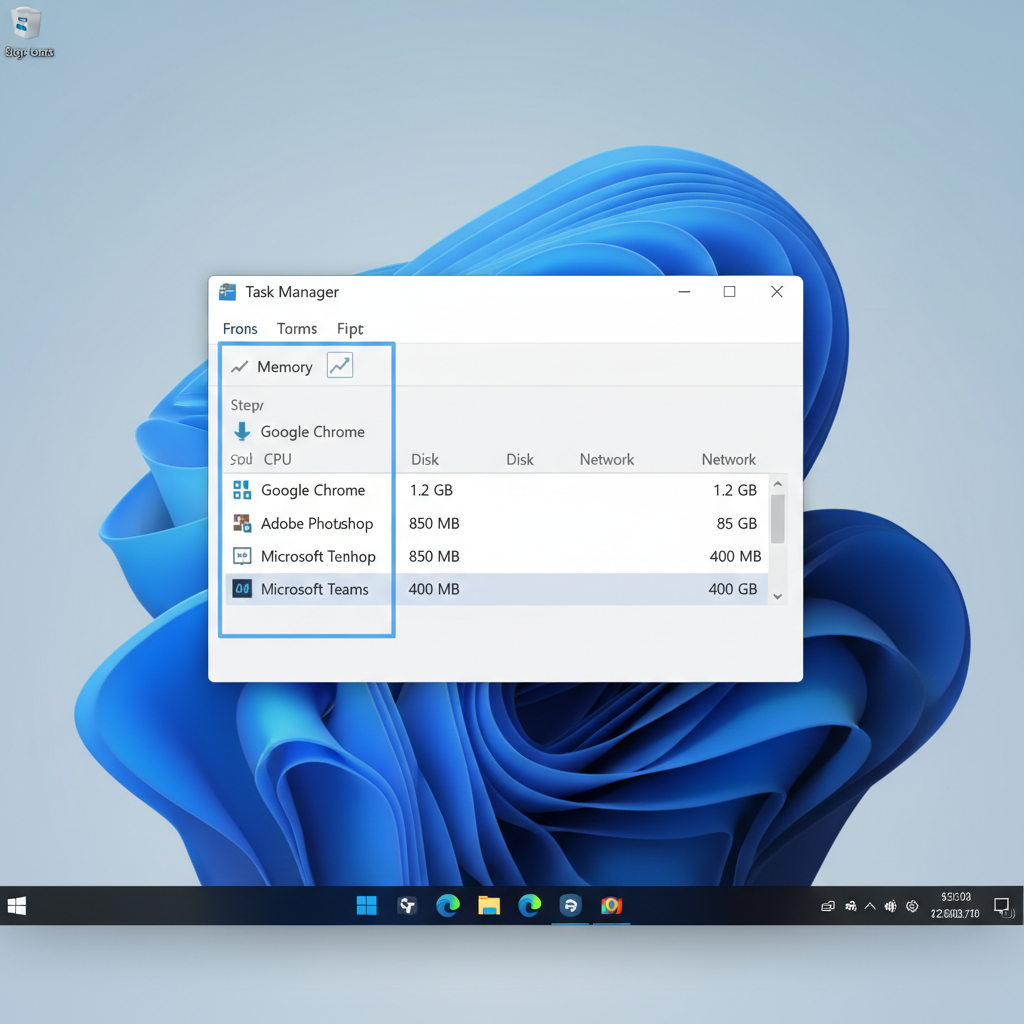
- Press Ctrl + Shift + Esc to open Task Manager.
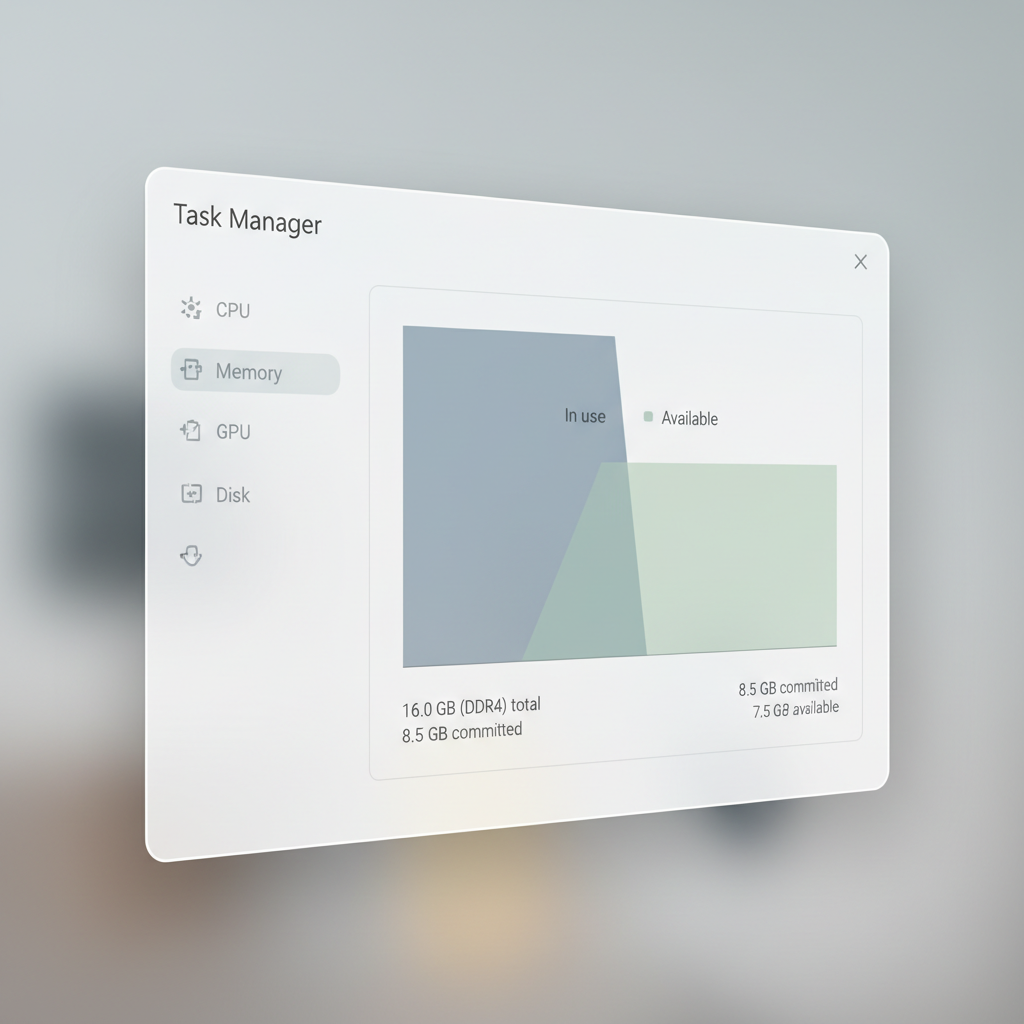
- Go to Performance > Memory and look at In use (Compressed) plus Available.
- Then open Processes and sort by Memory.
In many cases you’re RAM-limited if you see:
- Available memory stays low (roughly under 1–2GB) while you work.
- Disk usage spikes while switching apps, which can be paging to storage.
- Your top apps are legitimate heavy users (browser, games, Adobe apps), not just “mystery” background tasks.
Key takeaways: Don’t guess. Find the top memory users first, then decide whether to close, replace, or reconfigure them.
Fast ways to free RAM right now (safe, reversible)
If you need an immediate improvement, these are the lowest-risk steps and often the most effective.
1) Close or restart the biggest memory hog
- In Task Manager, sort by Memory.
- Right-click the app that’s unusually high for what you’re doing, choose End task.
If it’s a browser, a softer move is to close extra windows and restart it. Browser restarts clear “creep” from long sessions and messy tab piles.
2) Reduce browser load (tabs, extensions, sleeping tabs)
- Close old tabs you aren’t using, bookmarks are cheaper than tabs.
- Disable extensions you don’t truly need, many run background scripts.
- In Microsoft Edge, turn on Sleeping tabs to lower memory use for idle pages.
Chrome has similar settings and a built-in Memory Saver mode on many installs, worth enabling if you live in the browser.
3) Restart Explorer (when the desktop feels “stuck”)
- Task Manager > Windows Explorer > Restart.
This won’t solve big leaks, but it can clear minor UI sluggishness without a full reboot.
Stop RAM drains at the source: trim startup and background apps
When people ask how to free up ram on windows 11, they often focus on “cleaners”. In practice, the biggest win comes from not launching extra stuff in the first place.
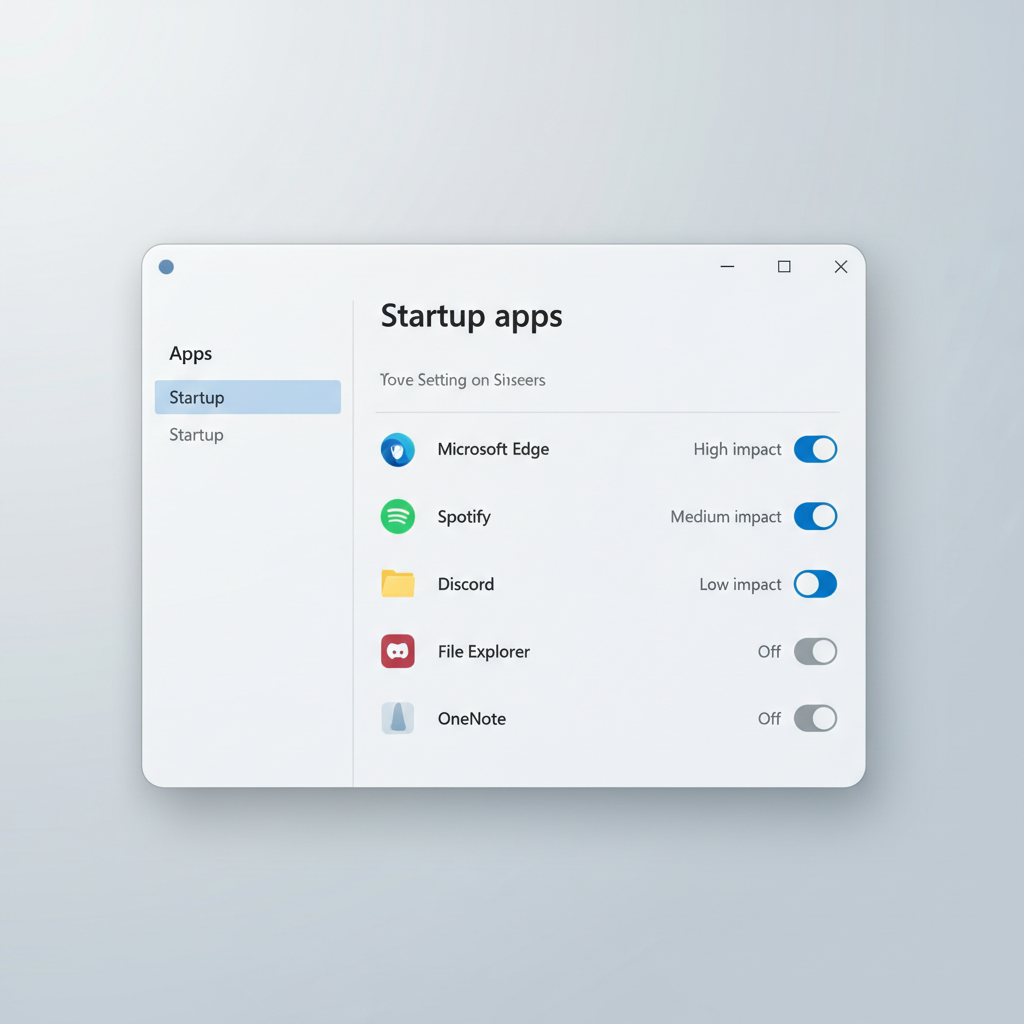
Disable unnecessary startup apps
- Open Settings > Apps > Startup.
- Turn off items you don’t need immediately at login (game launchers, meeting tools, some updaters).
Keep essentials like security software, password managers (if you rely on them), and key device utilities you actually use.
Limit background permissions (selectively)
- Settings > Apps > Installed apps > pick an app > manage background options (if available).
Not every app shows a background toggle in Windows 11, and some apps will still run services. The point is to reduce obvious “always-on” behavior where it’s optional.
Use a simple decision table: close, fix, or replace?
Once you identify a top memory user, the next step depends on what kind of app it is. Here’s a practical way to decide.
| What you see | Likely cause | What to do |
|---|---|---|
| Browser using 2–6GB+ with many tabs | Heavy pages, extensions, multiple profiles | Close tab groups, disable extensions, enable Sleeping Tabs/Memory Saver |
| One app climbs steadily over hours | Possible memory leak | Update the app, restart it daily, report bug, consider alternatives |
| Many small apps each using 100–300MB | Too many background tools | Disable startup, uninstall what you don’t use, reduce tray apps |
| Game stutters, RAM nearly full | Background apps + high game demand | Close overlays, browsers, launchers; consider more RAM if repeatable |
| High “Committed” memory, frequent disk thrash | Paging due to low free memory | Close big apps; verify page file settings; upgrade RAM if constant |
System settings that help (without “tweaker” vibes)
These won’t magically double memory, but they can reduce pressure and make low-memory moments less painful.
Keep Windows and drivers updated
Updates often include stability fixes, and some memory issues come from drivers (graphics, audio, network) behaving badly. According to Microsoft, Windows Update also delivers many driver updates and reliability improvements.
- Settings > Windows Update > Check for updates
Check Virtual Memory (page file) settings
The page file uses stoRAGe as overflow memory. Turning it off can backfire on many systems, especially with 8–16GB RAM. In many setups, letting Windows manage it is the least drama.
- Search View advanced system settings > Performance Settings > Advanced > Virtual memory
- Consider System managed size unless you have a specific reason to customize
Turn off visual effects (only if you’re really tight on resources)
This is a small gain, but on older machines it can help responsiveness.
- Advanced system settings > Performance > Adjust for best performance (or choose custom)
When freeing RAM isn’t enough: signs you may need more memory
Sometimes you can optimize all day and still feel cramped. If your workflow regularly pushes memory near the limit, adding RAM is often more effective than constant micromanagement.
- You consistently hit high usage with your normal apps, not “once in a while”.
- You multitask with heavy tools: lots of browser tabs + meetings + creative apps.
- You run VMs, containers, or large datasets.
As a rough rule, 8GB works for light productivity, but many people end up happier at 16GB for modern multitasking. For gaming plus background apps, or creative workloads, 32GB can be reasonable, but it depends on the specific software and habits.
Common mistakes (and what to do instead)
- Installing “RAM cleaner” apps: many do little, some add more background load. If you want how to free up ram on windows 11, you’re better off removing unnecessary software than adding more.
- Disabling the page file: this can trigger crashes or app errors in certain scenarios. Leave it system-managed unless you know your workload.
- Ending random system processes: you can cause instability. Focus on apps you recognize and optional vendor utilities.
- Ignoring the browser: it’s often the #1 memory consumer. Treat it like an app you tune, not a black box.
Practical “do this weekly” routine (5 minutes)
If you want fewer slowdowns without thinking about it every day, a light routine works better than chasing perfect numbers.
- Restart your PC once a week (more often if you keep it on 24/7).
- Review Startup apps once a month and remove anything you don’t recognize or use.
- Update your most-used apps (browser, meeting tools, GPU driver) when stable releases arrive.
- If one app keeps ballooning, schedule a restart of that app after long sessions.
Conclusion: a realistic way to keep Windows 11 feeling fast
how to free up ram on windows 11 usually comes down to three moves: identify the top memory users, prevent unnecessary background apps from launching, and keep your browser and key software under control.
If your system still runs out of headroom during normal work, that’s not a personal failure, it’s a sign your workload has outgrown your current RAM. In that case, either simplify the workflow or consider a memory upgrade that matches how you actually use the PC.
Pick one action today: open Task Manager and remove a single obvious startup app, then restart and see if the machine feels calmer.