
how to turn off location services android is usually a two-minute fix, but the “right” way depends on what you’re trying to stop: all location use, background tracking, or just one noisy app that keeps pinging GPS.
If you care about privacy, battery drain, or those moments when an app “needs” your location for no obvious reason, this is worth doing carefully, not just flipping one switch and hoping everything behaves.
Below, I’ll show the fastest path to shut off location system-wide, then the more practical approach most people actually need: limit location per app, reduce precision, and clean up background access so essential things (maps, rideshare) still work when you want them.
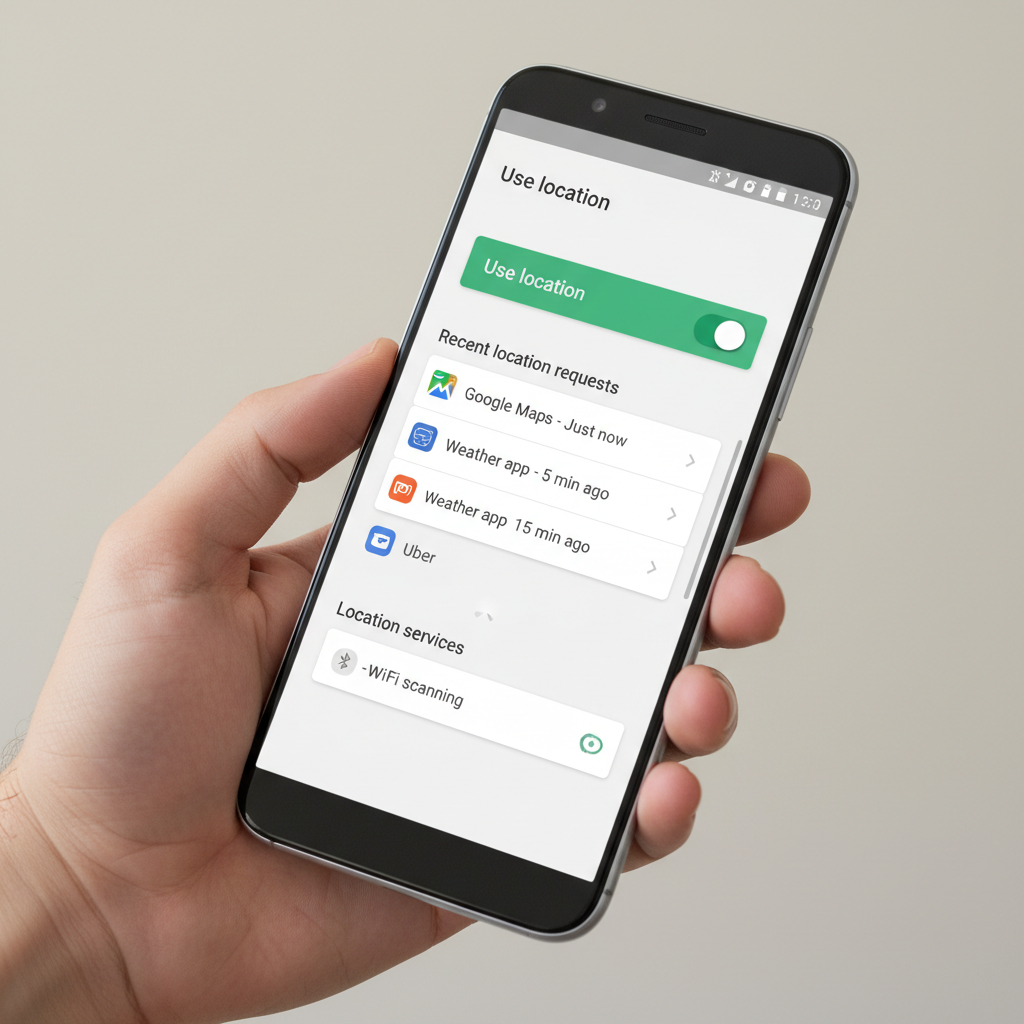
What “Location Services” means on Android (and what changes when you turn it off)
On Android, Location Services is the system feature that lets apps and the OS estimate where your phone is, using GPS, Wi‑Fi networks, Bluetooth scanning, and cellular signals. Turning it off blocks most location access, but it can also break some everyday features.
According to Google, location can be derived from multiple signals, not only GPS, which is why you may still see “nearby” behavior if other settings like Wi‑Fi or Bluetooth scanning remain enabled.
- Turning Location off generally prevents apps from getting real-time location.
- Emergency features may still work depending on device, carrier, and settings (for example, emergency location functions).
- Convenience features like weather accuracy, photo geotags, “near me” search, and some smart home routines often degrade.
Quick steps: Turn off Location Services system-wide
If you want a clean stop across the phone, go system-wide. Menu names vary slightly by brand (Pixel vs Samsung vs Motorola), but the flow is similar.
Method A (most Android phones)
- Open Settings
- Tap Location
- Toggle Use location Off
If you don’t see “Location” immediately, use the Settings search bar and type Location.
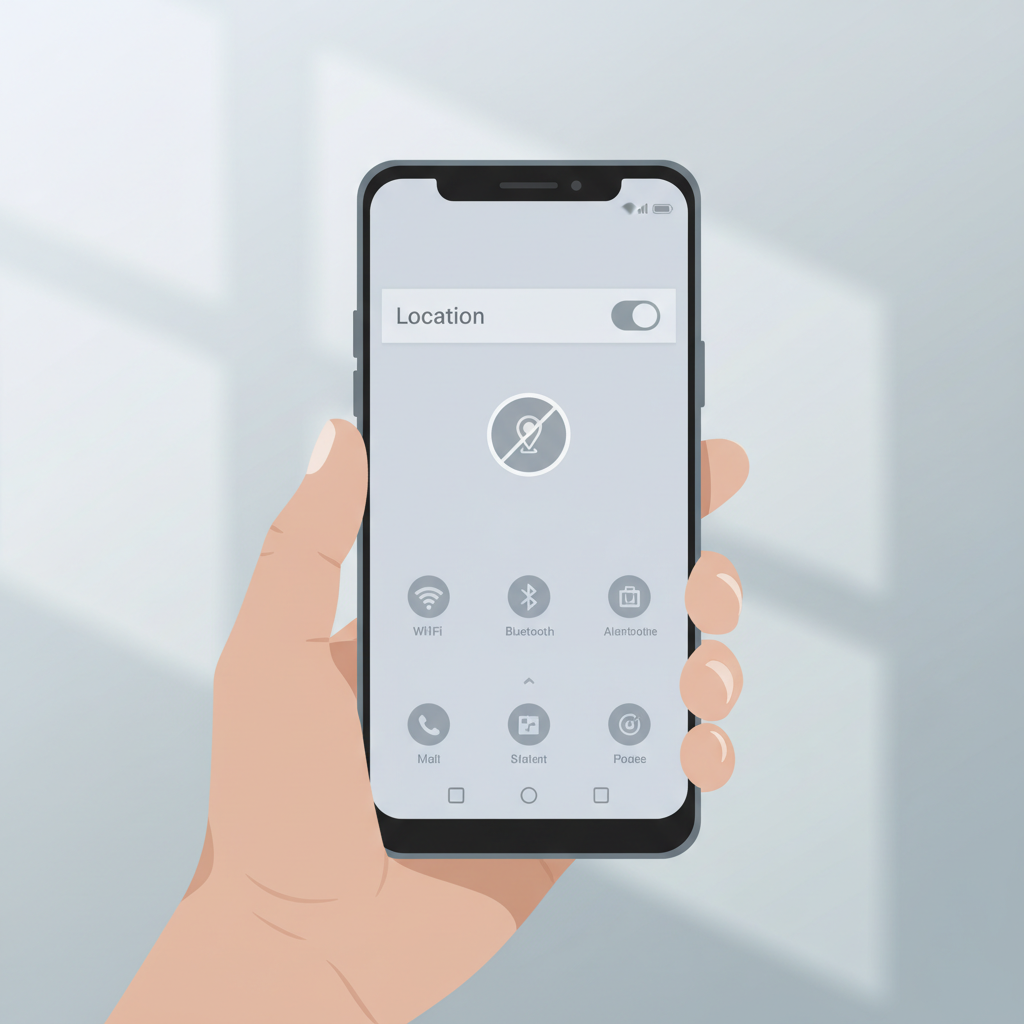
Method B (Quick Settings tile)
Swipe down from the top (once or twice depending on your phone), find the Location tile, tap to turn it off. This is the fastest option when you’re on the go.
The better approach: Limit location by app (so essentials still work)
Completely disabling location can be overkill. In many real-life setups, the smarter move is per-app control, especially if your goal is to stop background tracking while keeping navigation usable.
Here’s where most people should start if they’re searching how to turn off location services android but still want Maps, Uber/Lyft, or Find My Device to behave predictably.
Change location permission for one app
- Settings → Location → App location permissions (or “App permissions”)
- Select the app
- Choose one:
- Don’t allow
- Allow only while using the app (often the best balance)
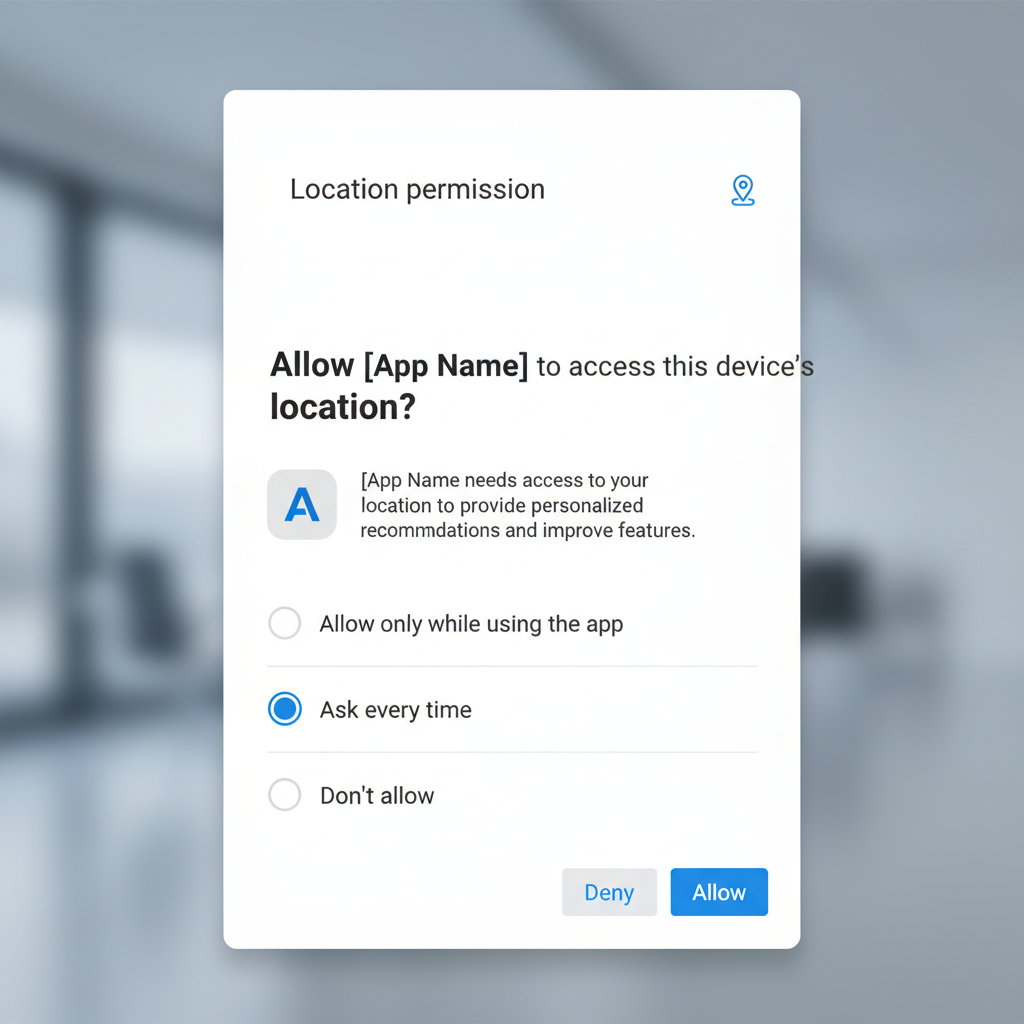
- Ask every time (good for apps you rarely trust)
- Allow all the time (use sparingly)
Turn off precise location (when available)
Many apps don’t truly need your exact coordinates. If you see a Precise location toggle, switching it off gives an approximate area instead, which can reduce sensitivity while keeping basic functionality.
Stop background location and “silent” scanning that confuses people
A common frustration is “I turned location off (or limited it) but I still feel tracked.” Sometimes the issue is not the master toggle, but background access and scanning features that help the phone find networks and devices.
Check background access for heavy offenders
- Settings → Location → App location permissions → pick an app
- Avoid Allow all the time unless you have a clear reason
- Review any “Background location” option if your device shows it
Review Wi‑Fi and Bluetooth scanning
On many Android versions, you can allow Wi‑Fi/Bluetooth scanning even when Wi‑Fi/Bluetooth are “off,” which helps location accuracy but can feel sneaky.
- Settings → Location → Location services (or Advanced)
- Turn off Wi‑Fi scanning and/or Bluetooth scanning if you want stricter privacy
According to Google, scanning can improve location estimates, so disabling it may reduce accuracy in maps and nearby features.
Key settings cheat sheet (what to change based on your goal)
If you’re not sure which switch matters, use this quick table and pick the outcome you want.
| Goal | Best setting change | What you might lose |
|---|---|---|
| Stop all location access | Settings → Location → Use location Off | Maps accuracy, weather, “near me,” some automations |
| Keep navigation, stop background tracking | Set most apps to Allow only while using | Less convenience for apps that need passive updates |
| Reduce precision without breaking basics | Disable Precise location per app | Less accurate ride pickup, local recommendations |
| Reduce location “assists” | Turn off Wi‑Fi/Bluetooth scanning | Slower indoor positioning, weaker nearby device features |
Practical tips that make the change “stick”
After you adjust permissions, a few small checks prevent apps from quietly regaining access through prompts or updates.
- Review “Recently accessed” in Location settings to spot unexpected apps.
- Re-check permissions after major app updates, some apps re-request access when features change.
- Use “Ask every time” for low-trust apps, it’s annoying, but it’s honest.
- Don’t forget photos: camera apps may tag location in metadata; turn off geotagging in camera settings if that matters to you.
Key takeaway: For most people, the best privacy-to-convenience ratio comes from leaving Location on, then tightening per-app permissions and switching off precise location where possible.
When you should get extra help (or be careful)
If you’re managing a child’s phone, a work-managed device, or a phone used for safety monitoring, changing location can have real consequences. In those cases, it’s smart to confirm what depends on location before you disable anything.
- Work phones: your company may enforce location policies through MDM; ask IT if settings appear locked.
- Family safety setups: location sharing apps may stop reporting if you fully disable location.
- Emergency concerns: if you rely on emergency features, consider reading your device’s emergency location settings and, when in doubt, consult your carrier or device support.
Conclusion: a simple checklist before you walk away
If your goal is maximum privacy, turning location off at the system level works fast, but it can be blunt. If your goal is “stop the creepy stuff, keep the useful stuff,” you’ll get better results by restricting app permissions and disabling precise location for apps that don’t need it.
- Decide: system-wide off vs per-app control
- Set most apps to Allow only while using
- Disable Precise location where it’s optional
- Check Recent location requests to confirm the fix
If you want to take one action right now, open Location settings and change your top 3 apps to “Allow only while using the app.” It’s usually the quickest win.