
how to use claude ai for beginners comes down to two things: giving clear context and asking for an output you can actually use, not just “a good answer.” If you treat Claude like a teammate you brief well, the results feel surprisingly practical.
Most beginners get stuck in the same place, they open Claude, type one vague sentence, then wonder why the response feels generic or slightly off. That’s normal, Claude can’t read your mind, and it won’t guess your real constraints unless you tell it.
This guide keeps it simple, you’ll learn how to start, what to type, how to iterate, and how to avoid the common pitfalls like accidental hallucinations, over-trusting the output, or asking for too much in one prompt.
What Claude AI Is (and What It Isn’t)
Claude is a large language model (LLM) chatbot designed to help with writing, reasoning, summarizing, planning, coding help, and analysis. It’s strong at producing structured drafts and improving text when you supply enough background.

It isn’t a fact database you can blindly trust, and it isn’t a replacement for professional advice. In real work, Claude is best used as a drafting engine plus thinking partner, while you stay responsible for accuracy, tone, and final decisions.
According to NIST, generative AI systems can produce “hallucinations,” which means confident statements that may be incorrect. That’s why you’ll see me push verification habits throughout this article.
Getting Started: Account, Access, and a Clean Setup
For beginners, the fastest way to start is the web app. Once you’re in, do yourself a favor and set up a basic workflow you can reuse instead of improvising every time.
A simple setup that saves time
- Create a small prompt library in a notes app: “Summarize,” “Rewrite,” “Email draft,” “Meeting agenda,” “Research questions,” and so on.
- Decide your output defaults: US English, tone (friendly, direct), format (bullets, table), length (short draft vs full brief).
- Prepare a paste-ready context block: who you are, who the audience is, and what “good” looks like for your typical tasks.
If you’re using Claude at work, keep an eye on your company policy around confidential data. Many teams treat AI tools like external vendors, meaning you should avoid pasting sensitive customer info unless your org explicitly allows it.
The Prompt Formula Beginners Can Actually Use
If you only remember one thing about how to use Claude AI for beginners, remember this: Claude responds to the quality of your brief. A “good prompt” is usually just a clear brief with constraints.
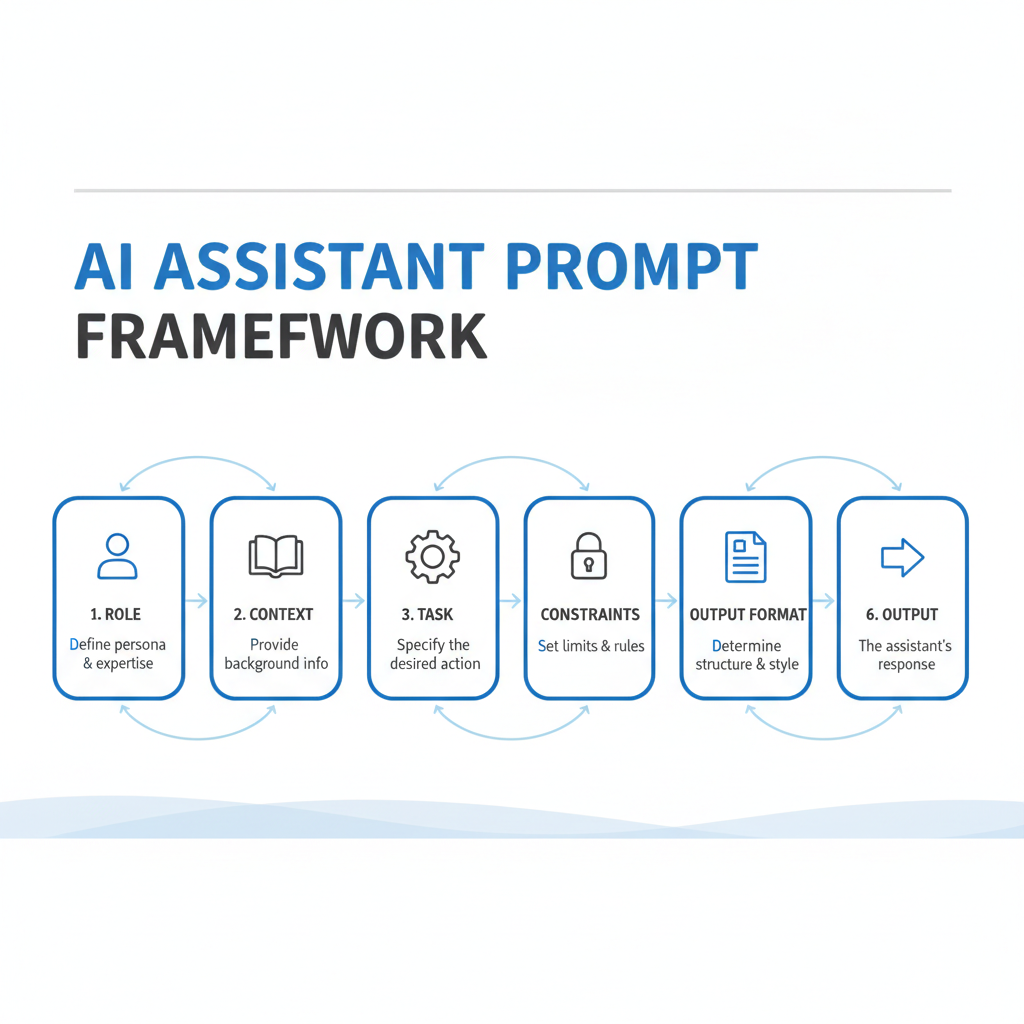
Use this “RCTF” structure
- Role: what should Claude act like (editor, tutor, analyst, project manager)?
- Context: what background does it need (audience, product, goal, constraints)?
- Task: what do you want it to produce?
- Format: how should the answer look (table, bullets, step-by-step, JSON)?
Example prompt you can copy
Role: You are a helpful technical writer.
Context: I’m a beginner. Audience is non-technical US users. I’m writing a quick-start guide for a chatbot feature.
Task: Draft a 1-page guide with a short intro, 6 steps, and a troubleshooting section.
Format: Use headings, bullets, and keep paragraphs under 4 lines.
One extra move that upgrades outputs fast: ask Claude to list assumptions before writing. If the assumptions look wrong, you fix them early instead of correcting a full draft later.
What to Use Claude For First (Practical Beginner Wins)
When people ask how to use Claude AI for beginners, they often jump straight to big projects like “write my business plan.” That can work, but you learn faster with smaller, repeatable tasks.
High-confidence starter tasks
- Rewrite and improve: clarity, tone, grammar, shortening long paragraphs.
- Summarize: turn long docs into key points and action items.
- Outline planning: blog outlines, meeting agendas, learning plans.
- Brainstorm options: subject lines, names, angles, pros and cons.
- Explain concepts: “Explain like I’m new to this,” then “give a deeper version.”
Tasks where you should slow down
- Anything factual with stakes: legal, medical, compliance, finance, safety guidance.
- Precise citations: Claude can help draft, but you should verify sources yourself.
- Data-heavy analysis: if numbers matter, validate calculations and inputs.
According to FTC guidance on advertising and endorsements, businesses remain responsible for claims they publish. If you use Claude for marketing copy, you still need a human review for accuracy and substantiation.
How to Iterate: The “Draft, Test, Tighten” Loop
Beginners often treat the first answer as the final answer, then they feel disappointed. Claude is more useful when you iterate like an editor.
A simple loop that works
- Draft: ask for a first version with a clear format.
- Test: ask Claude to critique its own output against your goal, or ask “what would confuse a beginner?”
- Tighten: request a revised version with specific changes, like “cut 25%,” “add examples,” or “make tone friendlier.”
Try this follow-up prompt: “Before revising, list the 5 most important fixes and ask me 3 questions.” It forces the model into a more careful mode and it forces you to clarify what you really want.
Safety, Privacy, and Accuracy: A Beginner Checklist
This is the part many guides skip, but it matters. Even if you’re just learning how to use Claude AI for beginners, you’ll build habits now that save you later.

Quick self-check before you paste anything in
- Would I be comfortable if this text appeared in a public ticket, email, or screenshot?
- Am I including personal data, private financial details, or confidential company info?
- Could this content identify a customer, patient, student, or employee?
Quick self-check before you publish or send the output
- Verify facts that matter, especially numbers, dates, policies, and claims.
- Look for overconfidence: strong language without evidence often signals risk.
- Check tone and bias: does it assume too much, stereotype, or oversimplify?
- Add attribution if you used sources, and don’t invent citations.
If you’re asking about health, mental health, or safety, treat outputs as general info and consider talking with a qualified professional for personal guidance, especially when symptoms or risk are involved.
Beginner-Friendly Workflows (with a Table You Can Reuse)
Here are a few workflows that match how people actually work, email, meetings, content, and learning. The trick is to keep inputs structured so Claude can stay on track.
Reusable workflows
| Goal | What you paste | What you ask Claude to do | What you verify |
|---|---|---|---|
| Email reply | Thread + your intent + constraints | Draft 2 tones: friendly and firm | Commitments, dates, promises |
| Meeting summary | Notes or transcript snippet | Action items with owners + deadlines | Names, decisions, next steps |
| Blog outline | Keyword + audience + angle | SEO-friendly outline + FAQs | Claims, sources, brand voice |
| Learning plan | Your level + time per week | 4-week plan with exercises | Tool recommendations, prerequisites |
Key takeaways you can use today
- Paste context first, then ask for output in a specific format.
- Iterate with critique-and-revise prompts, not endless re-asking.
- Keep a human-in-the-loop for accuracy, privacy, and brand voice.
Common Mistakes Beginners Make (and How to Avoid Them)
These are the patterns I see most: people either ask too vaguely, or they ask for a “perfect” final deliverable without giving the raw material.
- Vague prompts: “Write a post about Claude.” Fix: add audience, goal, length, format, and examples you like.
- No constraints: you get rambling output. Fix: set word count, sections, and what to exclude.
- One-shot mentality: you stop after draft one. Fix: ask for a second version with targeted edits.
- Trusting citations: it may sound right. Fix: ask for “what you’re uncertain about,” then verify externally.
- Pasting sensitive info: it’s convenient, until it isn’t. Fix: redact names, IDs, and unique details.
Conclusion: Your Next 15 Minutes with Claude
If you’re learning how to use Claude AI for beginners, don’t aim for magic prompts, aim for repeatable briefs. Give role, context, task, and format, then iterate once or twice with specific feedback.
Do this next: pick one real task you already need to finish today, write a 5-line brief using the RCTF structure, and ask Claude for two versions. You’ll learn more from that small loop than from reading prompt “hacks” for an hour.
Action step: Save your best prompt as a template, then reuse it next week, consistency is where the time savings start to show.