
how to fix wifi slow on certain devices usually comes down to one of three things: that device is stuck on the wrong Wi‑Fi band, it’s negotiating a slower standard, or it has a software or settings issue that other devices don’t share.
If your laptop flies but your phone crawls, you’re not “imagining it” and you don’t necessarily need a new internet plan. The good news is that this problem is often local, meaning you can fix it without calling your ISP, you just have to narrow down where the slowdown lives.
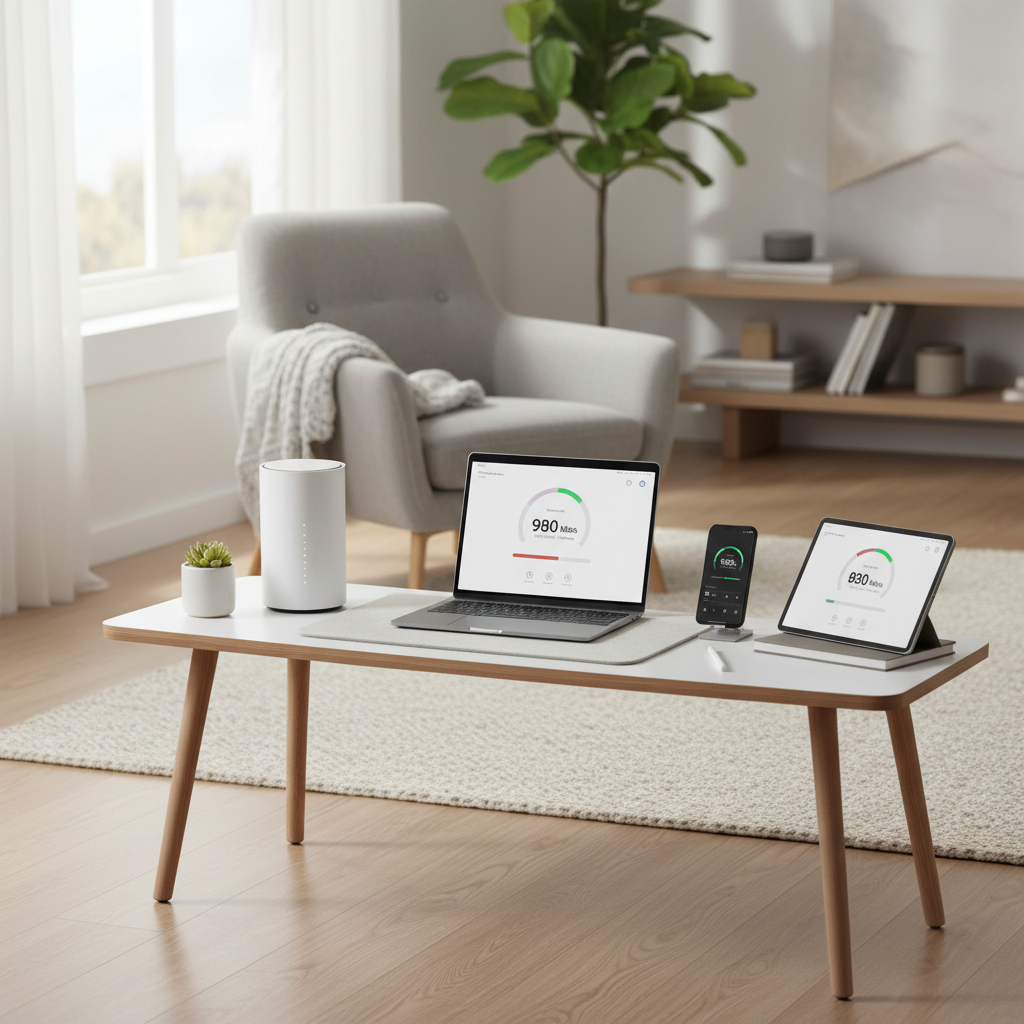
Most people get stuck because they keep rebooting everything at once. That can help, but it also hides the cause. This guide walks you through quick checks, a simple decision path, and fixes that match the real situation, not generic advice.
Start by proving where the slowdown actually is
Before changing settings, confirm whether the issue is the Wi‑Fi network, the device, or a specific location in your home. A five-minute check saves an hour of guessing.
- Run two speed tests: one on a “fast” device and one on the “slow” device, from the same spot, on the same Wi‑Fi network name (SSID).
- Swap locations: test the slow device right next to the router, then in the room where it usually struggles.
- Try a different network: connect the slow device to a phone hotspot or a friend’s Wi‑Fi. If it’s still slow, the device is the prime suspect.
According to the FCC, the most useful consumer troubleshooting step is to test performance across different conditions (time, device, and connection type) to understand whether the bottleneck is local or upstream.
Why WiFi is slow only on certain devices (the real-world causes)
This pattern happens because devices don’t behave the same on Wi‑Fi. They support different bands, different Wi‑Fi generations, and they make different decisions about roaming and power saving.
1) The device is on 2.4 GHz when others are on 5 GHz (or 6 GHz)
2.4 GHz travels farther but is usually more crowded, slower, and more prone to interference. Many “slow on my phone” cases are simply a phone sticking to 2.4 GHz while a laptop uses 5 GHz.
2) Older Wi‑Fi hardware or drivers cap performance
An older tablet may top out at Wi‑Fi 4 (802.11n), while newer devices use Wi‑Fi 5/6. Also, outdated drivers on Windows can negotiate a lower link speed or behave poorly with certain routers.
3) DNS, VPN, or security apps are slowing that device
If browsing feels slow but speed tests look “okay,” DNS resolution or an always-on VPN can be the dRAG. Some mobile security apps also filter traffic in ways that add delay.
4) Bad Wi‑Fi “profile” or network settings on that device
Saved networks can accumulate odd settings: private MAC address quirks, corrupted profiles, or a stuck IP lease. It’s boring, but “Forget network” fixes a lot.
5) Router steering, band steering, or compatibility edge cases
Some routers aggressively steer devices between bands. In many homes it’s fine, but certain phones, smart TVs, and IoT devices don’t handle it well and end up with unstable or slow throughput.
Quick self-check: which situation are you in?
If you want the fastest path to a fix, match your symptoms to the likely cause.
| What you notice | Likely cause | Best first fix |
|---|---|---|
| Slow device improves a lot near the router | Signal/roaming/band issue | Force 5 GHz, adjust placement, check channel |
| Speed test is fine but websites/apps feel slow | DNS/VPN/app filtering | Disable VPN, change DNS, remove filtering apps |
| Only one device is slow on every Wi‑Fi network | Device OS/driver/hardware | Update OS/drivers, reset network settings |
| Only video calls/gaming lag on that device | Power saving, background apps, Wi‑Fi sleep | Disable aggressive power saving for Wi‑Fi |
| Slow only on one SSID in your home | Router settings/steering/security mode | Split SSIDs, adjust security mode, firmware update |
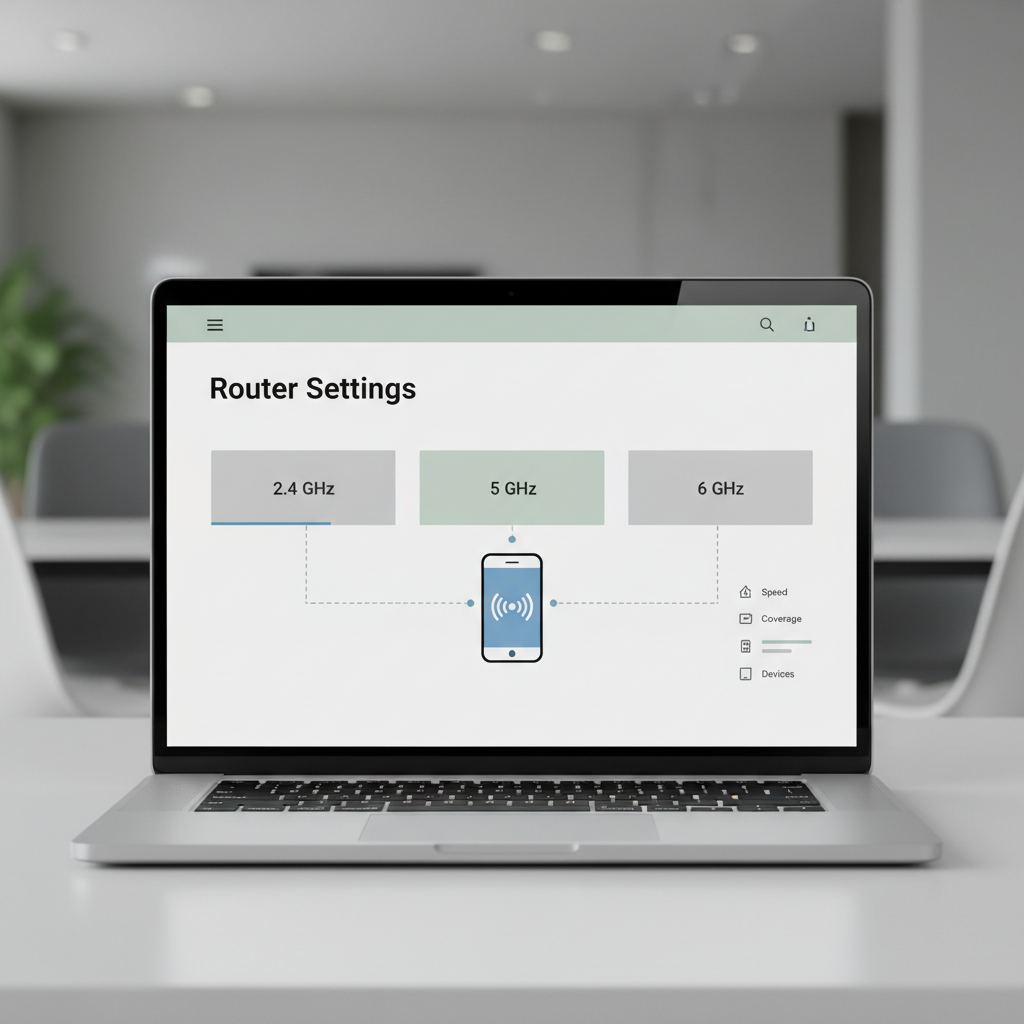
Fixes that usually work (in the order I’d try them)
These steps are safe and reversible. The goal is to isolate one change at a time so you actually learn what fixed it.
1) Make sure the slow device joins the right band
- If your router has separate network names for 2.4 GHz and 5 GHz, connect the slow device to 5 GHz.
- If your router uses a single combined name, consider splitting SSIDs temporarily to test.
- On phones, toggle Wi‑Fi off/on, then reconnect to encourage a fresh band selection.
If the slowdown disappears on 5 GHz, you’ve basically solved it, the rest becomes about keeping that device on 5 GHz reliably.
2) “Forget” the network and re-join
- On iPhone/iPad: Settings → Wi‑Fi → tap the network → Forget This Network.
- On Android: Network & internet → Wi‑Fi → select network → Forget.
- On Windows: Settings → Network & internet → Wi‑Fi → Manage known networks → Forget.
Then reconnect and re-enter the password. This resets the connection profile without touching your router.
3) Update the device (OS) and Wi‑Fi driver/firmware
For Windows laptops, the Wi‑Fi adapter driver matters more than people expect. For phones, OS updates often include wireless stability fixes.
- Windows: update via Device Manager or your laptop maker’s support tool, not just Windows Update.
- Router: install the latest firmware from the router brand.
According to CISA, keeping devices and network equipment updated is a core security recommendation, and it also reduces weird performance bugs that show up as “only this device is slow.”
4) Check for VPNs, Private Relay, or filtering apps
- Temporarily disable your VPN and retest.
- If you use iCloud Private Relay, pause it briefly and compare.
- Disable “web protection” features in third-party security apps for a test.
If speeds return, you can keep the tool but adjust settings, change VPN server, or split-tunnel common apps.
5) Change DNS on the slow device (good for “websites feel slow”)
This is not a magic speed boost, but it can reduce delays when opening sites. Popular options include Google Public DNS and Cloudflare, and many routers also let you set DNS for the whole network.
If you’re not sure, change DNS on the device first, it’s easier to undo.
Router-side tweaks when only certain devices suffer
If multiple devices are fine and one category struggles, the router settings can be the mismatch point. Don’t change ten things at once, pick one.
Split SSIDs (temporarily or permanently)
Band steering is convenient until it isn’t. Splitting names gives you control and makes troubleshooting obvious.
Check security mode compatibility
- WPA2/WPA3 mixed can confuse older clients in some setups.
- If an older device can’t connect reliably, testing WPA2 can confirm a compatibility issue.
Keep security in mind, if you change security modes, use a strong password and consider updating/retiring very old devices.
Pick a less congested channel
In apartments, channel congestion is a common reason one device performs worse because its antenna design is less tolerant of interference. Many routers have “auto,” but manual channel selection sometimes helps.
According to the Wi‑Fi Alliance, Wi‑Fi performance depends heavily on the local radio environment, interference and congestion can impact throughput and latency even when signal looks strong.
Device-specific fixes (phone, laptop, smart TV)
This is the part most guides skip, but it’s often where the answer lives.
Phones and tablets
- Disable Low Power Mode or battery optimization for a test, some modes reduce network activity.
- Reset network settings if the issue persists across reboots.
- Check whether the device is stuck using an older Wi‑Fi standard due to “compatibility” toggles.
Windows laptops
- In adapter properties, ensure the preferred band is 5 GHz when available.
- Turn off overly aggressive power saving for the Wi‑Fi adapter.
- If you recently installed a VPN or security suite, test without it.
Smart TVs and streaming boxes
- Prefer 5 GHz if the TV is close enough; otherwise consider Ethernet.
- Some TVs have weaker antennas, moving the router a few feet can change everything.
Common mistakes that waste time
- Assuming your ISP is the issue because one device is slow, if other devices are fast, it’s usually local.
- Testing from different rooms and comparing results as if they’re equal, walls and distance matter.
- Chasing “speed booster” apps, on iOS and most Android builds, they rarely fix Wi‑Fi throughput.
- Changing too many router settings at once, you won’t know what helped and what made it worse.
When it’s time to get extra help
If you’ve confirmed the slow device is also slow on other Wi‑Fi networks, hardware may be failing or the OS may have deeper issues. In that case, a device repair shop or manufacturer support can be worth it.
If the slowdowns affect work calls, security cameras, or anything safety-related, and you’re seeing frequent disconnects or overheating, it’s reasonable to consult a qualified technician. You don’t need to overthink it, you just want someone to validate the setup and check for equipment faults.
Key takeaways
- Different devices can connect at different speeds, even on the same router, because of band choice, Wi‑Fi generation, and settings.
- Prove the problem with a quick same-spot test, then fix one variable at a time.
- Most wins come from getting the device onto 5 GHz, resetting the Wi‑Fi profile, and updating drivers/firmware.
- If the device is slow on every network, it’s probably a device-side problem, not your internet plan.
Conclusion: a practical way to get back to normal speeds
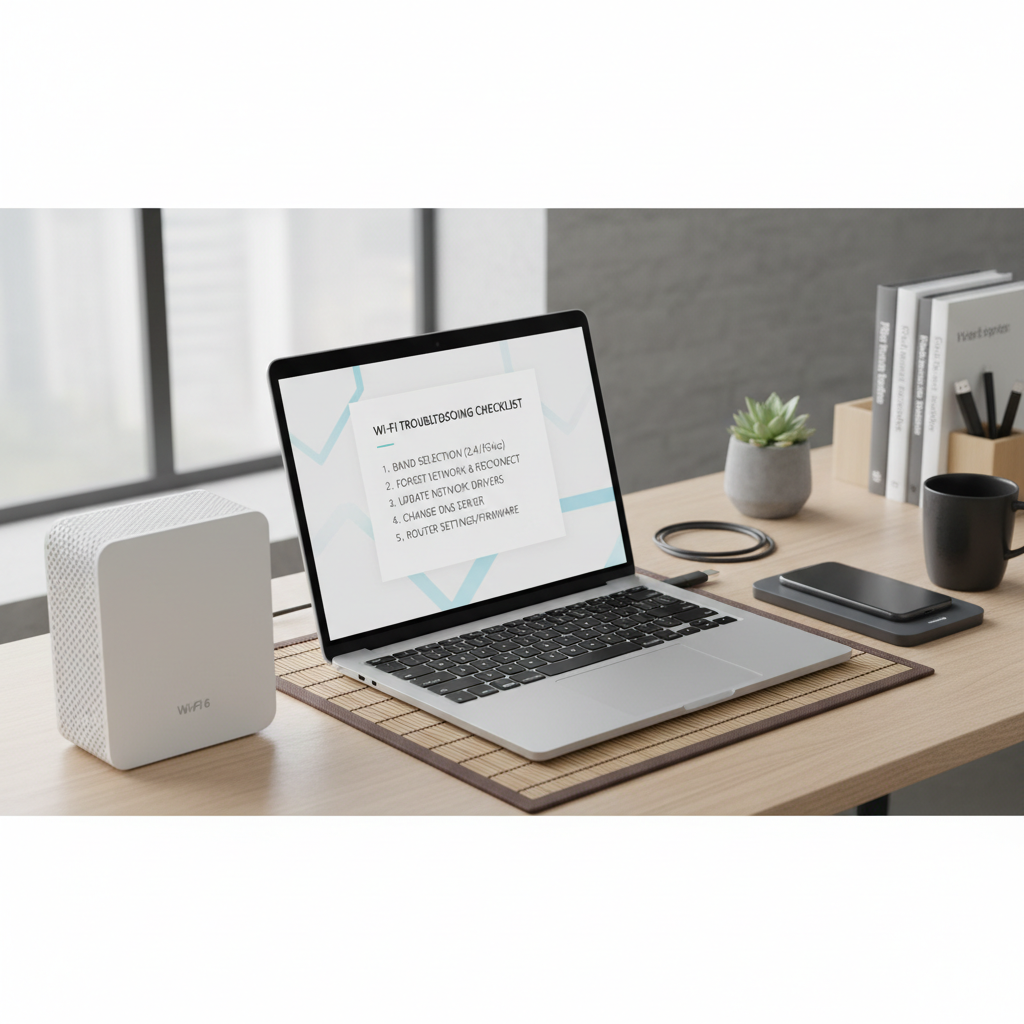
If you’re trying to figure out how to fix wifi slow on certain devices, treat it like a sorting task, confirm whether it’s band, software, or router compatibility, then apply the matching fix instead of doing random resets. Start with band selection and “Forget network,” then move to updates, VPN/DNS checks, and finally router tuning.
If you want one action to take today, run a same-spot speed test on a fast device and the slow one, then force the slow device onto 5 GHz and retest, that single comparison usually tells you what to do next.
FAQ
Why is my WiFi fast on my laptop but slow on my phone?
Many times the phone connects to 2.4 GHz while the laptop uses 5 GHz, or the phone has a VPN, Private Relay, or battery optimization that changes network behavior. Test both devices in the same spot and confirm which band each one uses.
How do I check if my device is on 2.4 GHz or 5 GHz?
Some phones show the band in Wi‑Fi details, but not all. The easier method is to split SSIDs on your router (for example, “HomeWiFi-2G” and “HomeWiFi-5G”) and see which one the device joins.
Will changing DNS fix slow WiFi on only one device?
It can help when the slowdown is really “slow loading” rather than low throughput. If speed tests are strong but pages start slowly, DNS is a reasonable thing to try because it’s quick and reversible.
Should I reset my router if only one device is slow?
A reboot is fine, but a full factory reset is usually overkill early on. If other devices are consistently fast, focus on the slow device profile, band choice, updates, and VPN/security apps before wiping router settings.
Why is my smart TV slow even when my phone is fine?
Smart TVs often have weaker Wi‑Fi radios and sit behind walls or inside cabinets. If 5 GHz is unstable at that location, Ethernet or a better access point placement often beats endless setting changes.
Can my router be “incompatible” with a specific device?
It happens, especially with mixed WPA2/WPA3 modes, aggressive band steering, or certain Wi‑Fi 6 features. If the problem appears after a router upgrade, testing a simpler security mode or splitting SSIDs can confirm it.
What if the slow device is only bad at night?
That can point to congestion or interference, not necessarily your ISP. Test the same device on 5 GHz, try a different channel, and check whether neighbors’ networks are crowding the band.
If you’re trying to sort out this issue quickly, and you’d prefer a more guided approach, it can help to write down what’s fast, what’s slow, which band each device uses, and what changed recently, then work through the fixes in order so you don’t lose track of what actually improved performance.