
how to fix facebook not loading images usually comes down to a small handful of culprits: unstable internet, app cache issues, browser settings, VPN/proxy interference, or a temporary Facebook-side outage.
If you’re staring at gray boxes, endlessly spinning loaders, or blurry thumbnails that never sharpen, it’s more than “annoying” because it blocks Marketplace listings, event flyers, group posts, and even basic context in your feed.
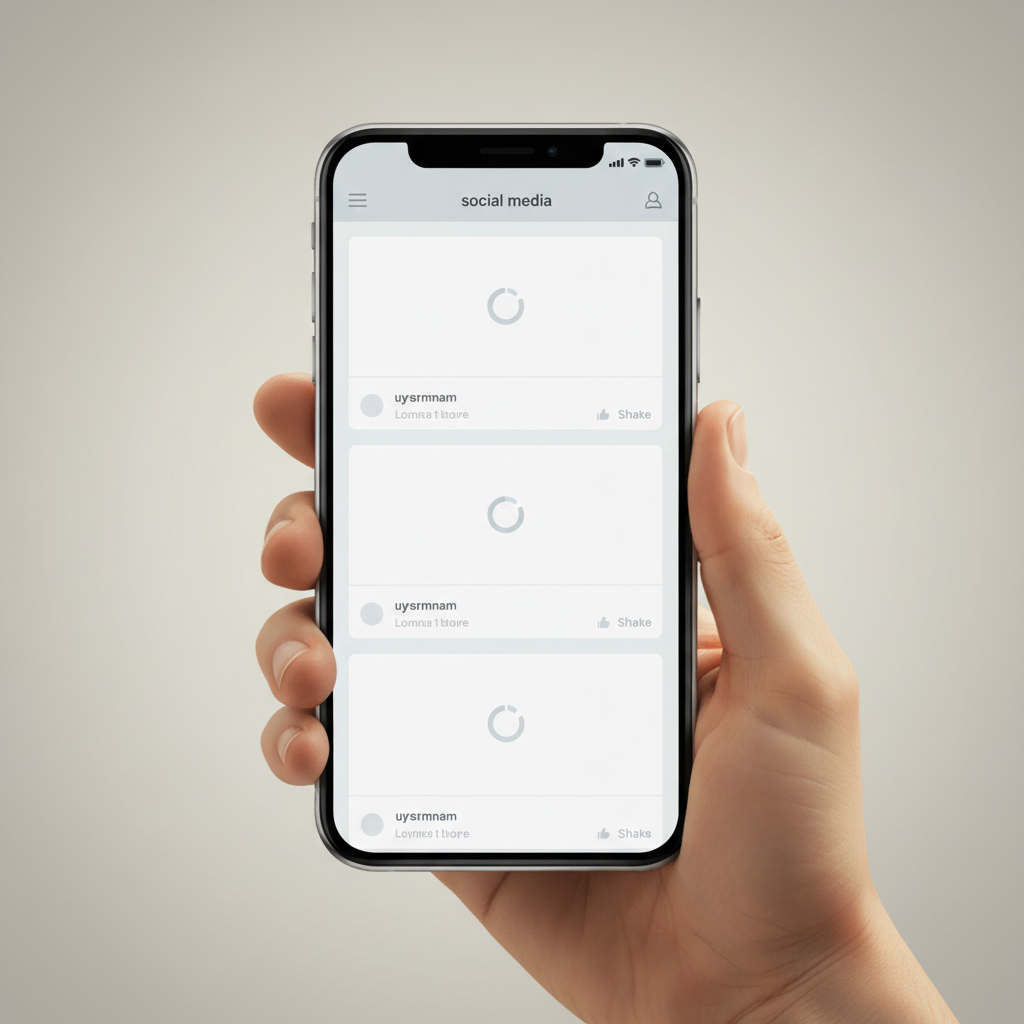
The good news, most fixes are quick, and you can narrow it down in minutes if you test in the right order, network first, then device/app, then account, then Facebook itself.
According to Meta, its status and help resources can clarify when issues are platform-wide, which matters because you don’t want to waste time “repairing” your phone when Facebook is simply having a rough hour.
Quick diagnosis: what “not loading images” actually means
People describe this issue in a few different ways, and each points to a different layer of the problem.
- Blank or gray image boxes: content request fails or gets blocked (network, VPN, DNS, privacy blockers).
- Images load on Wi‑Fi but not on cellular: carrier restrictions, Data Saver, background data limits.
- Images load in browser but not in the app: app cache corruption, outdated app, OS permissions.
- Only some photos fail: CDN hiccups, region routing, or a specific post’s media issue.
- Thumbnails load but full images don’t: bandwidth limits, Data Saver, or “HD” delivery blocked.
Before you change anything, do one sanity check: open Facebook on another device or browser on the same network, then on a different network if possible. That single comparison tells you whether to focus on your device or your connection.
Fast checklist (5 minutes) to pinpoint the cause
Run this in order, and stop when images start loading again. You’re aiming to isolate “network vs app vs account vs Facebook outage” without guesswork.
- Toggle Airplane Mode on/off, then reopen Facebook.
- Switch networks: Wi‑Fi to cellular or cellular to Wi‑Fi.
- Try Facebook in a browser (Chrome/Safari) if the app fails.
- Turn off VPN/proxy/ad-blocking DNS temporarily.
- Force close the app (or hard refresh the tab) and retry.
- Log out/in once, only after the steps above.
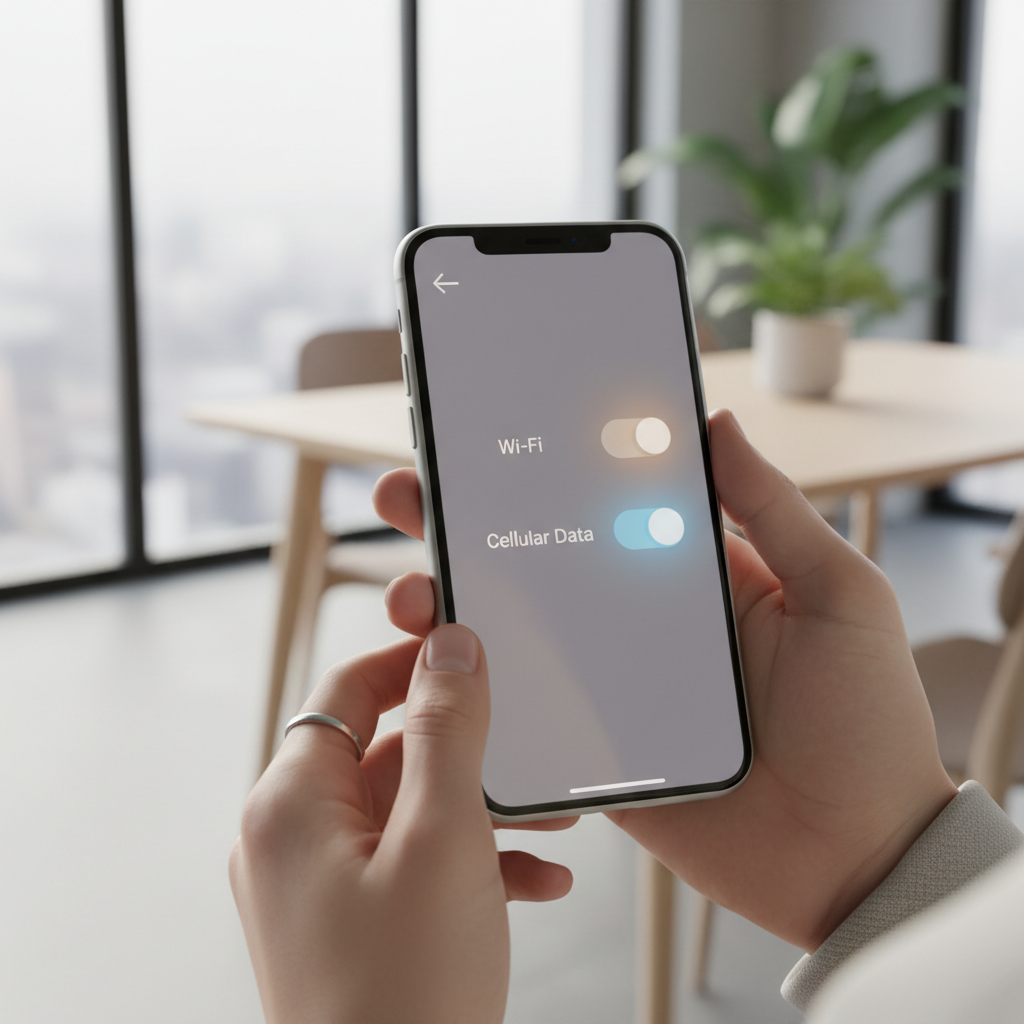
If images fail on every device and every network, odds tilt toward a Facebook-side issue. If it fails only in the app, focus on app storage, permissions, and updates.
Most common causes (and what they look like in real life)
This is where people get stuck, they try random “cleaner” apps or reinstall ten times, when the root cause sits elsewhere.
- Unstable or filtered connection: public Wi‑Fi, workplace networks, or hotel Wi‑Fi sometimes block image/CDN domains.
- VPN, proxy, or private DNS: security tools can interfere with media delivery, especially if endpoints rotate.
- App cache and local storage issues: Facebook’s cache grows fast, and corruption can break media rendering.
- Data Saver / Low Data Mode: Facebook and phone settings can both throttle images.
- Browser privacy extensions: content blockers may block media scripts or trackers Facebook depends on for delivery.
- Outdated app or OS: compatibility bugs show up most around major app releases.
- Facebook outage or degraded performance: nothing “wrong” on your side, you just wait it out.
According to Apple Support, Low Data Mode can reduce network usage and affect how apps load content, so it’s worth checking when images consistently stay low-res or never complete.
Fixes by device: iPhone, Android, and desktop browser
Pick your platform and follow the steps, don’t mix too many changes at once or you won’t know what worked.
iPhone (iOS) fixes
- Disable Low Data Mode: Settings → Cellular → Cellular Data Options → Low Data Mode (off), and also check Wi‑Fi → your network → Low Data Mode.
- Allow Cellular Data for Facebook: Settings → Cellular → Facebook (on).
- Offload or reinstall the app: Settings → General → iPhone Storage → Facebook → Offload App (keeps documents), then reinstall.
- Update iOS and Facebook: App Store updates, then iOS update if you’re behind.
If images load in Safari but not the app, offloading/reinstalling tends to beat endless refreshing.
Android fixes
- Clear cache: Settings → Apps → Facebook → StoRAGe → Clear cache.
- Check data restrictions: Settings → Apps → Facebook → Mobile data & Wi‑Fi → enable Background data and Unrestricted data (wording varies by device).
- Turn off Data Saver: Settings → Network & Internet → Data Saver (off), then test again.
- Update Android System WebView: via Google Play, this can affect in-app rendering on some phones.
According to Google’s Android documentation, Data Saver can restrict background data and reduce app networking behavior, which can show up as missing media or stalled loading.
Desktop browser (Chrome/Edge/Safari) fixes
- Hard refresh: Windows Ctrl+F5, Mac Cmd+Shift+R.
- Disable extensions temporarily: ad blockers, privacy tools, script blockers, then reload.
- Clear site data for Facebook: remove cookies/cache for facebook.com only, not your whole browser if you want to keep other sessions.
- Check “Images” permissions: browser site settings should allow images and JavaScript.
If images work in an incognito/private window, that’s a strong hint an extension or stored site data is the blocker.
One table to match symptoms to the right fix
If you only do one “smart” step, do this matching, it prevents the classic loop of reinstalling when the network is the actual problem.
| What you see | Likely cause | What to try first |
|---|---|---|
| Blank boxes on Wi‑Fi, works on cellular | Wi‑Fi filtering, DNS/VPN, router issue | Turn off VPN/private DNS, reboot router, try different Wi‑Fi |
| Works in browser, fails in app | App cache/storage, outdated app | Clear cache (Android) or offload/reinstall (iPhone), update app |
| Only HD images fail or never sharpen | Low Data Mode/Data Saver | Disable data saving settings in phone and Facebook |
| Images fail everywhere for everyone | Facebook outage/degraded service | Check Meta status/help channels, wait and retry later |
| Some posts load, others never do | Specific media/CDN hiccup or post issue | Try later, switch network, report post if needed |
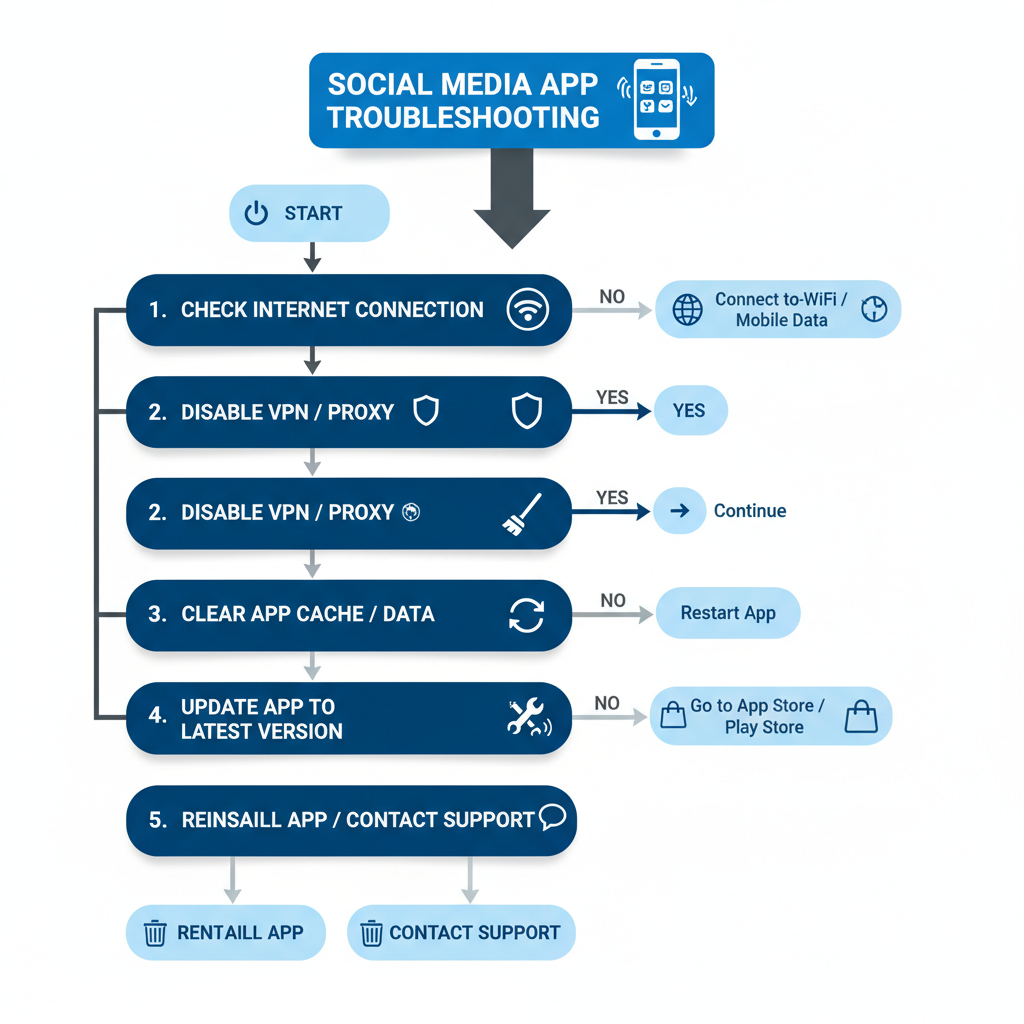
Practical step-by-step: the fixes that usually work
When someone asks me how to fix facebook not loading images, this is the sequence I’d use because it goes from least disruptive to most disruptive, and it keeps your account safe.
Step 1: Stabilize the connection
- Restart Wi‑Fi (toggle off/on) or reboot your router if you control it.
- Switch DNS back to default if you use a custom DNS or “ad-block DNS.”
- Turn off VPN/proxy and test again, then re-enable once confirmed.
Step 2: Check Facebook’s own data settings
- In Facebook app: Settings & privacy → Settings → Media (wording varies) and look for Data Saver or Autoplay options.
- If you want a quick test, temporarily disable Data Saver and reload the same post.
Step 3: Refresh app storage (without overdoing it)
- Android: clear cache first, only clear storage/data if cache doesn’t help.
- iPhone: offload/reinstall is often cleaner than repeated restarts.
Step 4: Update, then retest
- Update Facebook, then restart the phone, then test images again.
- If you’re far behind on OS updates, consider updating, but do it when you have time and battery.
Step 5: Log out/in, then last-resort reinstall
- Log out and back in once, especially if the issue follows your account across devices.
- Only reinstall after you’ve tested network and VPN settings, reinstalling won’t fix a blocked connection.
Common mistakes that waste time
- Changing five things at once, then not knowing what actually fixed the issue.
- Using random “phone cleaner” apps, they can create new problems and rarely target the real cause.
- Ignoring VPN/private DNS, this is a big one in the US where many people run privacy tools by default.
- Clearing all browser data when the problem is only facebook.com, you’ll just log out everywhere.
- Assuming it’s your phone when Facebook is having a service disruption, checking status first can save an hour.
Key takeaways: test another network, disable VPN/private DNS, clear app cache responsibly, then update. That order solves a large share of cases without drama.
When to seek extra help (and what to prepare)
If you still can’t fix facebook not loading images after trying the steps above, it may be time to get more specific help, but bring clean details so support forums or your IT team can actually diagnose.
- If it happens only on a workplace or school network, ask the network admin whether Facebook/CDN domains are blocked.
- If it happens only on one account across multiple devices, use Facebook’s in-app “Report a Problem,” include screenshots and the time it occurred.
- If it happens only on your home Wi‑Fi and every device shows it, your ISP routing or router DNS settings may be involved, contacting ISP support might help.
When you ask for help, share: device model, OS version, Facebook app version, whether VPN/private DNS is on, and whether it fails on Wi‑Fi vs cellular. Those details cut guesswork fast.
Conclusion: a simple path back to normal image loading
If Facebook photos won’t load, don’t start with drastic resets, start with a quick network swap, then disable VPN/private DNS for a test, then refresh the app’s cache or reinstall cleanly. If the issue appears across devices and networks, it’s often a Facebook-side problem and waiting a bit beats endless tinkering.
If you want one action right now, open the same post on another network or device, that single check usually tells you which fix will actually matter.