
How to fix outlook not receiving emails on Windows usually comes down to one of three things: Outlook is offline, the mailbox is not syncing, or mail is getting diverted by a rule, filter, or account-side issue.
If your inbox looks “stuck,” it’s not just annoying, it can quietly cause missed deadlines, lost customer messages, and a lot of second-guessing. The good news is you can often narrow the cause in 10–15 minutes if you check the right places in the right order.
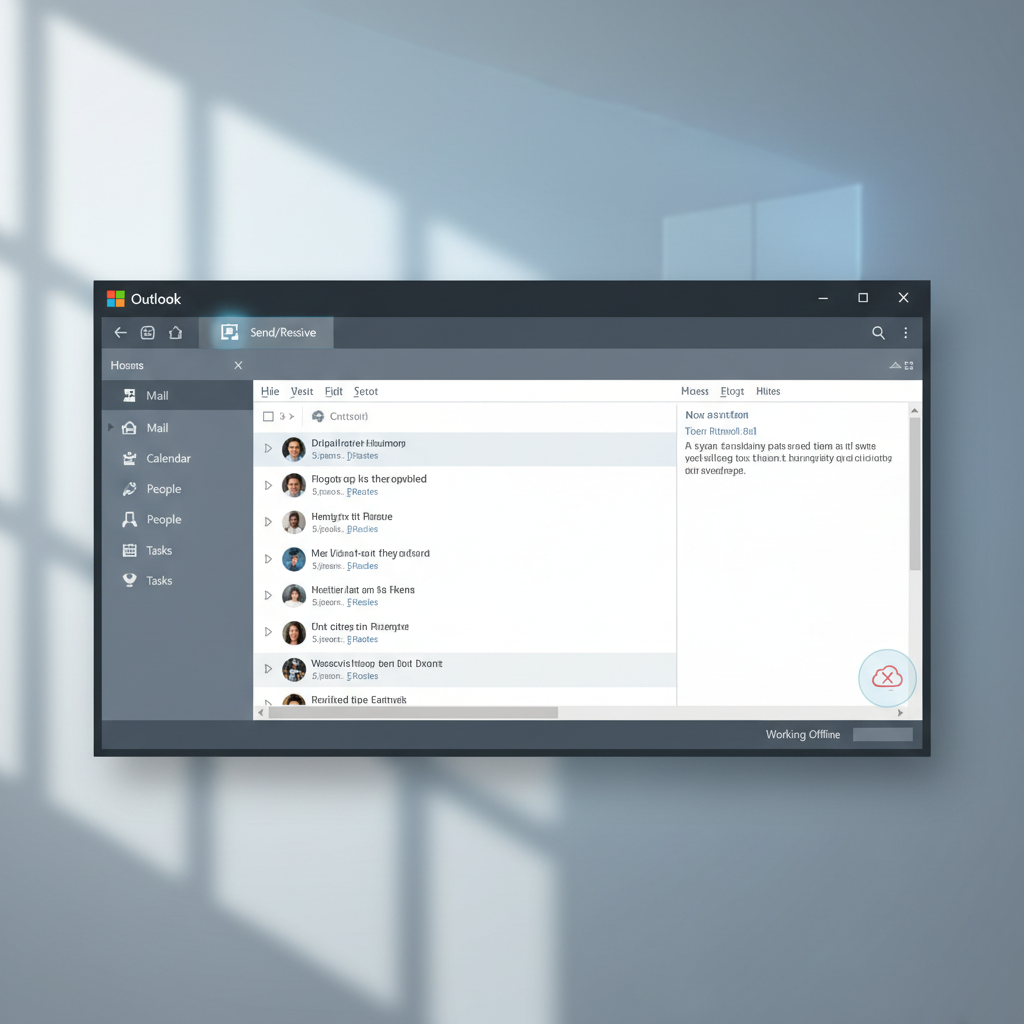
One common misconception: “Outlook is broken.” In reality, Outlook is often doing exactly what it’s told, for example working offline, using an old profile, or respecting a server-side rule you forgot you created. Below is a practical workflow to diagnose and fix it without guesswork.
Quick triage: identify what ‘not receiving’ really means
Before changing settings, get clear on the symptom. “Not receiving emails” can mean different failure points.
- Nothing new arrives anywhere: webmail also empty, likely sender issue, server delivery delay, or account-side problem.
- Webmail receives but Outlook doesn’t: Outlook sync, credentials, cache, profile, or local filtering issue.
- Some senders arrive, others don’t: rules, junk/spam filtering, focused inbox, or blocked senders.
- Mail arrives on phone but not PC: PC Outlook offline, stuck queue, or profile corruption.
Fast check: sign in to your mailbox in a browser (Outlook.com or your company’s Outlook on the web). If messages are present there, you can focus on Outlook for Windows rather than the mail server.
Fix the most common Outlook sync blockers (offline, paused, disconnected)
This is where a lot of cases end quickly. Outlook can look “normal” while quietly not syncing.
1) Make sure Outlook is not working offline
- In Outlook, go to Send/Receive tab.
- If Work Offline is highlighted, click it to turn it off.
- Check the bottom status bar for messages like Disconnected, Trying to connect, or Working Offline.
2) Trigger a manual sync and watch for errors
- Press F9 (Send/Receive All Folders) or use Send/Receive button.
- If you see prompts for password or modern authentication, complete them.
According to Microsoft Support, connectivity status and Send/Receive behavior are key indicators when Outlook fails to update folders, so it’s worth checking the status bar before deeper changes.
Look for “missing” mail: Focused Inbox, filters, rules, and views
Sometimes Outlook receives mail fine, but your current view hides it. This is especially common after you change accounts, add shared mailboxes, or tweak sorting.
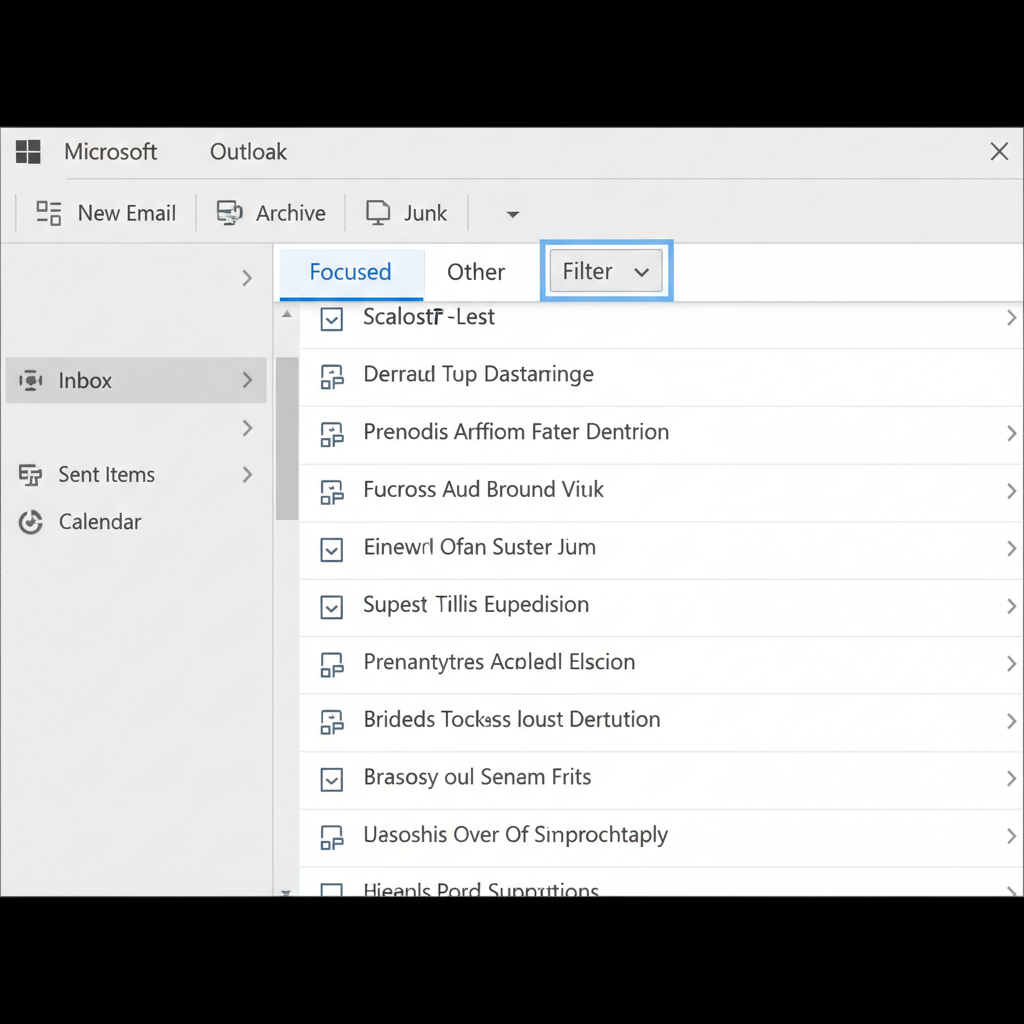
Checklist: where the emails might be hiding
- Focused Inbox: check the Other tab.
- View filters: in the inbox, set filter to All and clear any search box text.
- Conversation view: a new reply can be buried inside an older thread.
- Junk Email and Clutter (if present): scan quickly.
- Archive and Deleted Items: rules can move mail unexpectedly.
Rules: the usual culprit when only some mail “never arrives”
- Go to File > Manage Rules & Alerts.
- Temporarily uncheck suspicious rules, especially ones moving messages to folders.
- Also check server-side rules in Outlook on the web, those can affect every device.
If you’re trying to figure out how to fix outlook not receiving emails from a specific sender, rules and junk filtering often explain it better than any “repair” button.
Account and authentication issues: passwords, MFA, and connection type
Outlook can stop pulling new mail if authentication breaks silently, especially after password changes, enforced multi-factor authentication, or security policy updates.
What to do on Windows
- Go to File > Account Settings, confirm the right account is selected.
- Click Repair (if available) and follow prompts.
- Close Outlook, open Credential Manager in Windows, remove outdated Office/Outlook credentials, then sign in again.
- If you use Microsoft 365/Exchange, ensure you’re using modern authentication when prompted, not old saved passwords.
According to Microsoft Support, sign-in and credential problems can prevent Outlook from updating folders even when the app still opens normally, so re-auth is often a practical step before rebuilding anything.
Repair the mailbox connection: update, add-ins, and Outlook data files
If Outlook is online and filters are clean but the inbox still won’t refresh, you’re usually dealing with a local client issue.
1) Update Outlook and Office
- In Outlook, go to File > Office Account > Update Options > Update Now.
2) Start Outlook in Safe Mode (to rule out add-ins)
- Press Win + R, type outlook.exe /safe, press Enter.
- If mail arrives in Safe Mode, disable add-ins: File > Options > Add-ins.
3) Check OST/PST health (when applicable)
- For Exchange/Microsoft 365, Outlook often uses an OST cache file. A corrupted cache can cause “stuck” folders.
- For POP accounts, PST issues can block updates; Microsoft’s Inbox Repair Tool (SCANPST) may help.
This step is where a lot of “it worked yesterday” stories end up, especially after Windows updates or abrupt shutdowns.
Create a new Outlook profile (most reliable ‘last step’)
If you’ve tried connectivity, filters, credentials, and Safe Mode, a profile rebuild is often the cleanest fix. It sounds drastic, but it’s usually faster than chasing one obscure setting.
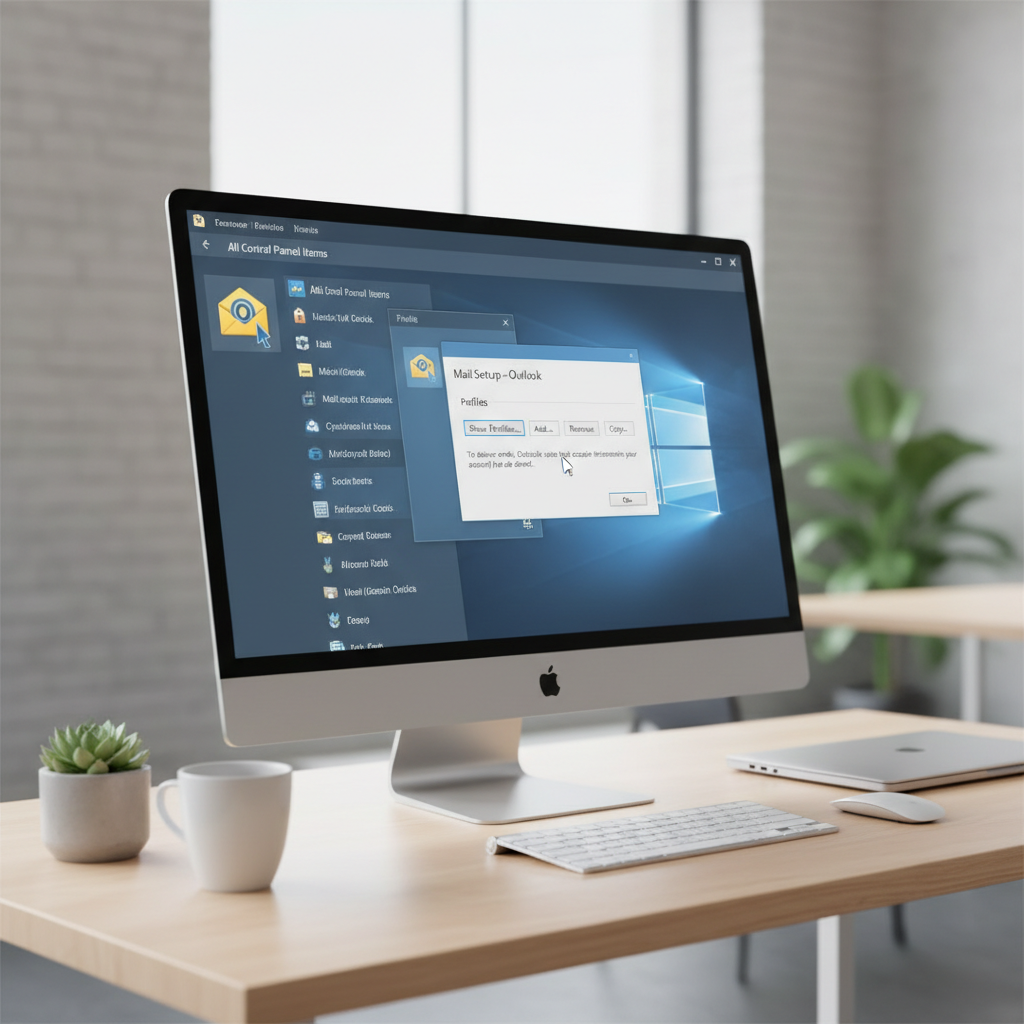
Steps (Windows)
- Close Outlook.
- Open Control Panel > Mail (sometimes shown as Mail (Microsoft Outlook)).
- Click Show Profiles > Add, create a new profile.
- Add your account, then set Always use this profile to the new one (or choose prompt if you prefer).
After the rebuild, give it time to sync. Large mailboxes can take a while to re-index and download headers, so “empty” for the first few minutes doesn’t always mean failure.
Decision table: symptom to fix (so you don’t waste time)
If you want the shortcut version of how to fix outlook not receiving emails, match your symptom to the most likely fix.
| What you see | Most likely cause | What to try first |
|---|---|---|
| Webmail has new messages, Outlook doesn’t | Offline/disconnected, auth, cache, add-in | Work Offline off, F9, re-sign-in, Safe Mode |
| Only certain senders missing | Rules, junk filter, blocked sender | Check Rules & Alerts, Junk folder, blocked list |
| Outlook says “Trying to connect” | Network/VPN/proxy, password/MFA loop | Verify network/VPN, sign in again, Credential Manager |
| Inbox updates on phone, not on PC | PC profile/add-ins/OST issue | Safe Mode, update Office, new profile |
| Search works, but inbox looks frozen | View filter, sorting, conversation grouping | Clear filters, set view to default, check Other tab |
Common mistakes that slow you down
- Reinstalling Office immediately: it’s time-consuming and often doesn’t touch the real cause (profile, rules, credentials).
- Ignoring Outlook on the web: webmail is your quickest “server vs. client” divider.
- Over-cleaning rules: delete only when you’re sure; disabling temporarily is safer.
- Confusing delivery with sync: if the message never hits the mailbox, Outlook can’t download it.
When to involve IT or your email provider
If you’re on a work account, some fixes depend on admin policies. It’s reasonable to escalate when any of these are true:
- You can’t sign in due to MFA/conditional access prompts or repeated password loops.
- Outlook on the web also fails to receive mail or shows delivery delays.
- You suspect a mail flow issue, blocked domain, or quarantine policy (common in business email security tools).
- Errors mention server settings you can’t edit (Exchange, Autodiscover, policy restrictions).
According to Microsoft Learn, Exchange and Microsoft 365 environments often enforce organization-wide policies that affect mail flow and client connectivity, so admin-side checks can be necessary in managed workplaces.
Key takeaways (keep this short list handy)
- Confirm where the failure lives: webmail vs. Outlook for Windows.
- Check offline status and filters before “repairing” anything.
- Rules and junk filtering explain many “missing sender” cases.
- Safe Mode and a new profile are the two highest-leveRAGe fixes when Outlook acts stuck.
Conclusion: get back to a trustworthy inbox
If your goal is a reliable workflow, treat this like a funnel: verify delivery in webmail, remove Outlook-side blockers (offline, filters, rules), then move to client repairs (updates, add-ins, profile). That path usually fixes the issue without random changes.
If you want an action plan, do these two next: open webmail to confirm messages exist, then toggle Work Offline off and run a manual Send/Receive. If that still fails, Safe Mode or a new profile is often the turning point.
FAQ
Why is Outlook not receiving emails but Outlook on the web is working?
That usually points to a local Outlook issue: offline mode, authentication, add-ins, or a corrupted cache/profile. Start with Work Offline, then Safe Mode, then a new profile if needed.
How do I know if Outlook is filtering out new emails?
Look for a filter indicator in the inbox, clear the search box, set the view to show All messages, and check Focused vs Other. It’s common to miss this after sorting changes.
Can rules make Outlook look like it’s not receiving emails?
Yes, and it happens a lot. Rules can move messages into folders you don’t check, send them to RSS feeds, or delete them. Disable suspicious rules briefly to confirm.
Does rebuilding an Outlook profile delete emails?
In many Microsoft 365/Exchange setups, mail stays on the server, and a new profile simply re-syncs. For POP accounts with local-only storage, be more careful and consider backing up the PST first.
What if Outlook keeps asking for my password and still won’t sync?
Repeated prompts often involve cached credentials or an MFA/modern auth issue. Clearing old entries in Windows Credential Manager and signing in again can help, but workplace accounts may require IT to adjust policies.
How long should I wait after fixing settings before mail shows up?
If your mailbox is large, Outlook may take time to sync and index, especially after creating a new profile. Give it a bit, then check status messages in the Outlook window and try F9 again.
Is reinstalling Office a good fix for Outlook not receiving emails?
It can help in some edge cases, but it’s rarely the most efficient first move. Most problems come from connection state, rules, add-ins, or profile/authentication rather than the installation itself.
If you’re trying to fix this for a work mailbox and you’d rather not poke at settings all afternoon, it can be worth asking IT to confirm mail flow and quarantine status while you handle the Outlook-side checks above, that combo often gets you to an answer faster.