
Top free data recovery software for usb can save a semester project, a client folder, or your family photos, but only if you stop using the drive and pick the right tool for your situation.
Most USB “data loss” is not magic, it’s usually accidental deletion, a quick format, a corrupted file system, or a drive that suddenly shows up as RAW. The catch is that every extra write to the USB stick can overwrite the exact data you want back.
This guide stays practical: which free tools are actually worth trying in 2026, what each one is best at, how to run a safe recovery attempt, and when software won’t help because the USB is physically failing.

Quick reality check: what “free” recovery can and can’t do
Before you download anything, set expectations. Many products labeled “free” are free-to-scan, then charge to recover. That’s not always bad, but it matters when you’re counting on a $0 solution.
- Best cases for free recovery: recently deleted files, light corruption, accidental format, readable USB that still shows up in Disk Management.
- Hard cases: USB not detected, constant disconnects, “USB device not recognized,” or severe bad blocks. Those often need hardware-level work.
- Don’t keep trying random tools: repeated scans can stress a failing drive, and copying files back to the same USB can overwrite recoverable data.
According to NIST (National Institute of Standards and Technology), proper data sanitization methods exist for making data unrecoverable, which is a reminder that recovery depends heavily on what happened after deletion or formatting.
Before you scan: a safe decision checklist (2 minutes)
If you do only one thing right, do this: stop writing to the USB drive. No new files, no “repair disk,” no formatting “to fix it.”
- Is the USB visible? Check File Explorer and Windows Disk Management (or macOS Disk Utility).
- Is it asking to format? That often points to file system damage; recovery tools may still read raw data.
- Does it disconnect when you touch it? Try another port/cable/adapter, but if it’s unstable, prioritize imaging (more below).
- What file system? FAT32/exFAT are common on USB; NTFS appears on some larger drives. Some tools handle exFAT better than others.
- Do you need filenames/folders? Some recovery modes bring back files but lose original structure.
If the USB contains business, legal, or sensitive client data, pause and consider whether you need a more controlled process, including encryption and secure handling. In some cases, it’s worth consulting a professional service.
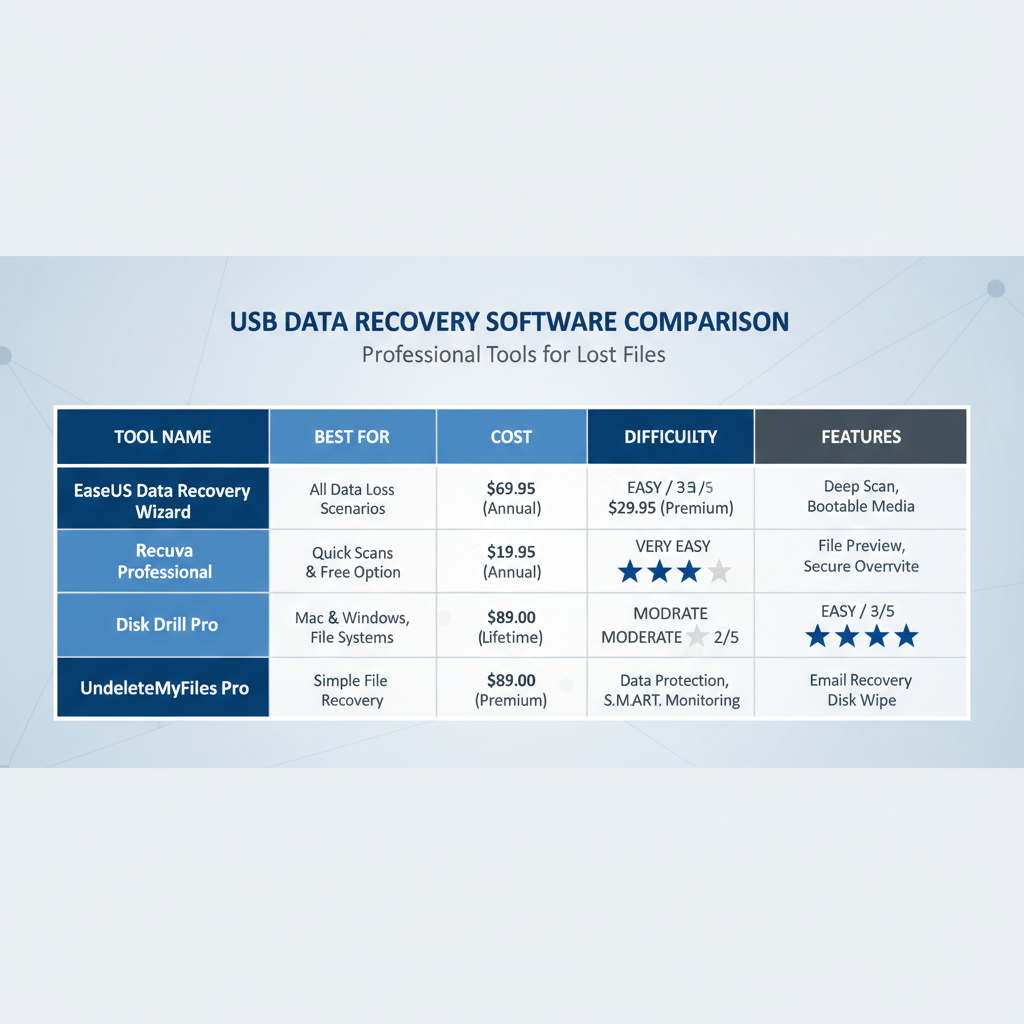
Top free data recovery tools for USB drives (2026 shortlist)
This list leans toward tools that are either truly free or have a meaningful free tier, and that have a track record in the broader Windows/macOS community.
| Tool | Best for | Cost model | Notes to know |
|---|---|---|---|
| Recuva (Windows) | Simple undelete on healthy USB | Free (optional paid) | Fast and beginner-friendly; weaker on heavy corruption |
| PhotoRec (Windows/macOS/Linux) | Deep recovery when file system is damaged | Free, open-source | Powerful but often loses filenames/folders; CLI-like flow |
| TestDisk (Windows/macOS/Linux) | Partition/file system repair + recovery | Free, open-source | Great when a partition “disappears”; more technical |
| Windows File Recovery (Windows) | Microsoft-native recovery attempts | Free | Command line; can work well for specific cases |
| Disk Drill (Windows/macOS) | Friendly UI, guided scan | Free tier varies | Often free to preview/scan; recovery limits may apply |
| EaseUS / Stellar (Windows/macOS) | Easy workflows, common USB scenarios | Free tier (limited) | Check recovery cap; still useful for verifying recoverability |
Key point: for a truly $0 recovery attempt, PhotoRec/TestDisk + Recuva + Windows File Recovery cover most “free” ground, though the learning curve varies.
Which tool to pick: match the symptom to the approach
If you deleted files and the USB still opens normally
Start with Recuva on Windows, or a reputable freemium tool with preview if you’re on macOS. You want the simplest undelete first because it’s faster and less stressful on the drive.
- Use a “deep scan” only if quick scan misses the files.
- Recover to your computer drive, not back to the USB.
If the USB shows RAW, asks to format, or folders look scrambled
This is where PhotoRec and TestDisk earn their keep. PhotoRec can carve files from raw space even when the file system is broken, but you may end up with generic filenames.
- Try TestDisk when the partition table or boot sector looks damaged.
- Try PhotoRec when you mostly care about getting the content back, even without folder structure.
If the drive is unstable (disconnects, slow reads, clicking adapter, hot USB)
Software scans can make things worse. The safer play is to create an image first, then recover from the image. In the open-source world, people often use tools like ddrescue for this, but it can be technical. If the data matters, consider professional recovery.
According to CISA (Cybersecurity and Infrastructure Security Agency), using trusted software sources and maintaining good cyber hygiene reduces risk from malicious downloads, which matters because “free recovery” keywords attract sketchy installers.
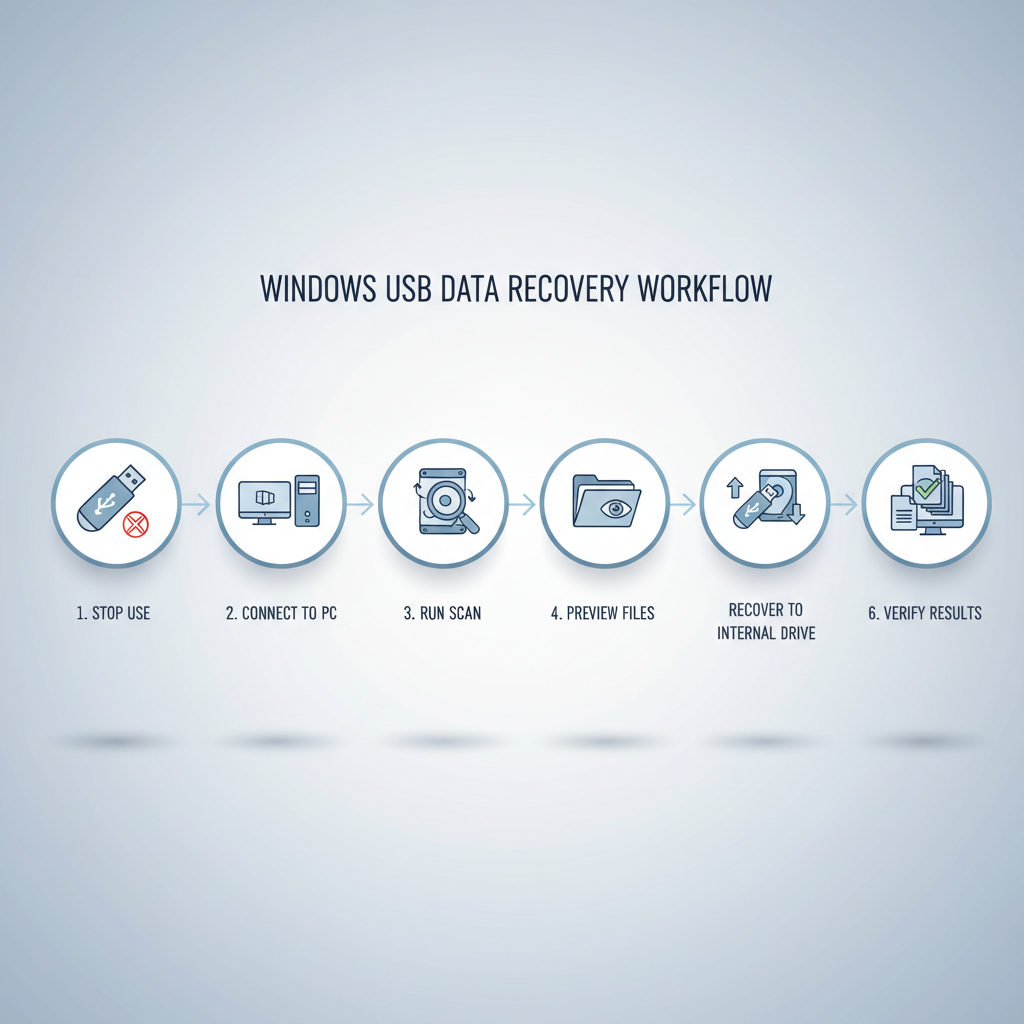
A practical step-by-step recovery workflow (safe and repeatable)
This is the process that tends to work in real life without turning one mistake into five.
- Step 1: Stop using the USB. Unplug it and don’t “test” by copying files onto it.
- Step 2: Work on a stable computer. Prefer a desktop or laptop with enough free space for recovered files.
- Step 3: Create a folder on your internal drive named something like “USB-Recovery.”
- Step 4: Run a scan with a low-risk tool first. For simple deletion, try Recuva or Windows File Recovery; for RAW/corruption, try PhotoRec.
- Step 5: Preview and triage. If the tool supports preview, confirm a few files open correctly before recovering everything.
- Step 6: Recover to internal storage. Only after you verify the recovered data should you reformat or reuse the USB.
Small but important: if your scan finds thousands of fragments, narrow by file type (DOCX, JPG, MP4) and prioritize what you can’t re-create.
Common mistakes that reduce recovery odds
- Formatting “because Windows suggested it.” You can sometimes recover after a quick format, but it raises the difficulty and risk.
- Running CHKDSK too early. Repair tools may modify the file system; sometimes that helps, other times it overwrites recoverable traces.
- Recovering to the same USB drive. This is the classic self-sabotage move.
- Downloading random “free” tools from ads. Stick to the vendor’s official site or reputable repositories.
- Judging success by filenames alone. A recovered file that won’t open is still a failed recovery, verify a sample.
When free software is the wrong answer (and what to do instead)
Sometimes the honest answer is that top free data recovery software for usb won’t solve the problem because the drive can’t be read reliably.
- The USB is not detected anywhere (multiple computers, ports, OS).
- It connects/disconnects repeatedly and scans never complete.
- You hear unusual buzzing from an external enclosure or the drive gets abnormally hot.
- Critical or regulated data where chain-of-custody and confidentiality matter.
In those cases, the safest next step is usually a reputable data recovery service. Many offer an evaluation, but pricing and success odds vary by failure type. If the data is tied to legal, medical, or compliance needs, it’s smart to consult a qualified professional about handling and documentation.
Key takeaways (save this before you start)
- Stop using the USB the moment you notice data loss.
- For simple deletion on a healthy drive, start with a lightweight undelete tool.
- For RAW/corruption, PhotoRec/TestDisk often outperform “pretty” apps, but expect a learning curve.
- Recover to another disk, verify a sample, then decide whether to reuse the USB.
- If the USB is unstable, imaging or professional recovery is often safer than repeated scanning.
If you want one simple plan for 2026: try a gentle scan first, escalate to deeper tools only when needed, and don’t let panic push you into formatting or writing new data.
FAQ
What is the most reliable free USB recovery tool in 2026?
It depends on the failure. Recuva is convenient for recently deleted files on a readable USB, while PhotoRec is often more resilient when the file system is damaged. “Reliable” really means “matched to the symptom.”
Can I recover files after formatting a USB drive?
Often yes after a quick format, especially if you stop using the drive immediately. A full format or heavy reuse can reduce what’s recoverable because more sectors get overwritten.
Is Windows File Recovery actually useful for USB drives?
It can be, particularly for Windows users who are comfortable with command-line tools and want a Microsoft-provided option. Results vary by file system and how much the USB has been used since deletion.
Why do recovered files sometimes open as corrupted?
Many cases come down to partial overwrites or fRAGmented data. The tool may find a file “header” but not all the content blocks. Try a different scan mode, or prioritize earlier versions/backups if you have them.
Should I run CHKDSK before trying recovery software?
Usually no if you care about maximizing recovery, because repair operations can change the file system. If you do try it, consider doing it only after you’ve attempted recovery or created an image.
How do I avoid malware when downloading free recovery software?
Download from official vendor pages or well-known repositories, avoid ad-bundled installers, and scan downloads with your security tools. According to FTC (Federal Trade Commission), common scam patterns include deceptive download prompts, so treat “one-click miracle recovery” claims as a red flag.
What if my USB drive is not recognized at all?
Try another port/computer and check Disk Management to see if it appears without a drive letter. If it never appears, or it’s unstable, software recovery may not help and professional evaluation is often the safer route.
Do free tools work on exFAT USB drives?
Many do, but behavior varies. If you’re using exFAT (common for larger USB media), pick a tool known to handle exFAT well and verify results with a few test recoveries before committing to a long scan.
If you’re in a hurry or you’d rather not troubleshoot scan modes, file systems, and recovery destinations, a guided recovery app with solid preview plus a clear export workflow can be a more stress-free route, especially when you just need your files back and you’re okay with a limited free tier.