
how to fix failed antivirus scans on pc usually comes down to three culprits: Windows updates that half-applied, security tools fighting each other, or a scan engine that can’t read parts of your system (permissions, corrupt files, broken services).
If you’re seeing messages like “scan failed,” “threat service has stopped,” “items skipped,” or the scan finishes instantly with no results, don’t assume you’re infected, but don’t ignore it either. A security tool that can’t complete scans is a weak spot, even if everything “seems fine.”

This guide focuses on Windows PCs in the real world: home laptops, office desktops, and machines with leftover “trial” security software. You’ll get a quick diagnosis checklist, the most reliable fixes, and a few points where it’s smarter to call in IT or the antivirus vendor rather than keep clicking “Try again.”
Why antivirus scans fail on Windows (the patterns that show up most)
Failed scans rarely have one dramatic cause. Most cases look boring: something small broke, Windows tolerated it, then your antivirus hit that broken area and stopped.
- Competing security software: two real-time scanners (or remnants of an old one) can block files, drivers, or each other’s services.
- Out-of-date definitions or engine: signatures update, but the scanning engine stays stuck because the update service fails.
- Windows system file corruption: the scan relies on Windows components and permissions; corruption can trigger immediate failure.
- Disk errors or locked files: bad sectors, file-system issues, or files permanently “in use” can cause scan stalls or aborts.
- Insufficient permissions: running scans from a standard account, or hardened corporate policies, can block access.
- Resource constraints: low disk space, high CPU/RAM pressure, or overheating can interrupt long scans.
- Malware interference: less common, but some threats attempt to disable security services.
According to Microsoft, keeping Windows updated and using Microsoft Defender Antivirus helps protect against evolving threats, and many scan failures trace back to outdated components or disabled services rather than “mystery viruses.”
Quick self-check: figure out what kind of failure you have
Before you start changing settings, identify what “failed” means on your PC. It saves time and avoids random tweaks.
What you see vs what it usually indicates
| Symptom | Likely cause | Best next step |
|---|---|---|
| Scan fails immediately (0–5 seconds) | Service stopped, broken install, policy restriction | Check security services, repair/reset antivirus |
| Scan runs then stops at a % every time | Specific file/directory issue, disk errors, locked file | Run disk check, isolate folder, try offline scan |
| “Threat service has stopped” | Defender/AV service disabled, conflicting software | Restart services, remove conflicts, update Windows |
| Lots of “skipped items” | Permissions, encrypted archives, exclusions too broad | Review exclusions, run as admin, check controlled folder access |
| Scan hangs for hours | Large archives, low resources, bad disk sectors | Free space, update engine, schedule scan, check drive health |
Key point: when people search how to fix failed antivirus scans on pc, they often treat all failures as malware, but the “boring” causes above are more common and more fixable.
Step-by-step fixes (start with the lowest-risk moves)
Work top to bottom. After each step, try a quick scan, then a full scan if the quick scan completes.
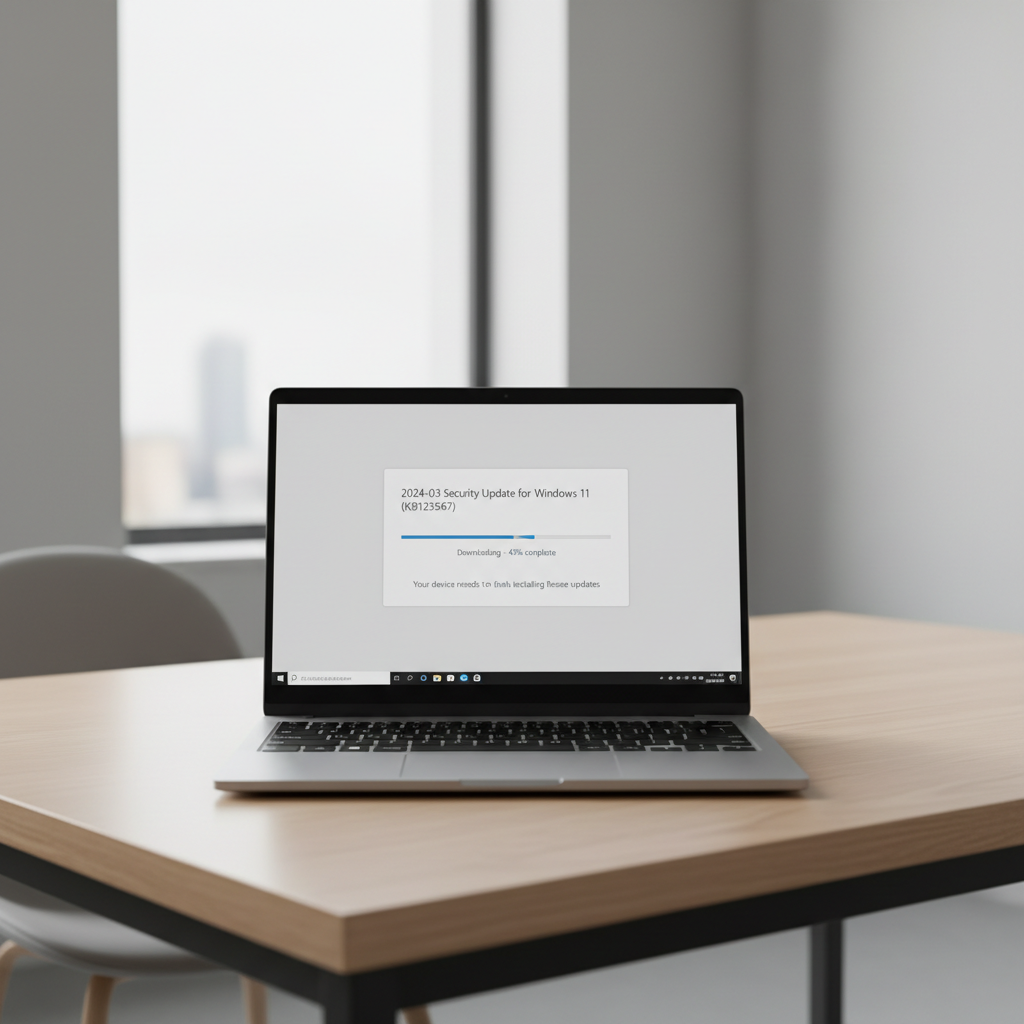
1) Reboot properly, then update Windows
- Restart (not shutdown). Fast Startup can keep broken states around.
- Go to Windows Update, install everything pending, then restart again.
If you’re on a work-managed device, updates may be controlled by IT, in that case you can still proceed with the other steps, but don’t fight policies you don’t control.
2) Confirm your antivirus services are running
For Microsoft Defender: open Windows Security and look for “Protection is on.” If it shows service errors, you likely have a service disabled or another product took over.
- Open Services and look for Microsoft Defender Antivirus Service (and related security services) status.
- If your third-party antivirus has its own service, check it is set to start automatically.
If you’re not comfortable touching services, skip ahead to “repair/reset” or ask someone technical, because the wrong change can break other security components.
3) Remove conflicting security tools (including leftovers)
Two antiviruses running real-time protection at once is a classic reason scans fail mid-way or never start. Uninstall the one you don’t plan to use, and remove old VPN/security suites you forgot existed.
- Settings → Apps → Installed apps, uninstall unused security products.
- Use the vendor’s official cleanup tool if available, many suites leave drivers behind.
- After removal, reboot and test scans again.
According to CISA, using trusted security software and keeping systems updated is part of basic cyber hygiene; running overlapping security tools can do the opposite by creating instability and blind spots.
4) Repair or reset the antivirus app
If you use a third-party antivirus, look for “Repair,” “Update,” or “Reinstall” inside the app. A failed engine update can leave the UI working while the scanning components are broken.
For Microsoft Defender, you can often fix problems by ensuring Windows updates are applied and running built-in troubleshooters, and if needed, using offline scanning (covered below).
5) Check disk space and run a disk check
- Keep at least 10–15% free space on the system drive, scans create temporary files and logs.
- Run Windows disk check for file-system errors, then reboot if prompted.
If scan failures always occur at the same percentage, a disk or file read problem is a real candidate, even on newer SSDs.
Use built-in Windows tools to repair corruption (often the hidden cause)
When scans fail “for no reason,” Windows corruption is frequently sitting underneath. This is where you stop guessing and let Windows validate itself.
Run SFC and DISM (in that order)
- SFC checks protected system files and replaces corrupted copies.
- DISM repairs the Windows image that SFC depends on.
Practical tip: if SFC reports it fixed files, rerun the antivirus scan immediately. If SFC cannot fix everything, DISM may still resolve it, but it can take time.
Try an “offline” scan when the normal scan can’t finish
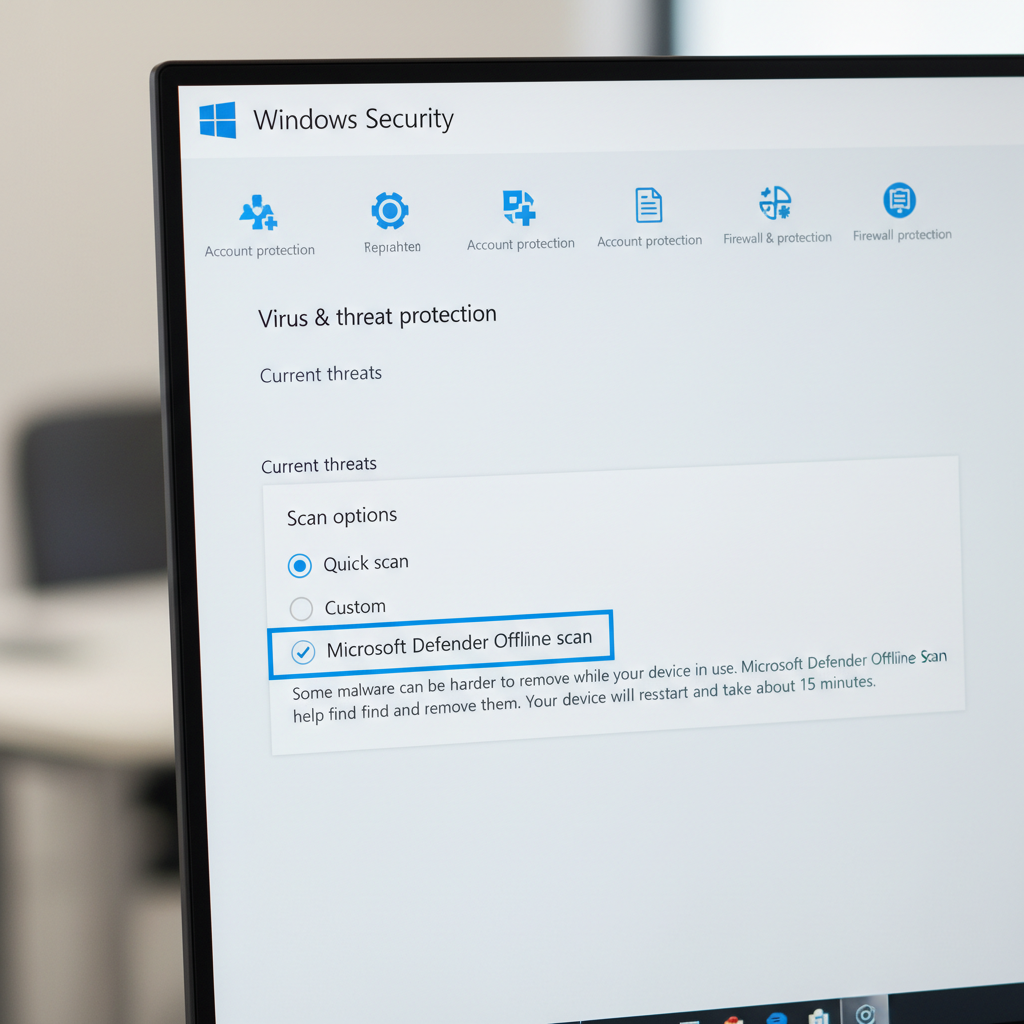
If something on the PC is actively blocking scans, an offline scan can help because it runs before many processes start. Microsoft Defender includes this option, and many third-party vendors offer rescue media.
- Use Microsoft Defender Offline scan if you’re on Windows 10/11 and Defender is available.
- If you use another vendor, create their bootable rescue USB from a clean machine when possible.
Offline scans are not magic, but for the “scan fails at 37% every time” problem, they often get past locked files that a normal session can’t read.
Harder cases: exclusions, controlled folders, and “skipped items”
Some “failures” are really “couldn’t access.” The antivirus might finish but leave large sections unscanned, which is almost the same problem from a safety perspective.
Review exclusions and protected folders
- Exclusions too broad: people exclude entire drives to speed scans, then forget, later they think scans are “fine.”
- Controlled folder access: ransomware protection can block apps from certain folders, and a misconfiguration can interfere with scanning.
- Encrypted archives: password-protected ZIP/RAR files may be skipped, that’s normal behavior for many products.
If you manage a small business fleet, document exclusions and keep them minimal. If you’re a home user, it’s usually safer to remove exclusions you don’t recognize.
Common mistakes that waste time (and sometimes make things worse)
- Installing a second antivirus “to check”: this often creates the conflict that caused the scan failure in the first place.
- Turning off security features permanently: disabling real-time protection or firewall “temporarily” tends to become permanent.
- Ignoring update errors: if definitions fail to update, the scan may run but provide less value.
- Random registry cleaners: they can break security services and are hard to roll back.
If you’re troubleshooting how to fix failed antivirus scans on pc, the goal is stability first, detection second. A stable, updated scanner beats an “aggressive” setup that crashes.
When to get professional help (or at least escalate)
You can do a lot on your own, but some situations deserve a higher-confidence approach.
- Scan failures persist after Windows updates, repairs, and reinstalling the antivirus.
- You see signs of compromise: new admin accounts, unusual network traffic, disabled security settings that re-disable themselves.
- This is a work PC with compliance requirements, changes should be logged and approved.
In those cases, consider contacting your antivirus vendor support, a trusted local IT provider, or your internal IT team. If you suspect active malware, minimizing further changes and preserving logs can help professionals diagnose the cause.
Practical “do this today” checklist
- Update Windows, restart, then run a quick scan.
- Uninstall extra security tools, restart again.
- Run SFC/DISM, then retry a full scan overnight.
- Use an offline scan if scans fail at the same spot repeatedly.
- Keep exclusions minimal and verify “skipped” items are expected.
If you do nothing else, do the updates and remove conflicts. Those two steps alone resolve a large share of “scan failed” cases in day-to-day Windows support.
Conclusion: get scans completing first, then optimize
Failed scans are frustrating, but they’re usually fixable without dramatic measures. Get your system updated, eliminate conflicts, repair Windows corruption when needed, then use offline scanning for stubborn cases. Once scans complete reliably, you can tune schedules and exclusions without guessing.
If you want a low-drama next move, run the quick checklist above, then schedule a full scan for a time you won’t need the PC, and confirm you get a clean completion report rather than a vague error.
FAQ
Why does my antivirus scan fail immediately on Windows 11?
Immediate failure often points to a stopped service, a broken update, or a policy restriction on managed PCs. Verify Windows updates, confirm the antivirus service runs, and consider a repair or reinstall if the UI loads but scanning won’t start.
How do I fix failed antivirus scans on pc if I have two security programs installed?
Pick one real-time antivirus and uninstall the other, including leftover components. Many “failed scan” reports come from driver conflicts or one product blocking another from reading files.
My scan always stops at the same percentage, what does that mean?
That pattern usually suggests a problematic file, locked directory, or disk read issue at a repeatable point. Try a disk check, then an offline scan to bypass locked files.
Is it normal to see “skipped items” during a scan?
Sometimes, yes, especially for password-protected archives or system-protected locations. It becomes a concern when the skipped list is large, includes user folders, or appears after you added broad exclusions you don’t remember setting.
Should I run SFC and DISM if scans fail?
In many cases it’s a good use of time because antivirus engines rely on healthy Windows components. If you’re unsure, it’s reasonable to ask IT or a technical friend, since these tools are safe when used correctly but still affect system files.
Does Microsoft Defender Offline scan remove malware that blocks scans?
It can help because it runs outside the normal Windows session where malware may be active. It’s not a guarantee, but it’s a solid next step when normal scanning can’t complete.
When should I stop troubleshooting and reinstall Windows?
If scans fail after updates, conflict removal, repairs, and offline scanning, and you also see stability issues or signs of compromise, a reset or reinstall might be considered. For business devices or sensitive data, consult a professional before taking that step.
If you’re dealing with repeated scan failures and you’d rather not troubleshoot each Windows setting by trial and error, a managed security setup or a one-time diagnostic from a reputable IT provider can be a calmer path, especially for work PCs or shared family computers.