
Top Free AI Video Editors for Short Clips 2026
Top free ai video editors for short clips are worth comparing because “free” can mean very different limits: watermarks, export caps, missing captions, or restricted templates. If you post to TikTok, Reels, or Shorts, those limits show up fast, usually right when you have momentum and need speed.
The good news is that in 2026, most major editors have some AI help baked in, auto-captions, beat cuts, smart resizing, background cleanup, and quick templates, and you can get real work done without paying on day one. The trick is picking a tool that matches your workflow instead of chasing the longest feature list.
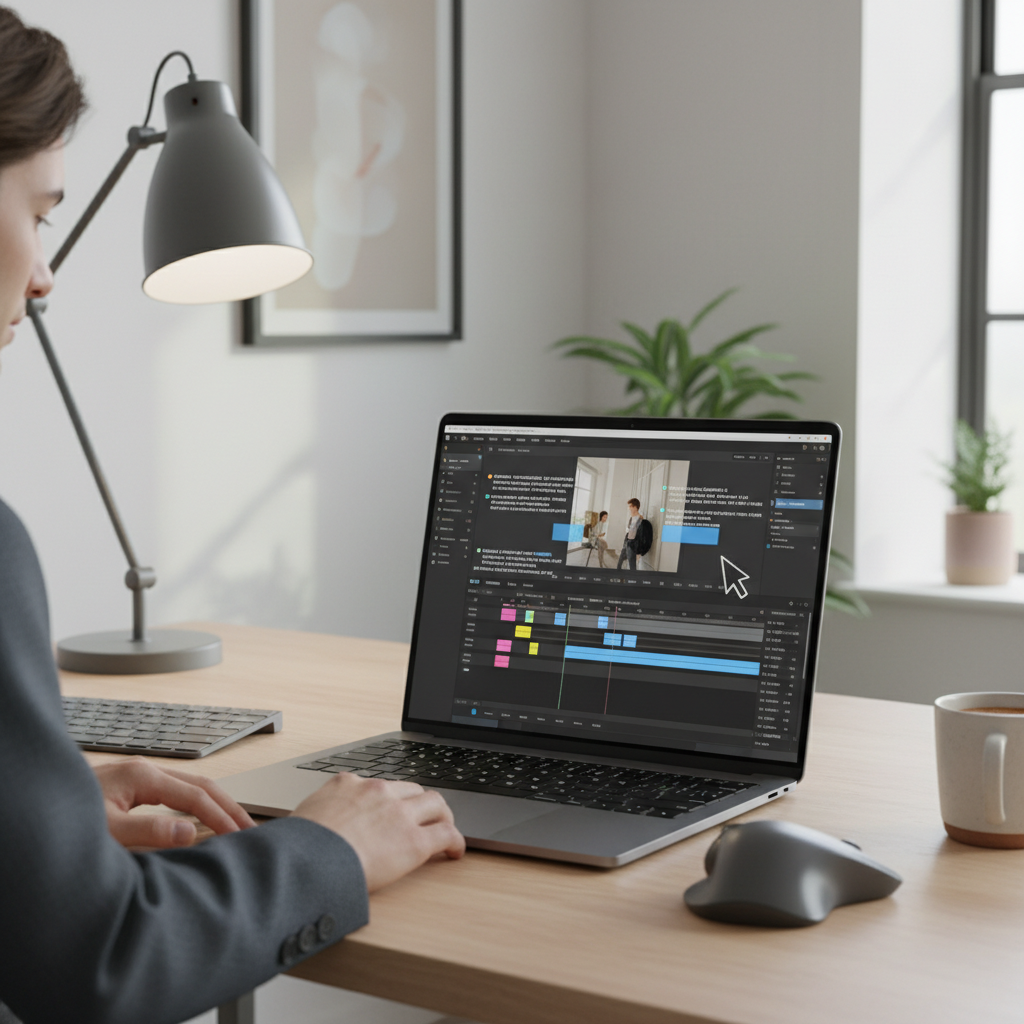
This guide focuses on what creators in the U.S. typically care about: fast vertical exports, captions that don’t need babysitting, decent stock and music options, and a free plan that stays usable past a weekend test. You’ll also get a quick self-check, a comparison table, and practical setups for common short-clip scenarios.
What “free” really means for short-form AI editors
Most editors advertise a free plan, but short-form creators hit the same few constraints again and again. If you know these up front, you save time migrating projects later.
- Watermarks: Some tools add a brand mark unless you upgrade, which can be a deal-breaker for client work.
- Export limits: A free plan may cap resolution (often 720p) or impose daily/monthly export quotas.
- AI caps: Auto-captions, background removal, or generative features may be metered by minutes/credits.
- Music/licensing: Built-in libraries vary, and “available” doesn’t always mean “safe for all platforms.”
- Account friction: Some editors are smooth on desktop but push you to mobile, or vice versa.
According to FTC (Federal Trade Commission) guidance on digital advertising, marketing claims should not be misleading, and limitations should be clear to consumers. In practice, that’s your cue to scan each plan’s export and watermark rules before you build a repeatable workflow.
Quick self-check: which editor type fits you?
Before picking from any “top free ai video editors for short clips” list, get clear on how you actually publish. Two people can both “edit Shorts,” but their needs are totally different.
- You post daily: prioritize speed, templates, batch captions, and predictable exports.
- You post weekly but want polish: prioritize timeline control, color, audio cleanup, and multi-track editing.
- You repurpose podcasts or webinars: prioritize auto-subtitles, speaker detection, and smart highlight extraction.
- You’re a brand or freelancer: prioritize watermark-free outputs, brand kits, and consistent typography.
- You edit on your phone: prioritize mobile-first UI and cloud sync.
If you’re unsure, decide based on your bottleneck: captions, pacing, resizing, or sourcing b-roll. That bottleneck should drive your tool choice, not hype about “AI.”
Top free AI video editors for short clips (2026 picks)
Below are widely used options that usually have a meaningful free tier. Features and limits can change, so treat this as a shortlist to test with your own footage, not a permanent ranking.
CapCut
CapCut is often the fastest route from raw clips to platform-ready vertical edits, with strong templates, auto-captions, and punchy effects. If your workflow is social-first and you want “done today,” it’s hard to ignore.
- Best for: trend-driven edits, templates, fast vertical exports
- AI strengths: captions, cut-to-beat, background tools (availability varies)
- Watch for: some effects/features may rotate in/out of free access
Adobe Express (and Adobe ecosystem options)
Adobe Express is built for quick social content, and it plays nicely with Adobe’s broader ecosystem if you already use Creative Cloud. It’s more “brand content” than “meme machine,” which many teams prefer.
- Best for: brand-safe templates, quick edits, simple publishing flows
- AI strengths: fast layout, assisted resizing, simple enhancements
- Watch for: some advanced features require paid plans or other Adobe apps
DaVinci Resolve (with AI-assisted features depending on version)
Resolve is the free option people graduate into when they want real control: color, audio, and a proper timeline. It’s not the fastest for templates, but it’s a serious editor that can handle short clips and long-form in one place.
- Best for: creators who care about color/audio, multi-track control
- AI strengths: some smart tools may be limited to Studio, but the free base is powerful
- Watch for: learning curve, heavier system requirements
Descript
Descript is a favorite for talking-head and podcast repurposing because it treats editing like editing text. If your clips come from interviews, webinars, or recorded calls, this is usually a faster mental model.
- Best for: transcript-based editing, short highlights, caption-first workflows
- AI strengths: transcription, filler word handling, quick social cuts (plan-dependent)
- Watch for: free limits on transcription minutes and exports may apply
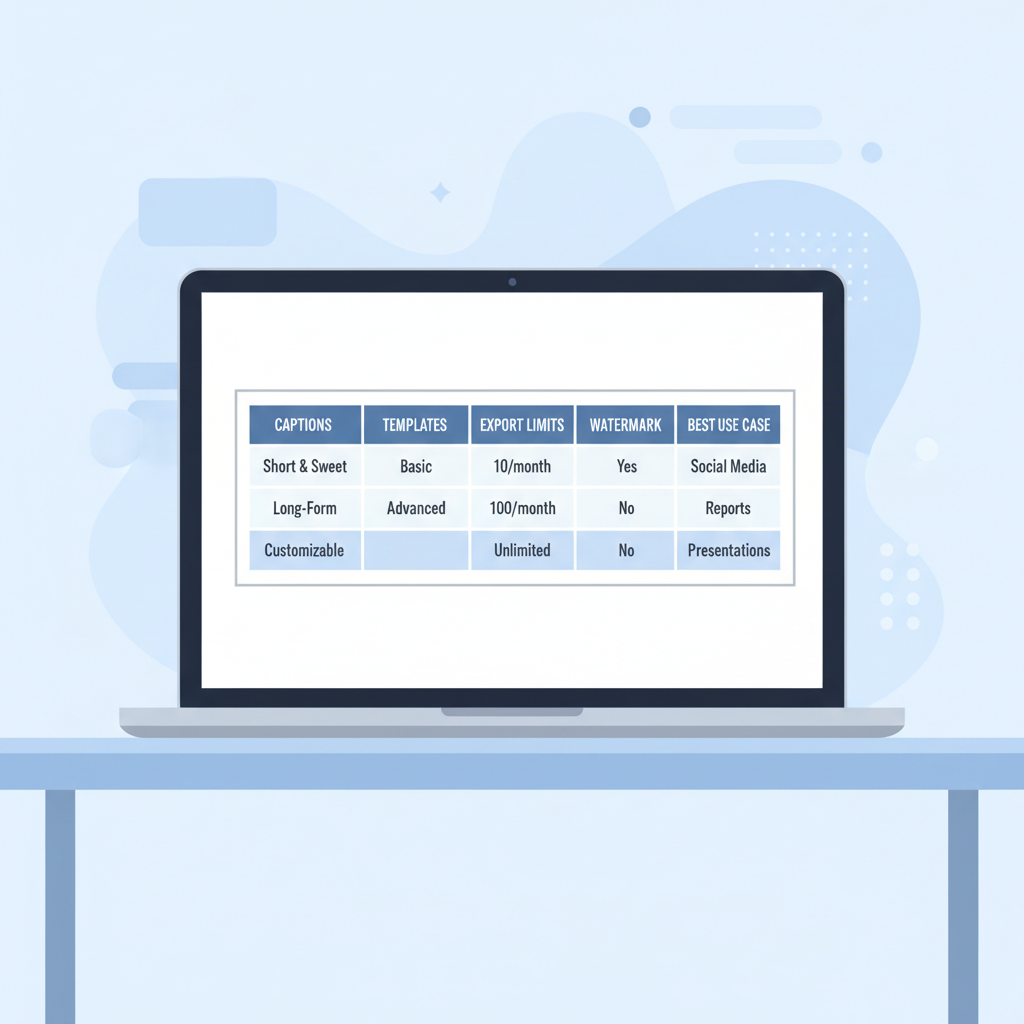
Comparison table: how to choose fast
This table is meant to speed up your first round of testing. Always confirm current free-plan limits inside the app, because pricing and caps change.
| Editor | Best use case | Captions workflow | Templates | Typical free-plan gotcha |
|---|---|---|---|---|
| CapCut | Daily social posts, trends | Strong auto-captions, fast styling | Very strong | Some features may be paywalled over time |
| Adobe Express | Brand content, simple promos | Good for quick text overlays | Strong, brand-friendly | Advanced features may require paid tiers |
| DaVinci Resolve | Polished edits, color/audio control | Possible, but less “one-click” | Limited | Steeper learning curve, heavier setup |
| Descript | Podcast/webinar repurposing | Transcript-first, very efficient | Moderate | Free caps on minutes/exports often apply |
Practical setups for common short-clip scenarios
Most creators don’t need every feature, they need one repeatable recipe. Here are a few that work across many of the top free ai video editors for short clips, even if buttons differ.
Scenario A: talking-head clip with captions (30–60 seconds)
- Start with a 9:16 vertical project, don’t rely on resizing at the end.
- Run auto-captions, then fix proper nouns and numbers, those are the usual errors.
- Add a subtle background blur or branded color card if your room looks busy.
- Keep captions readable: large size, high contrast, and no more than 2 lines.
Scenario B: b-roll montage with music (10–20 seconds)
- Pick 6–10 shots max, short clips get worse when you overstuff.
- Use cut-to-beat only as a starting point, then manually fix awkward cuts.
- Export and watch on your phone before posting, tiny issues pop on mobile.
Scenario C: turning a long video into 3 Shorts
- Mark 3 moments with one clear point each, not a “mini-episode.”
- Trim pauses aggressively, but avoid cutting breathing so tightly it feels frantic.
- Use the same caption style across the set, consistency helps retention and branding.
Key points that actually matter (and save time)
- Captions quality beats “more AI.” If captions are messy, your edit time doubles.
- Export reliability matters more than fancy effects, especially when posting frequently.
- One strong template you can reuse is better than 200 options you never touch.
- Audio cleanup is an underrated upgrade, viewers forgive imperfect video faster than muddy audio.
- Plan for platform specs early: 9:16, safe margins, and readable text size.
Mistakes to avoid with free AI editors
These are the issues that tend to waste the most time, especially for creators who bounce between apps.
- Editing in the wrong aspect ratio: resizing at the end often breaks framing and caption placement.
- Overusing auto effects: AI styles can look dated fast, a cleaner cut often performs better.
- Ignoring watermark rules: if you’re doing client work, confirm export rules before you deliver.
- Assuming music is always safe: platform rules and licenses vary, when in doubt use platform libraries.
- Not saving a preset: build a repeatable caption style and export setting, you’ll thank yourself.
According to YouTube Help guidance on copyright, using copyrighted material can lead to claims or removals depending on rights and usage context. If you’re uncertain about licensing, consider consulting a qualified professional or stick to platform-provided music tools.
Conclusion: a simple way to pick your “best” free editor
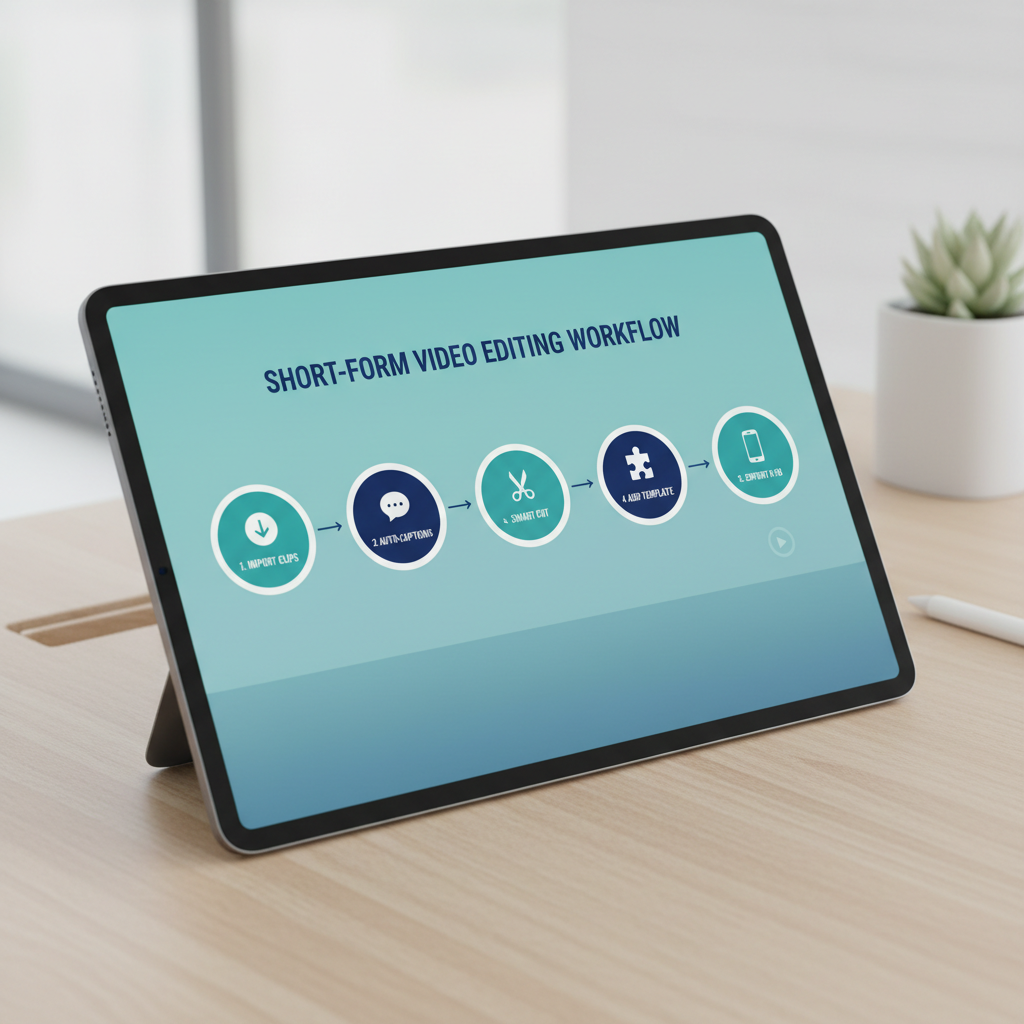
The “best” choice is usually the one that keeps your process boring, in a good way: import, caption, trim, export, post, repeat. If you want speed and social templates, start by testing CapCut. If you care about brand-safe creative and quick promos, Adobe Express tends to feel cleaner. If you want deep control and can invest in learning, Resolve pays off. If you live in transcripts and highlights, Descript often saves hours.
Action step: pick two tools from the list, edit the same 30-second clip in both, then decide based on time-to-post and caption cleanup effort. That small test is more honest than any feature checklist.
FAQ
What are the top free ai video editors for short clips if I need auto-captions?
CapCut and Descript are commonly picked for caption-first workflows, but the better choice depends on whether you want template-driven social edits or transcript-driven cutting.
Which free editor is closest to a “pro” timeline for Shorts?
DaVinci Resolve is the most robust timeline among widely available free options, though it’s less template-centric and can take longer to learn.
Do free AI video editors usually export without watermarks?
It varies by product and sometimes by feature. Always export a test clip early, because watermark rules can differ between templates, effects, and standard exports.
Can I safely use the built-in music inside these apps for TikTok and Instagram?
Often yes, but “built-in” doesn’t guarantee universal rights across every platform and use case. When you’re posting brand content or client work, it’s safer to use platform music libraries or verify licensing.
Is a browser-based editor good enough for daily short clips?
For simple cuts, captions, and text overlays, browser editors can be enough and convenient. If you stack effects, multiple layers, or long footage, desktop apps tend to be more stable.
How do I pick between templates and manual editing?
If you post frequently, templates help consistency and speed. If you’re building a distinct look, manual editing with a saved preset can be better than swapping styles every time.
What should I test before committing to one tool?
Test caption accuracy on your voice, export time, watermark behavior, and whether it keeps your text inside safe margins for 9:16. Those four checks cover most real-world pain.
If you’re trying to publish more consistently and you want a more “set it up once” workflow, start by creating one caption preset, one intro/outro template, and one export setting in your chosen editor, then reuse them for a week before you judge the tool.