
how to fix wifi slow at night only usually comes down to one of three things: your neighborhood gets busy, your home network gets crowded, or your Wi‑Fi signal gets noisier after dark. The good news is you can narrow it down quickly, and most fixes don’t require new equipment.
If you only notice it at night, that timing is a clue. Evening is when more households stream, game, and video call, and inside your own home, everyone’s devices tend to be online at the same time. That combination can expose weak spots you never feel during the day.
This guide helps you separate “ISP congestion” from “router or Wi‑Fi problems,” then gives practical steps you can try in order. You’ll also get a small checklist and a troubleshooting table so you don’t end up randomly buying upgrades.

What “slow only at night” usually means (and what it doesn’t)
When speeds drop only in the evening, people often assume the router is “getting old.” Sometimes that’s true, but timing-specific slowness often points elsewhere.
- ISP or neighborhood congestion: Your cable/fiber node may be busier at peak hours, so your plan speed becomes harder to reach consistently.
- Wi‑Fi interference: More nearby networks and electronics can crowd the airwaves, especially on 2.4 GHz.
- In-home demand: Backups, game downloads, cloud sync, 4K streaming, and multiple video calls stack up fast.
- Device or app behavior: One device can quietly eat bandwidth, even if “nobody is doing anything.”
What it’s less likely to be: a random “internet virus” that only wakes up at night. Possible, but uncommon compared with simple congestion and interference.
Fast self-check: figure out if it’s your Wi‑Fi or your internet line
Before changing settings, do a quick split test. It prevents you from spending time on Wi‑Fi tweaks when the slowdown is actually upstream.
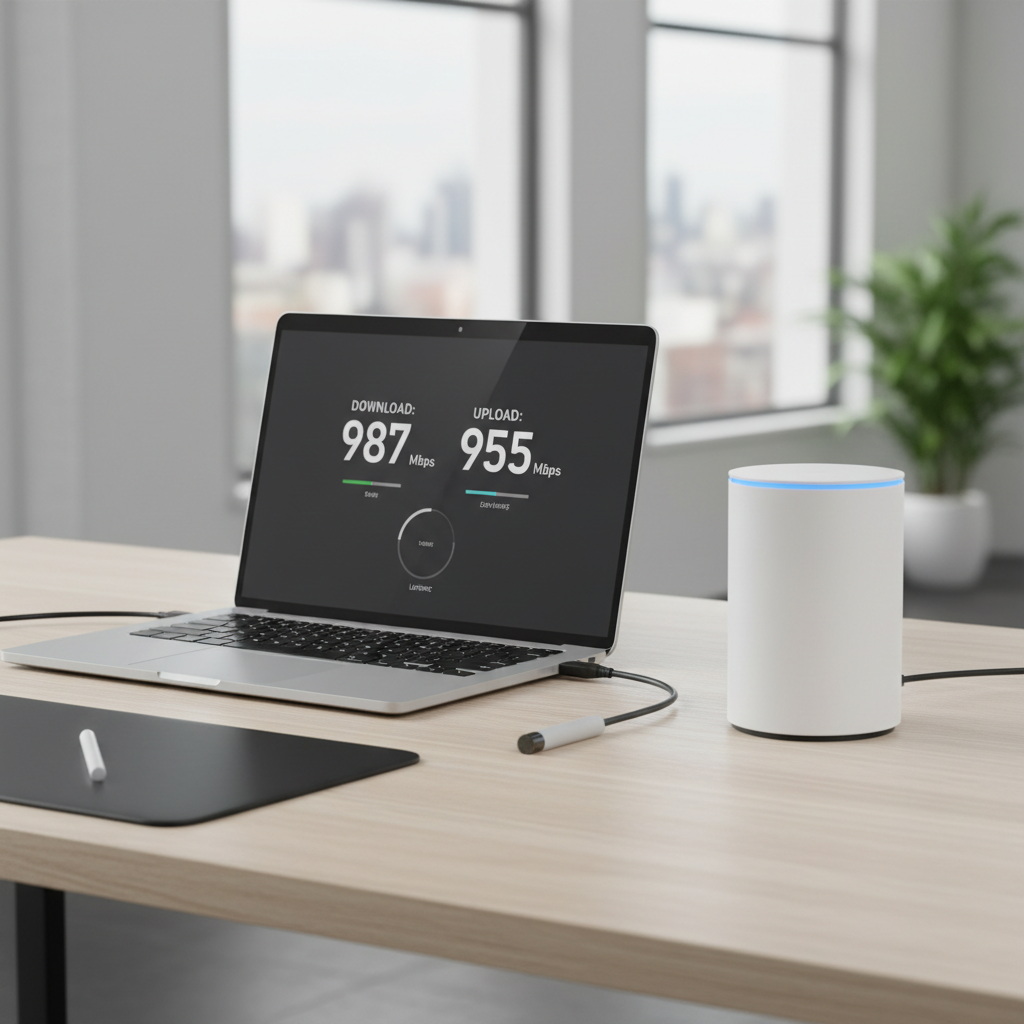
5-minute test (two speed tests, one simple comparison)
- Pick a time when it’s slow (evening) and a time when it’s normal (midday).
- Run a speed test on Wi‑Fi in the room where you feel the problem.
- Then run a speed test with a device connected by Ethernet directly to the router (or modem/router gateway).
Interpretation: If Ethernet stays fast but Wi‑Fi drops, you’re dealing with a home wireless issue. If both drop at night, it’s often ISP congestion, signal quality, or plan limits.
According to the FCC, consumers may see broadband performance vary by time of day due to real-world network conditions, and measuring at different times helps reveal patterns.
Common causes at night: what to look for in real homes
Here are the patterns that show up most often when people ask how to fix wifi slow at night only, especially in typical US households with streaming, smart TVs, and lots of phones.
1) Peak-hour ISP congestion
If your wired speed also tanks, the bottleneck may be outside your home. Many cable users notice this more than fiber users, but it can happen on various services.
- Symptoms: wired and Wi‑Fi both slow, latency spikes in games, streaming buffers even near the router.
- Clue: speed is fine late night (after midnight) or early morning.
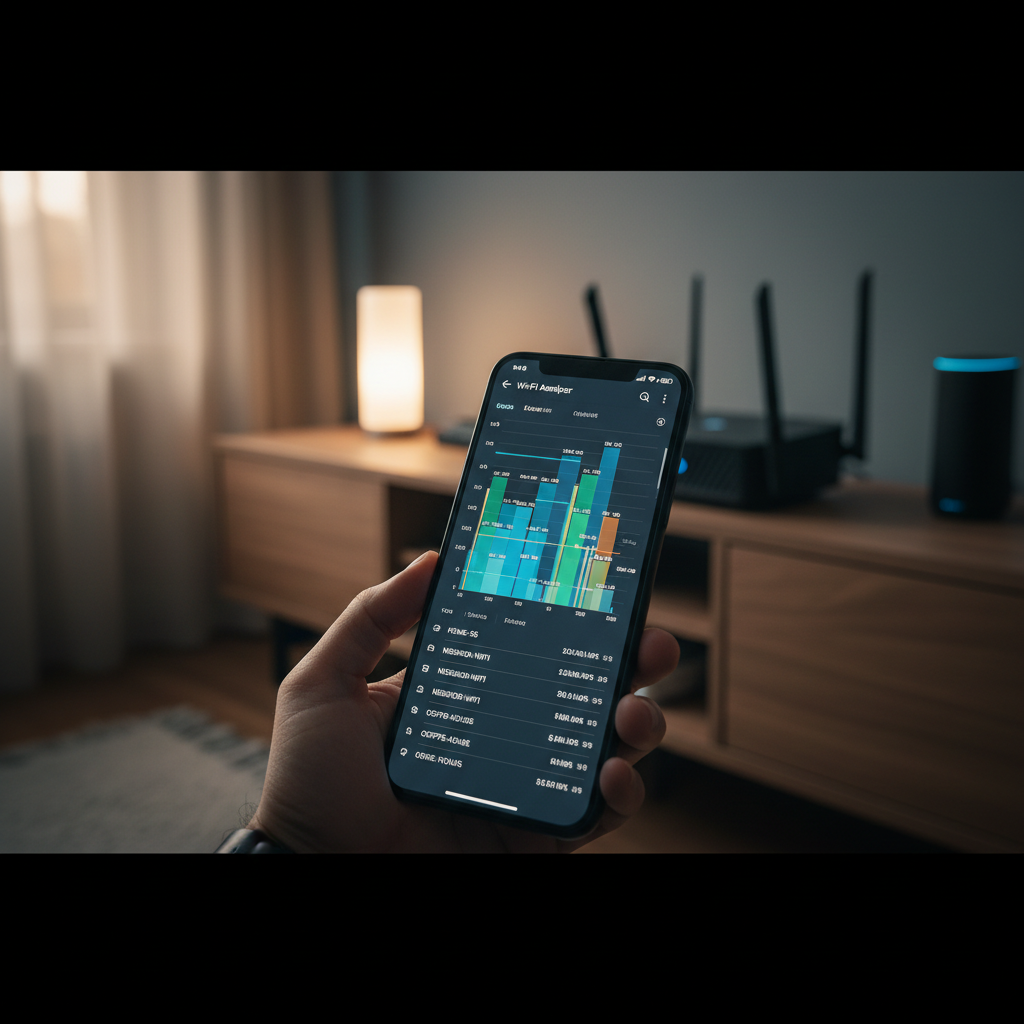
2) Wi‑Fi channel crowding and interference
At night, more neighbors are home, more networks broadcast, and 2.4 GHz can get messy. Even in a single-family home, you can still pick up competing signals.
- Symptoms: speeds vary by room, connection “feels unstable,” smart home devices drop.
- Clue: moving closer to the router helps a lot.
3) Your household maxes out upload (the sneaky one)
Many plans have much lower upload than download. One cloud backup, security camera upload, or video call can saturate upload and make everything feel slow.
- Symptoms: web pages hang, Zoom gets choppy, gaming shows high ping even if download looks okay.
- Clue: slowdown lines up with backups, photo uploads, or camera activity.
Troubleshooting table: symptom → likely cause → best first fix
If you’re not sure where to start, use this as a short “triage.”
| What you notice at night | Most likely cause | Best first move |
|---|---|---|
| Wi‑Fi slow, Ethernet still fast | Wi‑Fi interference or weak coveRAGe | Switch to 5 GHz/6 GHz, change channel, move router |
| Both Wi‑Fi and Ethernet slow | ISP congestion or line quality | Log speeds/latency, check modem signals, contact ISP |
| Gaming ping spikes, video calls lag | Upload saturation / bufferbloat | Enable QoS/SQM, limit backups, prioritize real-time apps |
| Only one room is terrible at night | Interference + distance | Add mesh node, use wired backhaul, pick clearer channel |
Step-by-step fixes (do these in order, stop when it improves)
The goal is to make one change at a time, then re-test. If you change everything at once, you’ll never know what actually worked.
Step 1: Make sure you’re on the right band (5 GHz or 6 GHz when possible)
- If your router supports it, connect phones/laptops/TVs to 5 GHz (or 6 GHz on Wi‑Fi 6E/7).
- Keep 2.4 GHz for smart plugs, thermostats, and older devices that need range more than speed.
Night slowdown often improves immediately when fewer “fast” devices sit on 2.4 GHz.
Step 2: Change your Wi‑Fi channel (especially for 2.4 GHz)
- On 2.4 GHz, channels 1, 6, or 11 are usually the cleanest choices in the US because they don’t overlap.
- On 5 GHz, try a different channel block; some routers can auto-pick well, but “auto” can be mediocre in crowded neighborhoods.
If your router has an “optimize channels” button, use it once, then leave it alone for a few days and observe.
Step 3: Fix placement (more important than people want it to be)
- Put the router higher (shelf height), away from metal cabinets, thick walls, and the TV.
- Avoid placing it next to microwaves, cordless phone bases, or Bluetooth hubs.
- If your home is long or multi-story, consider a mesh node positioned halfway to the weak area.
Not glamorous, but router placement can beat a “faster plan” when the real issue is signal quality.
Step 4: Turn on QoS or SQM (for lag, not just speed)
If evenings feel slow because everything becomes unresponsive, you may be dealing with bufferbloat, where routers queue too much traffic under load.
- Look for settings called QoS, Smart Queue Management (SQM), or “Adaptive QoS.”
- Set your bandwidth values slightly below your real speed (many setups work better that way).
- Prioritize video calls and gaming devices if your router supports device/app priority.
According to Consumer Reports, router features like QoS can help manage multiple devices competing for bandwidth, especially in busy households.
Step 5: Find the “bandwidth hog” device
- Open your router app and check the device list and live usage.
- Pause or schedule cloud backups, large OS updates, console downloads, and NAS sync for overnight.
- If you have security cameras, check whether they upload continuously in high resolution.
In many homes, one device explains most of the evening slowdown, and fixing the schedule fixes the whole house.
When the ISP is the bottleneck: what to document and what to ask for
If your tests show the line itself slows at night, your router tweaks may only give small gains. At that point, documentation helps you get a better outcome with support.
What to collect over 3–7 days
- Two speed tests per day: one midday, one evening
- Latency results (ping) during gaming or a simple ping test to a stable host
- Whether you tested on Ethernet
What to ask your ISP (without turning it into a fight)
- Ask if there is known peak-hour congestion in your area or a node split planned.
- Request a check of modem signal levels and error rates, and ask if your modem is on their supported list.
- If you rent their gateway, ask whether a replacement is available; hardware can degrade, and swaps are sometimes easy.
If you suspect a damaged cable line, water intrusion, or unstable power, a technician visit may be appropriate. For anything involving electrical safety or wall wiring, it’s reasonable to consult a qualified professional.
Common mistakes that waste time (and money)
- Upgrading your internet plan before testing Ethernet: if Wi‑Fi is the issue, a faster plan won’t fix weak signal.
- Using Wi‑Fi extenders randomly: cheap repeaters can cut throughput and add latency; mesh with good placement often works better.
- Leaving the router in a closet: it “looks tidy,” but it can quietly kill performance at the exact time you need it.
- Chasing max speed instead of stability: for night usage, lowering latency and improving consistency can matter more than headline Mbps.
Key takeaways: test wired vs Wi‑Fi, move key devices to 5/6 GHz, manage uploads with QoS/SQM, and document patterns before calling the ISP.
Wrap-up: a simple plan for tonight
If you’re trying to solve how to fix wifi slow at night only, start with a wired vs Wi‑Fi test, then move your main devices to 5 GHz and change channels. Those two steps handle a big chunk of “evening-only” slowdowns without buying anything.
If the slowdown hits Ethernet too, treat it like an ISP or line-quality problem, gather a few days of results, and approach support with specifics rather than a vague “it’s slow.” You’ll get taken more seriously, and you’ll reach a real fix faster.
FAQ
- Why is my Wi‑Fi fast in the morning but slow at night?
Evening is peak usage for both your home and your neighborhood. If your wired speed also drops, it often points to congestion outside your house rather than a router issue. - How do I know if my router is the problem or my ISP?
Test on Ethernet during the slowdown. If Ethernet is stable but Wi‑Fi struggles, focus on channels, bands, placement, or mesh. If Ethernet also slows, document it and talk to your provider. - Does rebooting the router every night actually help?
It can temporarily clear glitches, but it rarely addresses the root cause of night-only slowdowns. If a reboot helps for 10 minutes and then it degrades again, look for interference or heavy in-home usage. - Should I use 2.4 GHz or 5 GHz at night?
In many US homes, 5 GHz (or 6 GHz) is the better choice for speed and interference. Keep 2.4 GHz for devices that need range or don’t support newer bands. - Can too many devices make Wi‑Fi slow only at night?
Yes. The evening pile-up is real: streaming plus gaming plus backups can overwhelm your router or your upload. Checking router usage and scheduling big downloads often helps quickly. - Will a mesh system fix Wi‑Fi slowdowns at night?
Mesh helps when the issue is coverage or weak signal in certain rooms. If the internet line itself slows at night, mesh improves Wi‑Fi distribution but won’t remove upstream congestion. - Is it worth calling my ISP about slow speeds only at night?
Usually, yes, if you can show Ethernet tests that dip consistently at similar times. Having a simple log of results makes the conversation more productive.
If you’re tired of guessing, a more “set it and forget it” approach is to run the wired/Wi‑Fi split test, then tune channels and QoS once, and only after that consider a modem/router upgrade or an ISP plan change, it keeps spending tied to evidence instead of frustration.