
Best budget monitors for home office picks in 2026 mostly come down to three things: sharp text for long hours, a stand that fits your posture, and the right ports for your laptop or dock.
If you have ever bought a “good deal” monitor and then hated the dim screen, wobbly stand, or cramped ports, you already know why this topic matters. A home office display is not just a screen, it is where your eyes and neck spend the day.
This guide stays practical: what to prioritize, how to quickly self-check your setup, and a shortlist of specs that usually deliver the best value without chasing premium features you may not notice.
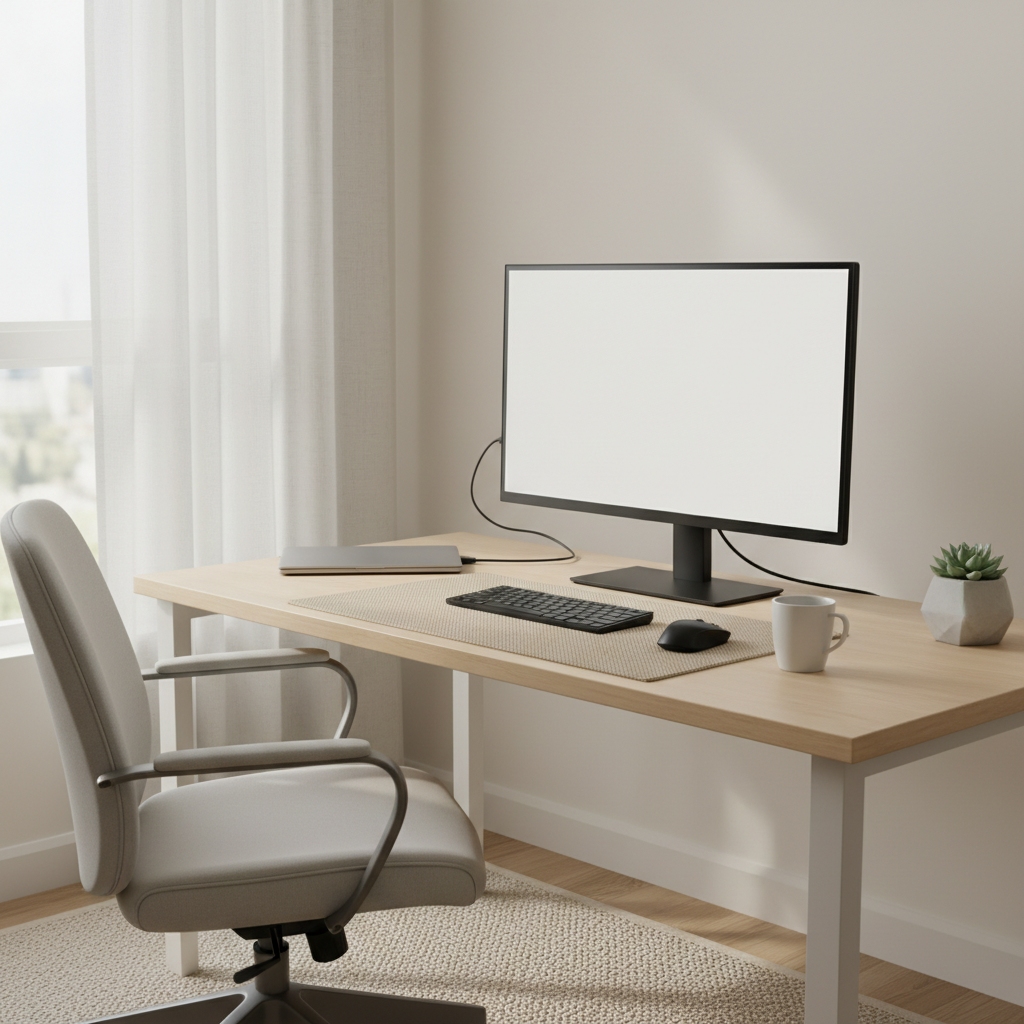
What “budget” really means for a home office monitor in 2026
Budget does not automatically mean “cheap panel and hope for the best.” In many cases, it means paying for what impacts daily comfort and skipping what does not. For most home office users, the sweet spot is a monitor with solid text clarity, decent brightness, and a stand that does not force awkward posture.
- Value baseline: 24–27 inches, 1080p (at 24) or 1440p (at 27), IPS-type panel, and at least HDMI.
- Nice-to-have: USB-C with charging, height-adjustable stand, built-in USB hub.
- Often overpriced for office work: very high refresh rates, aggressive HDR claims, “gaming” branding if you only read and write all day.
According to ENERGY STAR... choosing an efficient display and using built-in power management features can help reduce energy use in office equipment. That matters a bit more if your monitor runs all day, every day.
Quick self-check: which monitor profile fits your work?
Before comparing models, get honest about what you do on screen. The “best budget monitors for home office” list changes a lot depending on whether you stare at spreadsheets, design mockups, or switch between video calls and docs.
Pick the closest match
- Mostly text (email, docs, spreadsheets): prioritize 27-inch 1440p or 24-inch 1080p with strong anti-glare and comfortable brightness control.
- Lots of video calls: prioritize a stable stand, good viewing angles, and ports that simplify your laptop connection.
- Light photo/content work: IPS panel, decent color coveRAGe, and a simple calibration option can matter more than size.
- Small desk: 24-inch often beats 27-inch if you sit close, your neck will thank you.
Desk and laptop reality check
- Do you need USB-C to avoid dongles, or is HDMI fine?
- Will you mount the monitor? If yes, confirm VESA support (usually 75x75 or 100x100).
- Do you work near a window? If yes, prioritize matte anti-glare and higher brightness over thin bezels.
Specs that actually matter (and what to ignore)
Specs pages can feel like a trap. A few numbers matter for home office comfort, while others mostly drive marketing.
What to prioritize for daily comfort
- Resolution and size pairing: 24-inch at 1080p is usually crisp enough; 27-inch often looks better at 1440p for text-heavy work.
- Panel type: IPS (or “IPS-level”) typically provides better viewing angles, which helps on calls and shared screens.
- Brightness and coating: a matte panel plus adequate brightness can reduce glare frustration in bright rooms.
- Stand ergonomics: height and tilt adjustments matter more than people expect, especially if you work long hours.
What to treat with skepticism
- HDR claims on budget monitors: many are limited, the real-world effect can be modest.
- Ultra-high refresh rates: nice for gaming, but most office apps do not benefit much.
- “Eye care” badges: useful features exist (flicker-free, low blue light), but branding alone is not a guarantee.
According to American Academy of Ophthalmology... the 20-20-20 rule is a common suggestion to reduce digital eye strain: every 20 minutes, look at something 20 feet away for 20 seconds. A better monitor helps, but breaks still matter.
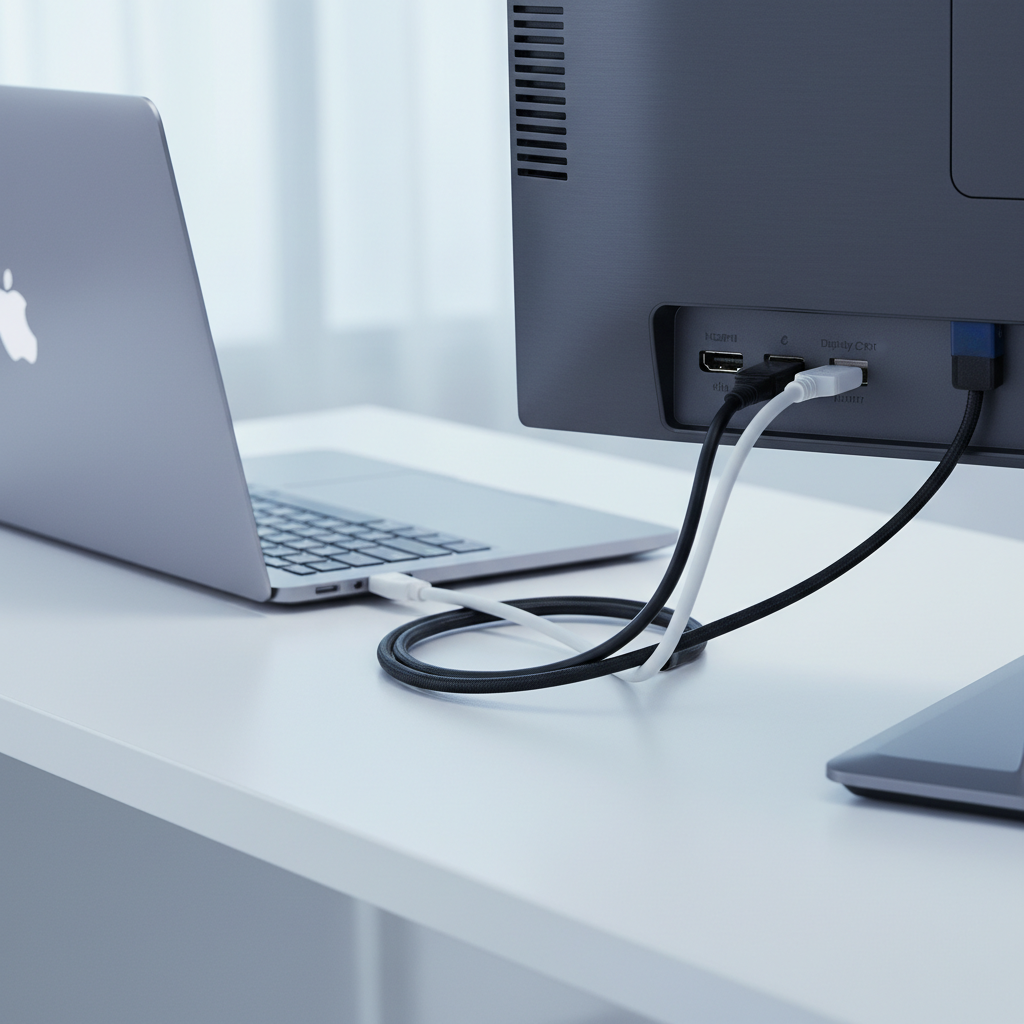
Recommended types of budget monitors (by scenario)
Instead of pretending there is one “winner,” here are the categories that usually deliver the best experience for the money. When people search best budget monitors for home office, they often mean one of these scenarios.
1) The “sharp text” 27-inch 1440p workhorse
Great if you live in spreadsheets, write all day, or keep two documents side-by-side. 1440p at 27 inches tends to look cleaner than 1080p at the same size.
- Look for: IPS, 1440p, 60–75Hz, matte coating, height adjustment if possible
- Avoid: very low brightness if your room is bright
2) The compact 24-inch 1080p value pick
Best for smaller desks and closer viewing distance. Also often the lowest-risk option if you just need something reliable.
- Look for: solid stand, thin-ish bezels, good warranty terms
- Nice-to-have: built-in speakers for basic call audio, though external audio is usually better
3) The one-cable USB-C monitor (budget-friendly, not always cheap)
If you dock a laptop daily, USB-C can reduce cable clutter. The tradeoff is price, and sometimes corners get cut elsewhere, like stand quality.
- Look for: USB-C with power delivery that matches your laptop needs, plus at least one extra video input
- Check: whether USB-C supports video on your laptop, some devices limit this
4) The ultrawide “two windows without two monitors” option
Ultrawide can be excellent for workflow, but budget ultrawides vary a lot in panel quality. If you go this route, treat reviews and return policies as part of the purchase.
- Look for: decent pixel density, stable stand, and enough desk depth
- Watch out for: VA smearing in some models if you scroll text quickly, results vary by panel
Comparison table: choose faster, regret less
This table is meant to help you decide what to buy, not to overwhelm you. Think of it as a filter for narrowing down the “best budget monitors for home office” options before you start brand shopping.
| Use case | Best size/res | Panel | Must-have ports | Top priority |
|---|---|---|---|---|
| Docs + spreadsheets | 27" / 1440p | IPS | HDMI or DP | Text clarity + ergonomics |
| Small desk | 24" / 1080p | IPS | HDMI | Comfortable viewing distance |
| Laptop one-cable setup | 27" / 1440p | IPS | USB-C + HDMI | Cable simplicity + charging |
| Side-by-side windows | 34" / 1440p ultrawide | IPS or VA | HDMI/DP | Workspace width |
Practical buying checklist (do this before you hit “Add to cart”)
This is the part that saves returns. Even within “budget,” small details can make a monitor feel frustrating fast.
- Confirm your cables: many monitors ship with HDMI, fewer include DisplayPort or USB-C cables.
- Check stand range: if height adjustment is missing, plan for a riser or monitor arm.
- Read the port list carefully: some “USB-C monitors” only offer data, not video input.
- Look up warranty terms: dead pixel policies and return windows vary by retailer and brand.
- Plan your layout: measure desk depth, a 27-inch on a shallow desk can feel too close.
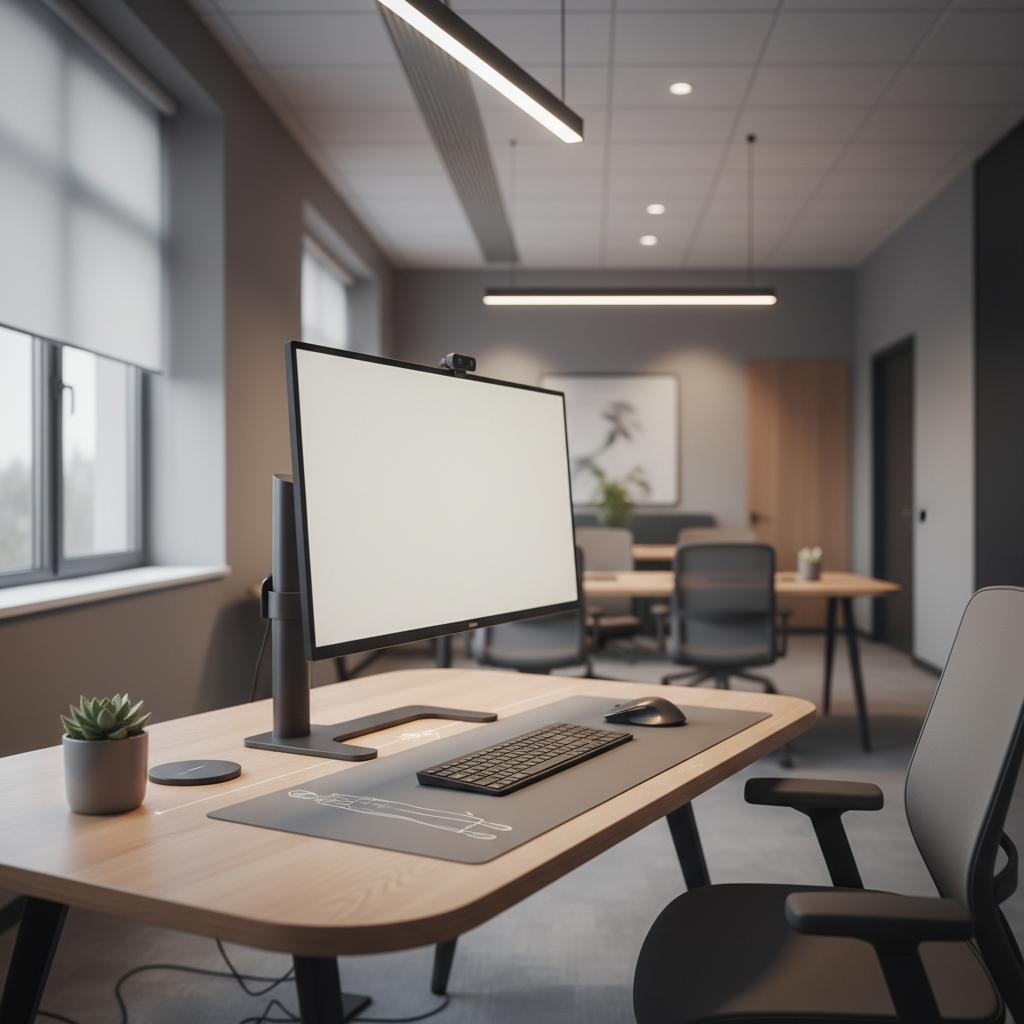
Setup tips that make a budget monitor feel more premium
Even the best value display can feel “off” if it is set up poorly. These tweaks are low effort and usually high impact.
Dial in comfort first
- Height: top of the screen near eye level, then fine-tune based on glasses or bifocals if you wear them.
- Distance: roughly an arm’s length is a common starting point, adjust based on text size.
- Brightness: match the room, avoid running at max brightness all day if it feels harsh.
Make text look better (especially on Windows)
- Set native resolution and recommended scaling.
- Enable built-in text smoothing options if available.
- If your screen looks “grainy,” check if sharpness is over-cranked in the monitor menu.
If you get headaches or eye strain
Eye strain can have many causes, screen time is just one of them. Try breaks, lighting changes, and larger text; if symptoms persist or feel severe, consider asking an eye care professional for guidance.
Key takeaways + conclusion
Key takeaways
- Match resolution to size: 24"/1080p and 27"/1440p are the most reliable value pairings.
- Ergonomics beats hype: a good stand and matte screen often matter more than HDR labels.
- Ports decide daily friction: USB-C can simplify everything, but only if your laptop supports video over USB-C.
If you want the simplest path to the best budget monitors for home office in 2026, start with your desk size and your laptop ports, then choose the sharpest text you can afford in that footprint. You will feel the difference on day three, not day one.
Action step: pick your category from the table, then shortlist 3 models that match the must-have specs, and only then compare price and warranty.
FAQ
What size monitor is best for a small home office desk?
For many small desks, a 24-inch monitor stays comfortable at closer distance. If you go 27-inch, extra desk depth helps so you do not feel like you are “front row” all day.
Is 1080p okay for office work in 2026?
Yes, especially at 24 inches where text usually looks clean. At 27 inches, 1080p can look softer for spreadsheets and long reading sessions, so 1440p often feels easier on the eyes.
Do I need USB-C for a home office monitor?
Not always. USB-C is great if you plug in a laptop daily and want one cable for video plus charging, but HDMI still works well if you do not mind an extra charger.
Are curved monitors good for productivity?
They can be, mostly on ultrawides where a gentle curve keeps edges within your view. For standard 24–27 inch screens, curve is more preference than necessity.
What features reduce eye strain the most?
Matte coating, comfortable brightness control, and good text clarity tend to help more than flashy “eye care” labels. Breaks and room lighting matter too, and persistent discomfort is worth discussing with a professional.
Should I buy a gaming monitor for my home office?
Sometimes it makes sense if the price is similar and you also game, but office-only buyers often pay extra for refresh rate instead of stand ergonomics or higher resolution.
How do I avoid buying a “bad” budget monitor?
Focus on the basics: IPS-type panel, solid return policy, and the right resolution for the size. If possible, prioritize models with height adjustment or budget for a simple monitor arm.
If you are comparing a few models and want a more confident pick, it often helps to list your laptop model, desk measurements, and whether you need USB-C charging, then build a short shortlist around those constraints instead of chasing the cheapest sticker price.