
how to fix usb device not recognized windows usually comes down to one of three things: a flaky port or cable, a Windows driver that got stuck, or a power/firmware issue that only shows up on certain USB devices.
If you use USB for stoRAGe drives, phones, printers, dongles, or audio interfaces, this error is more than annoying, it can block work, interrupt backups, or make a “perfectly fine” device look dead. The good news is most fixes are reversible and don’t require reinstalling Windows.
I’ll walk you through quick checks first (the ones that solve a surprising number of cases), then deeper Windows fixes, and finally when it’s time to suspect hardware, firmware, or a device-specific problem.
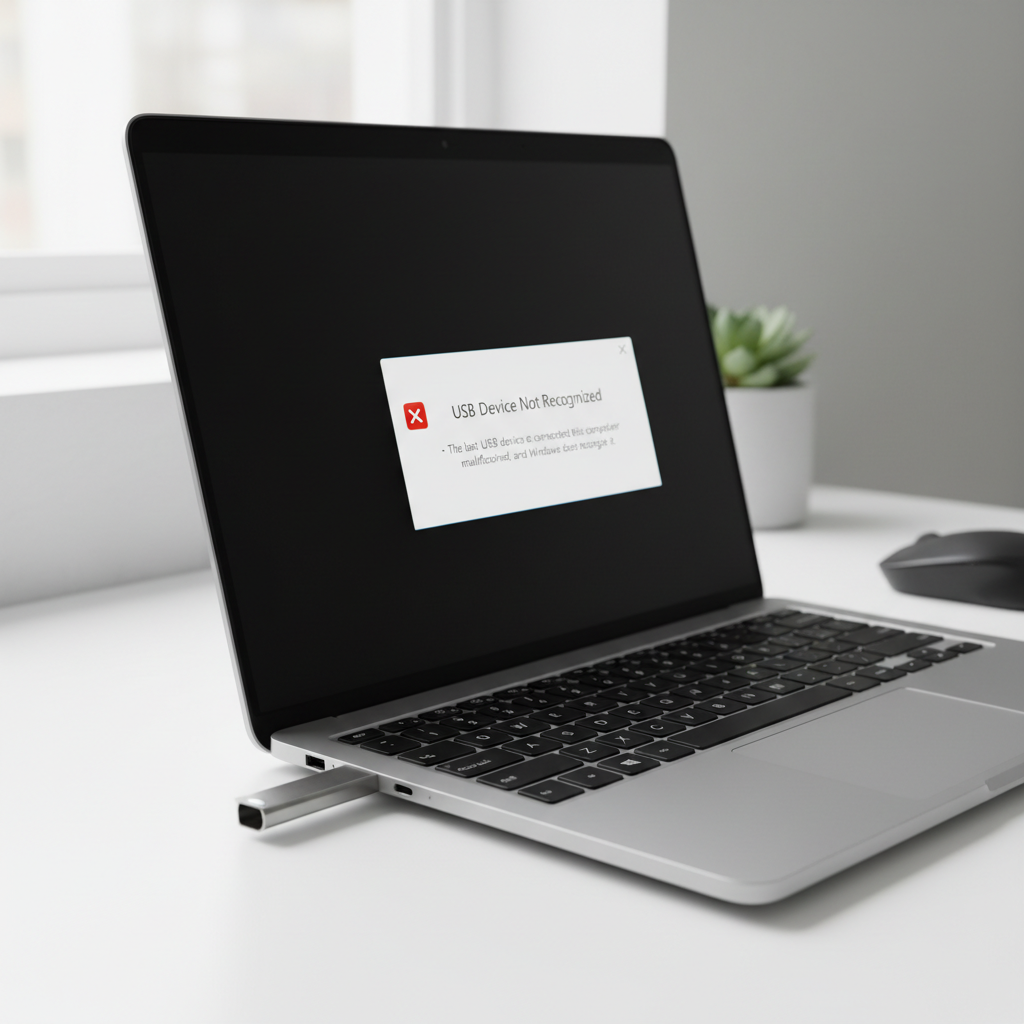
Start with quick physical checks (fast wins)
Before you touch drivers, treat this like a signal problem. USB is picky, and the simplest explanation often holds.
- Try a different USB port, ideally a port on the other side of the laptop, or a rear port on a desktop (often more stable than front-panel ports).
- Swap the cable (for phones/external drives). Many “charging” cables don’t carry data reliably, and worn cables fail intermittently.
- Remove hubs/docks and plug the device directly into the PC. If it works direct, the hub, dock, or its power supply becomes the prime suspect.
- Test on another computer. If the device fails everywhere, you likely have a device issue, not Windows.
For external hard drives or high-power devices, also try a powered USB hub or the device’s own power adapter if it has one. Power starvation is a common “it worked yesterday” scenario.
Use this 2-minute checklist to identify your case
Different symptoms point to different fixes. This quick map saves time and helps you avoid random trial-and-error.
| What you see | Most likely cause | Where to start |
|---|---|---|
| Device works on another PC, not yours | Windows driver/power setting issue | Device Manager + USB power reset |
| Only fails through a hub/dock | Hub power/compatibility | Direct connection, powered hub, different port |
| External drive spins/clicks, disconnects | Power draw or cable/enclosure | Different cable/port, powered setup |
| Phone charges but won’t show files | Data cable, USB mode, driver | New cable, phone USB mode, MTP driver |
| “Unknown USB Device (Device Descriptor Request Failed)” | USB controller/driver glitch | Uninstall device + power cycle |
| Nothing happens at all | Dead port/device or severe power issue | Different port/PC, BIOS/UEFI check |
Power-cycle Windows the right way (it’s not just “restart”)
When Windows holds onto a bad USB state, a normal restart sometimes doesn’t fully clear it, especially with Fast Startup enabled on many PCs.
Do this once before deeper steps:
- Unplug the USB device.
- Shut down the PC (not restart).
- For desktops: flip the PSU switch off (if present) and unplug power for 30 seconds. For laptops: unplug charger; if your model supports it, hold the power button for ~10 seconds.
- Power back on, then plug the device into a different port.
If that fixes it, you were likely dealing with a stuck USB controller state. If not, move on to drivers.
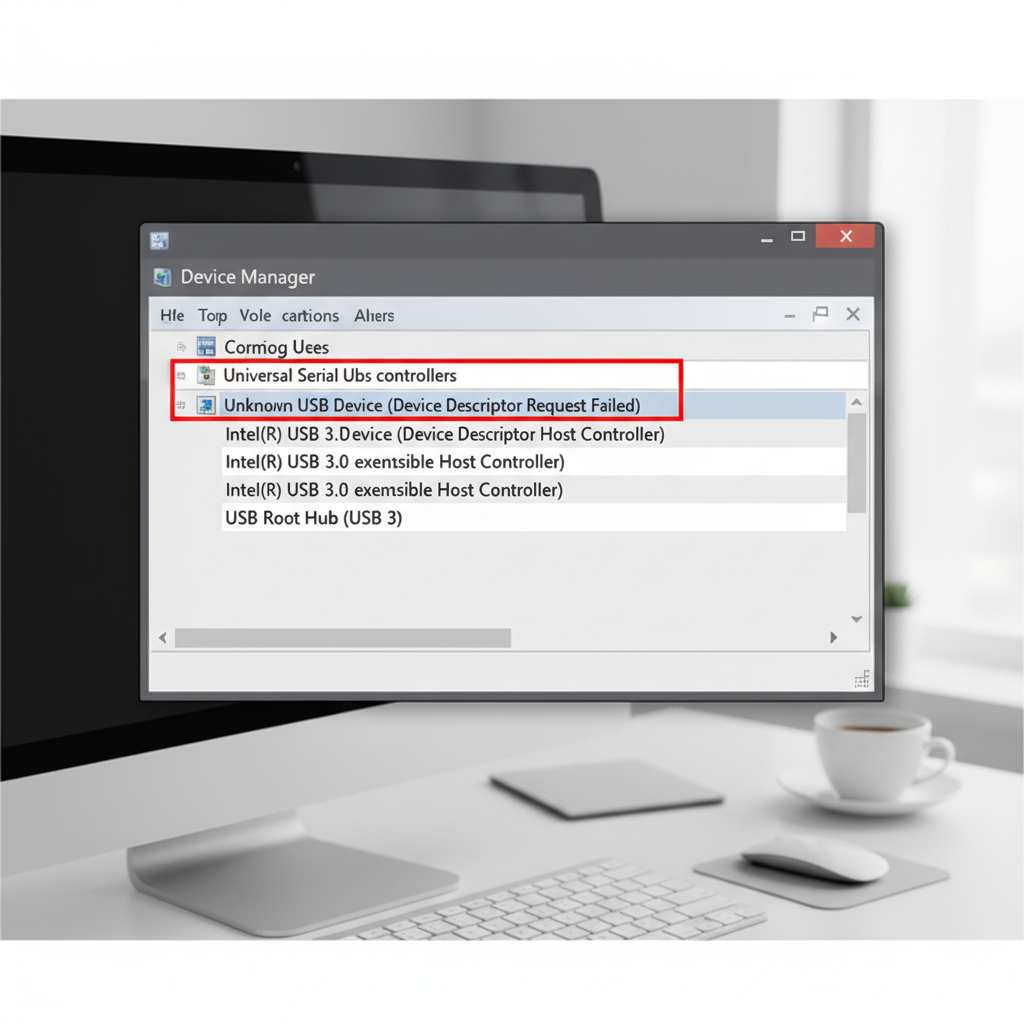
Fix USB drivers in Device Manager (safe, reversible)
If you’re searching how to fix usb device not recognized windows, this is usually the turning point. You’re not “deleting drivers forever”, Windows will reinstall what it needs after a reconnect.
Step 1: Find the problem entry
- Right-click Start → Device Manager.
- Expand Universal Serial Bus controllers.
- Look for Unknown USB Device, Device Descriptor Request Failed, or anything with a warning icon.
Step 2: Uninstall the offending device, then reconnect
- Right-click the suspicious entry → Uninstall device.
- Unplug the USB device, wait 10 seconds, plug it back in.
Step 3: Also reset USB controllers (when the problem feels “system-wide”)
If multiple devices fail or ports behave inconsistently, uninstalling the USB controller entries can help.
- In the same section, right-click each USB Root Hub and USB Host Controller entry → Uninstall device.
- Restart Windows, then test again.
According to Microsoft Support, Device Manager is the standard place to update or reinstall device drivers when hardware isn’t recognized.
Disable USB power saving that silently breaks connections
Windows power management can put ports to sleep, and some devices don’t wake up cleanly. This shows up a lot with external drives, audio gear, and older peripherals.
Turn off USB selective suspend
- Open Control Panel → Power Options.
- Next to your plan, click Change plan settings → Change advanced power settings.
- Expand USB settings → USB selective suspend setting → set to Disabled (on battery and plugged in, if available).
Disable “Allow the computer to turn off this device” (per hub)
- Device Manager → Universal Serial Bus controllers.
- Double-click USB Root Hub entries → Power Management.
- Uncheck Allow the computer to turn off this device to save power.
According to Microsoft documentation, USB selective suspend exists to reduce power draw, but it can cause compatibility issues with certain devices and drivers.
Update Windows, chipset/USB drivers, and (carefully) BIOS/UEFI
When the same device works on another PC, your system software stack becomes the likely culprit. This is especially true after major Windows updates or if you’re on older chipset drivers.
- Windows Update: Settings → Windows Update → install pending updates, then reboot.
- Chipset/USB drivers: get them from your PC or motherboard manufacturer (Dell/HP/Lenovo/ASUS/MSI, etc.). Windows drivers often work, but vendor packages can fix edge cases.
- BIOS/UEFI update: consider only if USB issues persist across ports and devices. Follow the vendor guide closely; if you’re not comfortable, a repair shop can handle it.
According to NIST guidance on system maintenance and security hygiene, keeping operating systems and firmware patched is a common control to reduce stability and security risks, but firmware updates should be approached carefully because failures can be disruptive.
Device-specific fixes (phones, external drives, printers)
This is where many people get stuck: the USB port is fine, Windows is fine, but that particular device needs a specific mode or driver.
Phones: charges but no file access
- Unlock the phone and set USB mode to File Transfer (MTP) when prompted.
- Try another data-rated cable.
- In Device Manager, look under Portable Devices or Other devices, then update/reinstall the MTP driver if it shows a warning.
External drives: recognized sometimes, then drops
- Use a shorter cable and avoid front ports and unpowered hubs.
- If it’s a 2.5-inch HDD, try a powered hub or a Y-cable if the enclosure supports it.
- Open Disk Management to see if the drive appears without a letter; assign a drive letter if needed.
Printers and specialized peripherals
- Install the manufacturer driver package, not just a generic one.
- Remove and re-add the device in Settings → Bluetooth & devices (or Printers & scanners).
- Try a different USB port type (USB 2.0 vs 3.0) if your PC has both; compatibility issues still happen.
Common mistakes that waste time (and what to do instead)
- Keeping it plugged in while changing settings: unplug first, apply changes, then reconnect so Windows re-enumerates the device.
- Assuming “USB-C” means compatible: USB-C is a connector, not a promise. Some ports are data-only, some support Thunderbolt, some have limited power.
- Updating random drivers from third-party sites: stick to Windows Update or the hardware manufacturer to reduce risk.
- Ignoring the hub/dock power brick: if the dock power supply is failing, USB instability can be the first symptom.
Key takeaway: if direct connection works but hub connection fails, the fix is usually the hub, cable, or its power, not Windows.
When to seek professional help (or stop before data loss)
If the device is a storage drive that contains important data and it makes clicking noises, smells hot, or disconnects repeatedly, avoid repeated plug/unplug cycles and consider a reputable data recovery or repair professional. Continuing to “test” can make recovery harder in some cases.
If multiple USB ports fail across different devices even after driver resets and updates, a technician can check for motherboard damage, port solder issues, or power delivery problems.
Practical wrap-up: a simple order that usually works
Most people don’t need every step. If you want a clean path, do it in this order: direct connection with a known-good cable, full shutdown power-cycle, Device Manager uninstall for the unknown device, then USB power setting tweaks. If the problem still persists, updates and device-specific drivers are where the real fixes tend to live.
If you’re still searching how to fix usb device not recognized windows after trying the checklist, write down what you tested (ports, cable, other PC, Device Manager message). That short log makes the next step faster, whether you continue troubleshooting or hand it to a pro.
FAQ
Why does Windows say “USB device not recognized” even though it worked before?
Often it’s a driver state glitch after sleep/hibernation, a marginal cable that finally fails, or a power management setting that put the port to sleep. A full shutdown power-cycle plus reinstalling the device entry in Device Manager fixes many of these.
How do I fix “Unknown USB Device (Device Descriptor Request Failed)” on Windows?
This message usually points to a communication failure during USB enumeration. Try a different port/cable first, then uninstall the “Unknown USB Device” entry in Device Manager and reconnect. If it only happens through a hub, suspect the hub or its power.
My USB flash drive isn’t recognized. Can I recover files?
Maybe. First, test on another PC and check Disk Management. If it appears but asks to format, pause if the data matters and consider a data recovery workflow. If the drive never appears anywhere, it may be failing physically.
Will uninstalling USB drivers in Device Manager break my computer?
In many cases it’s safe because Windows reinstalls the controllers on reboot. Still, do it with a mouse/touchpad available, and avoid uninstalling anything you’re unsure about outside the USB controller section.
Why does my phone charge but not show up for file transfer on Windows?
Charging doesn’t guarantee data. Many cables are charge-only, and phones often default to “charging” mode until you switch to MTP/file transfer while unlocked. A better cable and the correct USB mode typically solve it.
Does USB selective suspend really cause disconnects?
It can, especially with older devices, certain hubs, or external drives that don’t handle sleep/wake cleanly. Disabling selective suspend is a reasonable test if the error happens after sleep or after a few minutes of idle time.
Should I update BIOS/UEFI to fix USB issues?
Sometimes it helps, but it’s not the first move. Try ports/cables, power-cycle, Device Manager resets, and chipset drivers first. If you do update firmware, follow the manufacturer guide carefully or ask a professional if you’re unsure.