
top free online form builders for free is a phrase people search when they want a simple way to collect RSVPs, run a quick poll, or take requests without paying or learning a full CRM.
But “free” can mean a lot of things, sometimes it’s unlimited forms but tight response caps, sometimes it’s generous responses but branding you can’t remove, and sometimes the real limit is integrations or file uploads. If you pick the wrong tool, you’ll feel it the moment responses stop coming in.

This guide focuses on personal use in the U.S., things like volunteer signups, club registrations, family event RSVPs, tutoring intake forms, or collecting short feedback. I’ll keep it practical: what each free plan is usually good for, what catches people off guard, and how to choose fast.
What “free” really means for online form builders
Most free online form builders include the basics: dRAG-and-drop fields, shareable links, and a dashboard for responses. The trade-offs show up in the details.
- Response limits: many free plans cap monthly responses, total submissions, or entries per form.
- Branding: “Powered by…” badges are common, fine for personal projects, awkward for some community orgs.
- File uploads: the moment you need someone to attach a document, free plans often get restrictive.
- Automation and integrations: connecting to Google Sheets, Zapier, or email tools may be limited.
- Data controls: exports, retention, and permissions can be basic, which matters if you handle sensitive info.
According to Federal Trade Commission (FTC) guidance on data security, collecting only what you need and protecting it appropriately matters even for small projects, so “free” should not push you into sloppy data habits.
Quick comparison: top free tools people use for personal forms
If you want a short list, these are the names that come up most often for personal and lightweight community needs. Features and limits can change, so treat this as a starting point and double-check the current free-plan page before committing.
| Tool | Best for | Common free-plan strengths | Typical watch-outs |
|---|---|---|---|
| Google Forms | Simple sign-ups, surveys | Fast setup, easy sharing, Sheets-friendly | Design flexibility is limited, advanced logic is basic |
| Microsoft Forms | Microsoft 365 users | Clean UX, works well in Microsoft ecosystem | Best experience tied to Microsoft accounts |
| Jotform | More templates, richer forms | Many templates, widgets, nice form UX | Free tier often has response/storage limits, branding |
| Typeform | Conversational, one-question-at-a-time | Great completion feel, polished UI | Free plan is often tight on responses/features |
| SurveyMonkey | Classic surveys | Survey-focused reporting and question types | Free plan may limit exports or advanced analysis |
| Airtable Forms | Forms that feed a lightweight database | Great for tracking, views, simple workflows | Form design is functional, not “pretty” by default |

Key takeaway: if your top priority is “no surprises,” Google Forms and Microsoft Forms are usually the least fussy; if you care about aesthetics and templates, tools like Typeform or Jotform often feel better, but their free tiers can be tighter.
Which builder fits your personal use case (a quick decision guide)
People waste time comparing feature lists when the real decision is about your scenario. Pick the closest match.
If you need something fast and boring (in a good way)
- Choose Google Forms if your contacts already use Gmail, or you want instant spreadsheet logging.
- Choose Microsoft Forms if your group lives in Outlook/Teams and you want everything in one place.
These are great when your form is basically “name, email, two questions, done.”
If you care about design and completion rates
- Typeform is popular for a “conversation” feel, especially on mobile.
- Jotform is usually easier when you want a more traditional form but still want it to look polished.
That said, personal projects can outgrow free limits quickly, so keep an eye on response caps.
If you want your form to become an organizer or tracker
- Airtable Forms works well when submissions need to become tasks, rows, or a mini database.
This is the “I’m not just collecting info, I’m managing it” option.
Self-check checklist before you build anything
Run through this list and you’ll avoid 80% of the regret that shows up later.
- How many responses might you get? If it could be hundreds, check caps first.
- Do you need file uploads? If yes, verify storage and allowed file types on the free plan.
- Do you need logic? Branching, skip logic, conditional questions, this varies a lot by tool.
- Do you need an export? CSV/Excel export can be limited on some free tiers.
- Are you collecting sensitive info? For health, legal, financial, or kids’ data, be conservative and collect less.
- Who needs access? Sharing admin access can be clunky unless you’re in the same ecosystem.
According to National Institute of Standards and Technology (NIST) guidance on privacy risk, data minimization is a solid default, so even a personal form should not ask for “just in case” details.
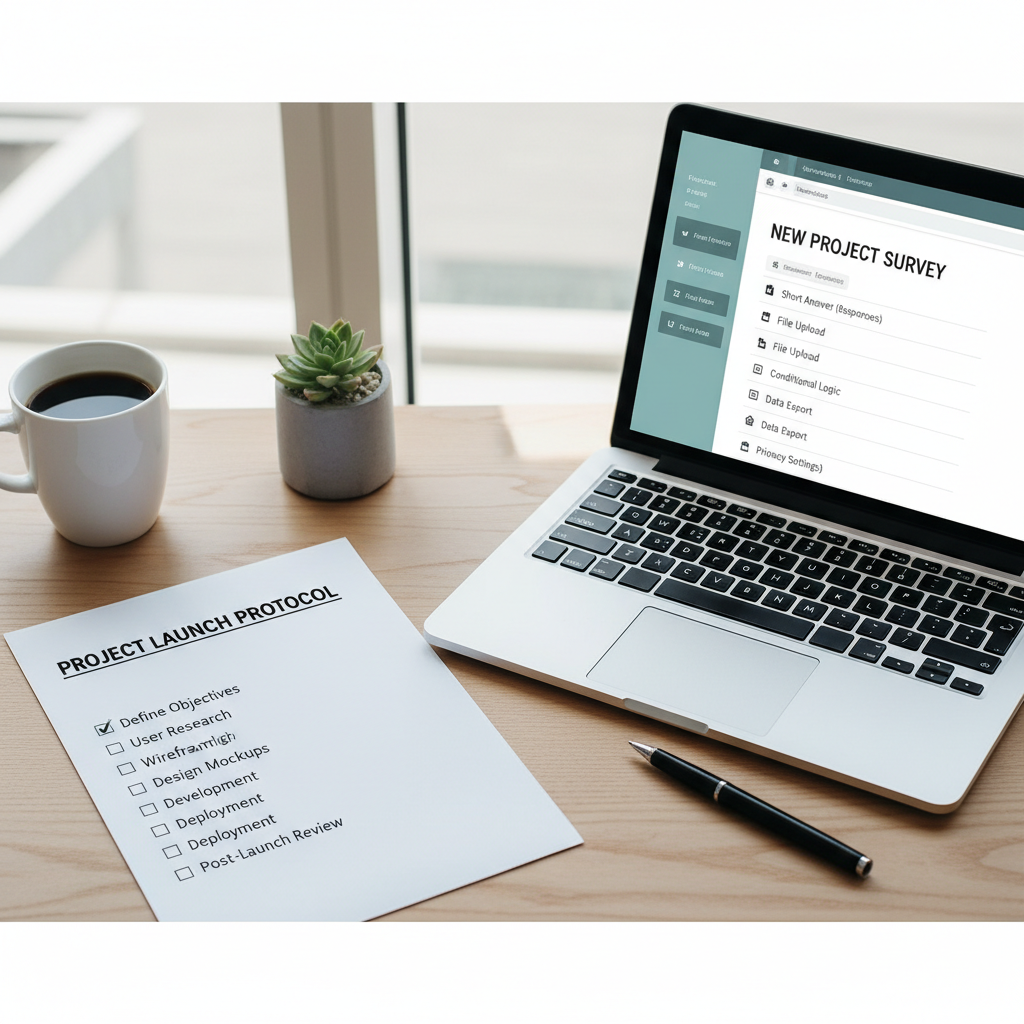
Small but real tip: if you’re posting the form link publicly, assume it will be shared wider than you expect, that changes how you think about spam and question wording.
Practical setup steps (works for most free form tools)
You can build a form in 10 minutes, then spend two days cleaning messy responses. A little structure up front pays off.
1) Write the form like you’re the respondent
- Keep the first screen short, ask for the minimum needed to “route” the request.
- Use examples in placeholder text, especially for phone formats or preferred time windows.
- Make optional fields truly optional, and label them clearly.
2) Set up response handling before sharing
- Create a confirmation message that tells people what happens next.
- Turn on email notifications if the tool supports it, otherwise set a calendar reminder to check responses.
- If you plan to export, do one test export now, not after 200 entries.
3) Add lightweight spam protection
- If the tool supports CAPTCHA or bot checks, enable it for public links.
- Avoid making every field “short answer” if a dropdown would work, structured fields reduce junk.
- Consider limiting to one response per account only when your audience can handle sign-in.
4) Do a real test pass
- Submit from your phone on cellular, not just your laptop on Wi‑Fi.
- Ask one friend to fill it out without instructions, then watch where they hesitate.
This is where top free online form builders for free start to feel different, some have tiny friction points on mobile that you only notice when you test like a normal person.
Common mistakes that make “free” form builders frustrating
- Over-collecting: long forms get abandoned, and you still end up missing the key info.
- No naming system: “Untitled form (3)” becomes chaos when you run multiple projects.
- Forgetting time zones: personal scheduling forms often need a clear time zone note for U.S. audiences too.
- Mixing multiple purposes: an RSVP form and a meal preference survey in one long flow often backfires.
- Assuming exports are clean: multi-select answers may export in ways that take extra cleanup.
Also, free plans can change. If you’re building something you’ll reuse for years, take a screenshot of the plan limits you relied on, it saves arguments later.
When it’s worth upgrading or getting help
Staying free is fine for a lot of personal uses, but a few signals suggest you may want a paid plan or advice from someone who handles privacy and tooling.
- You’re collecting sensitive personal data or anything that could cause harm if exposed.
- You need automations like routing submissions to different emails, approvals, or multi-step workflows.
- You’re hitting response caps often enough that it risks missed signups.
- You need branding control for a club, fundraiser, or community organization that looks “official.”
According to U.S. Small Business Administration (SBA) resources on cybersecurity, even small organizations benefit from basic security hygiene. If your “personal project” starts looking like a small operation, it may be time to treat it that way, and if you’re unsure, consider consulting a qualified IT or privacy professional.
Conclusion: pick the simplest tool that won’t break at your scale
If you only remember one thing, remember this: choose the form builder that matches your expected volume and how you plan to manage responses. Pretty forms are nice, but a clean workflow beats aesthetics when you’re busy.
If you want an easy next step, pick one tool from the table, build a 6-question draft, run a phone test, then share it with a small group first. If it survives that, you’re ready to post it publicly.
FAQ
What are the top free online form builders for free personal projects?
For many people, Google Forms and Microsoft Forms cover the basics with minimal friction. If you want more design control, Jotform or Typeform can be appealing, just confirm current free-plan limits before you commit.
Which free form builder is best for RSVPs and simple event signups?
Google Forms is a common choice because it’s quick to create and easy to share, and responses can flow into Google Sheets. If your invite list lives in Microsoft tools, Microsoft Forms can feel smoother.
Can I accept file uploads on a free plan?
Sometimes, but it varies a lot. Many tools restrict file uploads on free tiers, or cap storage aggressively. If you truly need uploads, verify file size limits and where files are stored before you send the link.
How do I stop spam submissions on free online forms?
Use built-in bot protection if available, prefer dropdowns and multiple choice over open text where possible, and avoid posting a raw form link in places that attract bots. If your audience can sign in, limiting one response per account can help, though it also adds friction.
Is it okay to collect phone numbers and addresses for a personal form?
It can be, but be selective. Only collect what you truly need, explain why you’re asking, and avoid collecting sensitive info unless you have a real reason and a plan to protect it.
What should I do if I hit a response limit on a free plan?
If the form is still active, you can often export responses, then decide whether to upgrade, duplicate the form, or switch tools. The best move depends on how urgent the form is and whether you need continuity in one dataset.
Do I need a dedicated form builder if I already use spreadsheets?
Many people try to “just use a spreadsheet,” then realize they need validation, consistent formatting, and a nicer intake experience. A basic form layer usually reduces cleanup, even if the backend is still a spreadsheet.
Key points to remember
- Pick based on your scenario, not just feature lists.
- Check limits early, especially responses, exports, and file uploads.
- Test on mobile before sharing widely.
- Collect less data when you don’t have a strong reason to collect more.
If you’re building a personal signup or request flow and you’d rather not guess which free plan will hold up, it can help to map your use case to a tool shortlist, then set up a clean template you can reuse without rethinking everything each time.