
Best usb c to hdmi adapters are the difference between a clean 4K display and that frustrating mix of flicker, no signal, and “why is this so blurry?” moments.
If you’re shopping in 2026, the tricky part is that a USB-C port can mean several things, and adapters often hide the important details in small print. Some work perfectly for a MacBook but fail on an iPad, some claim 4K but choke at 60Hz, and some get hot enough that you start questioning the whole setup.
This guide narrows the choices using the stuff that matters in real life: what your device’s USB-C port can output, what your TV/monitor expects, and which adapter features actually prevent headaches. You’ll get a quick checklist, a comparison table, and a short “buy this if…” set of recommendations.

Quick reality check: what USB-C can (and can’t) do
USB-C is a connector shape, not a promise. For HDMI output, your device usually needs DisplayPort Alt Mode (video over USB-C). Many laptops have it, many tablets have it, and plenty of budget devices do not.
According to VESA, DisplayPort Alt Mode is a standard that allows DisplayPort video to run over USB-C. That’s why a good adapter can be “just” a converter, but only if your port supports video in the first place.
- If your USB-C port supports video: most adapters work, and the main differences become 4K/60 support, stability, and build quality.
- If your USB-C port does not support video: you’ll need a USB graphics solution (often called “USB to HDMI” with DisplayLink), which is a different category and has performance tradeoffs.
What to look for in the best USB-C to HDMI adapters (2026 buying criteria)
If you want fewer surprises, focus on specs that match your setup rather than chasing the longest feature list.
1) Resolution + refresh rate that matches your display
- 4K at 60Hz is the sweet spot for modern monitors and TVs.
- 1080p at 60Hz is fine for conference rooms and older displays.
- If you see 4K but no refresh rate listed, assume it might be 4K at 30Hz, which feels laggy for mouse movement and spreadsheets.
2) HDMI version and HDR expectations
Most compact adapters are “HDMI 2.0 class” for 4K/60. HDR support varies and can be finicky across TVs, cables, and content apps, so treat HDR claims as “works in many cases,” not a guarantee.
3) Cable quality and strain relief
This sounds boring until it saves you. Short, flexible pigtail-style adapters often last longer than rigid dongles that act like a lever on your USB-C port.
4) Power pass-through (only if you need it)
If you present for hours or run a laptop closed, a hub-style adapter with USB-C PD pass-through can keep you charged. If you just need HDMI, a simple adapter is usually more stable.
Comparison table: common adapter types and who they fit
Instead of pretending there’s one perfect pick, this table helps you match the adapter style to your day-to-day use.
| Adapter type | Best for | Typical strengths | Common tradeoffs |
|---|---|---|---|
| Compact USB-C to HDMI (no extra ports) | Travel, simple setups | Fewer failure points, easy to carry | No charging, no USB ports |
| USB-C multiport hub (HDMI + USB + PD) | Workstations, classrooms | One plug for display + charging + peripherals | More heat, more compatibility variables |
| USB-C to HDMI cable (integrated) | Living room TV hookups | Less clutter, one piece | If the cable fails, you replace the whole thing |
| DisplayLink USB graphics adapter | Devices without DP Alt Mode | Can add HDMI even when USB-C lacks video | Needs drivers, can add latency, not ideal for gaming |
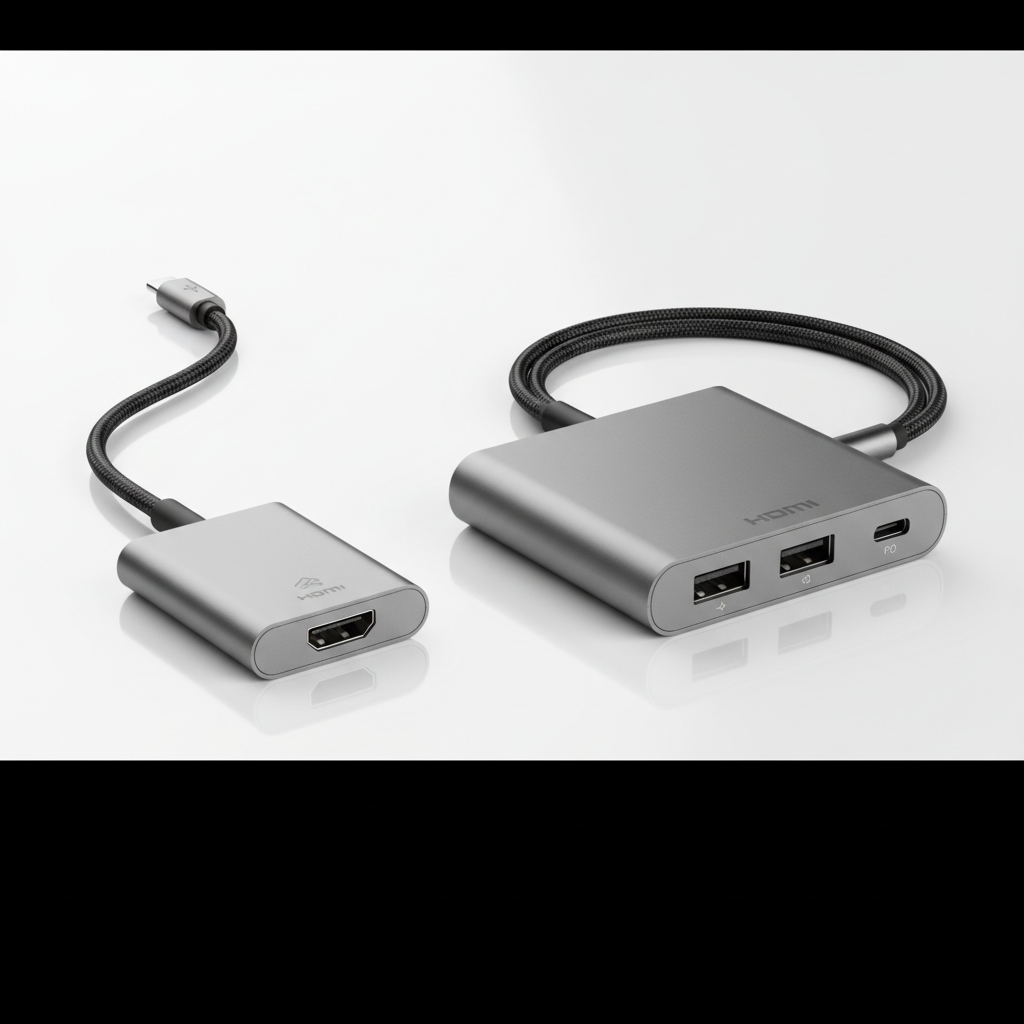
Top picks: best USB-C to HDMI adapters (by scenario, not hype)
These recommendations are scenario-based because “best” changes depending on whether you care about 4K/60, charging, travel durability, or device compatibility.
Best overall for most laptops (4K/60, reliable build)
- Look for: 4K@60Hz, HDCP support, solid strain relief, and a reputable brand with clear specs.
- Why it works: most modern Windows laptops and MacBooks handle DP Alt Mode cleanly, so a quality adapter is usually plug-and-play.
Best for iPad USB-C users who present often
- Look for: a USB-C hub with HDMI + PD pass-through, so you can keep the iPad charged while driving a display.
- Watch for: some hubs behave better than others with iPadOS external display modes, so keep the receipt and test early.
Best for travel and tight laptop ports
- Look for: a short pigtail adapter (flexible cable segment) rather than a rigid block.
- Why it works: less leveRAGe on the USB-C port, fewer “it cuts out when I bump the cable” issues.
Best for conference rooms and mixed gear
- Look for: an adapter/hub that clearly states HDCP and 4K/60, plus durable housing.
- Pro tip: in shared rooms, half the “adapter problems” are actually old HDMI cables or flaky wall plates.
Best when your USB-C port doesn’t support video
- Look for: DisplayLink-based adapters from known vendors, and confirm driver support for your OS version.
- Tradeoff: fine for slides and office work, often not great for gaming or color-critical work.
Self-check: make sure your device can output HDMI over USB-C
Before you buy (or blame the adapter), check these quick tells. Most people find the answer within two minutes.
- Look up your exact model and search “USB-C DisplayPort Alt Mode” or “USB-C video output.”
- Check the port icons: a Thunderbolt symbol (on many laptops) usually implies video support, but it still helps to confirm.
- Try a known-good setup if you can: same adapter, different laptop; same laptop, different display/cable.
- Be cautious with budget phones/tablets: USB-C may be for charging/data only.
According to USB-IF, USB-C is a connector standard with multiple possible capabilities, which is exactly why you can’t assume video output without checking the device specs.
Practical setup steps (so it works the first time)
You can avoid a lot of “no signal” drama by treating this like a chain: device → adapter → HDMI cable → display input.
- Step 1: Plug the adapter into the device directly (avoid USB-C extension cables).
- Step 2: Use a decent HDMI cable, especially for 4K/60. Older cables often trigger flicker or random dropouts.
- Step 3: Select the correct HDMI input on the TV/monitor. Sounds obvious, still the #1 fix in meeting rooms.
- Step 4: On Windows, set display mode (Duplicate/Extend) and confirm refresh rate in display settings.
- Step 5: On macOS, check Displays for resolution/refresh options; if 60Hz doesn’t appear, it’s usually cable/adapter limits.
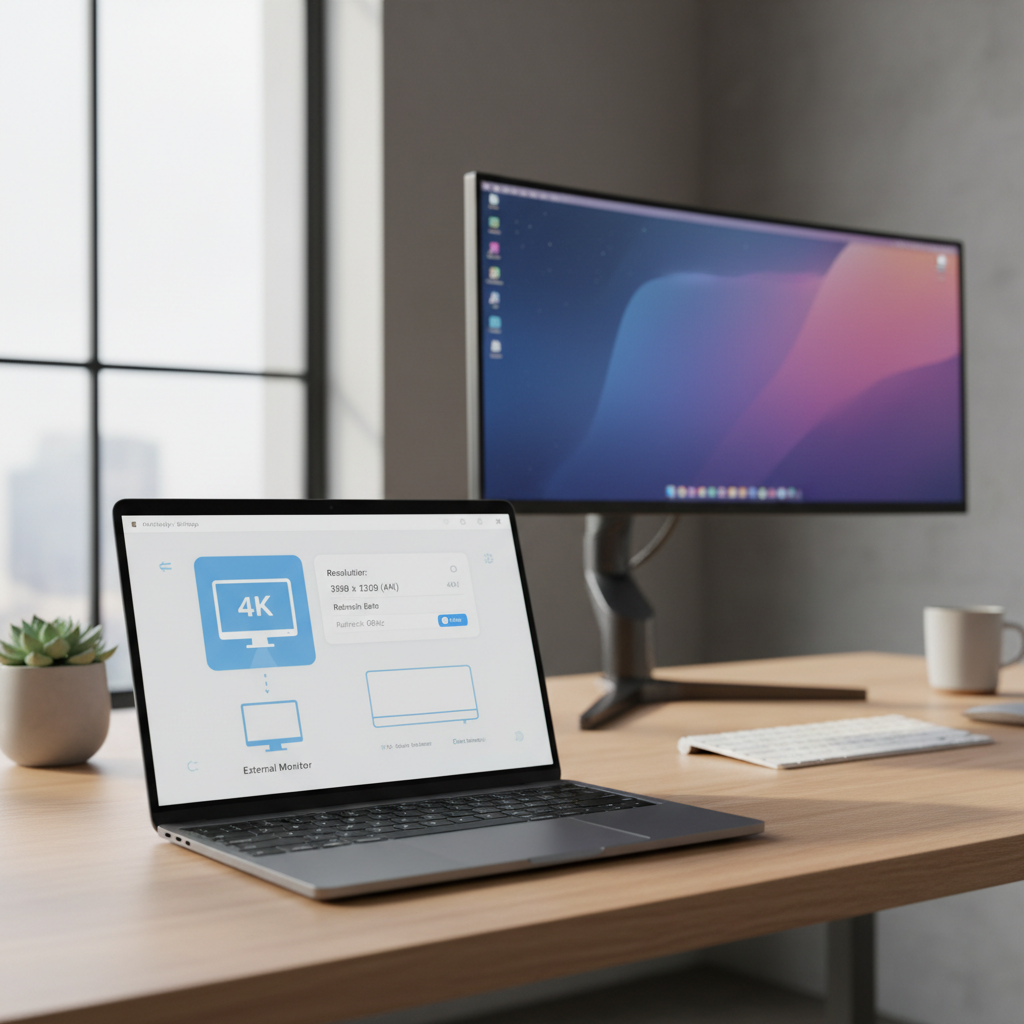
Common issues and fixes (what usually solves it)
Most “bad adapter” complaints end up being one of these patterns.
Black screen / “No signal”
- Confirm the device supports USB-C video output (DP Alt Mode).
- Try a different HDMI cable and a different HDMI port on the display.
- Power-cycle the display, then reconnect the adapter.
4K works but only at 30Hz
- The adapter might be limited to 4K/30, or the HDMI cable might be too old.
- Check the display settings and explicitly pick 60Hz when available.
Flicker, random disconnects, or snow/static
- Swap HDMI cable first, then test a different adapter.
- Avoid stacking adapters (USB-C hub + HDMI converter), which often adds instability.
- If you’re using a hub, connect power delivery; some hubs behave better when powered.
No audio over HDMI
- Select the HDMI display as the audio output device in your OS sound settings.
- Some monitors don’t have speakers; test with a TV or speakers-enabled display.
Key takeaways before you buy
- Confirm DP Alt Mode on your device; without it, you need a DisplayLink-type solution.
- For modern monitors, prioritize 4K at 60Hz and a reputable brand with clear specs.
- If you present for long sessions, a hub with power pass-through often makes life easier.
- When things go wrong, the HDMI cable is the fastest thing to rule out.
Picking from the best usb c to hdmi adapters is mostly about matching your device and display, then buying the simplest hardware that meets your needs without adding extra points of failure.
If you want one action step, do this: check your laptop/tablet model for USB-C video output, then choose either a compact 4K/60 adapter (simple setups) or a powered hub (desk and presentation setups). That alone prevents most returns.
FAQ
- How do I know if my USB-C port supports HDMI output?
Look for “DisplayPort Alt Mode” or Thunderbolt in the device specs. If the manufacturer only lists charging and data, video output might not be supported. - Are USB-C to HDMI adapters plug-and-play on Windows and macOS?
Usually, yes, when your device supports DP Alt Mode. DisplayLink-based adapters often require drivers, which can be fine for office use but adds setup steps. - Why does my adapter say 4K but my monitor only shows 30Hz?
Many adapters support 4K at 30Hz, not 60Hz. In other cases the HDMI cable or monitor input limits the refresh rate, so test with a known 4K/60 cable and port. - Do I need HDMI 2.1 for a USB-C to HDMI adapter?
In many everyday setups, no. 4K/60 typically works with HDMI 2.0-class adapters. HDMI 2.1 matters more for very high refresh rates or next-gen console features, and compatibility varies by device. - Can a USB-C hub reduce video quality compared to a simple adapter?
It can, depending on how the hub allocates bandwidth and how well it’s built. Many hubs work great, but if you see flicker or dropouts, trying a simpler adapter is a practical test. - Will a USB-C to HDMI adapter work with my phone?
Some phones support video out over USB-C, others don’t. This is model-specific, so it’s worth checking the phone’s spec sheet before buying. - Why does Netflix or other streaming show a blank screen on my TV?
That can be an HDCP issue along the chain (adapter, cable, display). Choosing an adapter that clearly supports HDCP and using a direct connection often helps, but some combinations still behave inconsistently.
If you’re trying to avoid trial-and-error, it helps to start from your device model and your display goal (1080p for meetings, 4K/60 for work and home). If you need a more hands-off path, shortlist two options—one compact adapter and one powered hub—then keep the one that stays stable in your actual setup.